

Is your fingerprint not recognized, or has the scanner stopped working after a Windows update? Then, the problem may lie with your fingerprint driver.
When the sensor fails to recognize the fingerprint or displays the message “This option is currently unavailable,” the scanner may stop working after a Windows update. In this case, the fingerprint or biometric driver for Windows 10/11 may be missing, outdated, or corrupted.
The driver is a software that communicates your instructions to the fingerprint scanner. This article guides you through how to download, install, and update the fingerprint scanner driver from the manufacturer’s official website, Device Manager, and Windows update to ensure the scanner works smoothly, along with the solutions to the most common issues you encounter.
Let’s begin with a clear understanding of drivers and why you need one in the first place.
What Is a Fingerprint Driver
Imagine communicating with someone in a foreign land. The way you both need a translator to understand each other, similarly, your operating system and fingerprint scanner require a translator to communicate with each other. The driver is this translator.
The fingerprint driver is a software that translates your instructions into the lower-level language your fingerprint scanner understands, and its response to the machine language your operating system understands. And, you need this driver for more reasons than one.
Why You Need a Fingerprint Driver
Without a driver, your biometric fingerprint scanner is merely a piece of hardware. The driver makes biometrics work for you by bridging the gap between your scanner hardware and your operating system’s security software.
It allows you to log into your device, applications, or websites with a simple touch instead of complex passwords, enhances your security by making it challenging for others to access your data, minimizes identity theft risks, speeds up authentication, and makes Windows Hello and other biometric features work by allowing your operating system to recognize, read, and match your fingerprint.
Hence, let’s proceed towards downloading, installing, and updating the Windows Hello fingerprint scanner driver software for Windows 10/11.

How to Download Fingerprint Driver for Windows 11/10
You can download, install, and update the fingerprint driver for PC through the manufacturer’s official website, a dedicated tool in Windows called Device Manager, or Windows Update. Below are the step-by-step instructions to obtain the required driver for all these methods; you can follow the one you find the most convenient.
Method 1: Download and install the fingerprint scanner driver from the official website of the manufacturer
To download and install the correct fingerprint driver from the manufacturer’s official website, you must know your device’s make and model as well as your operating system.
You can check your fingerprint scanner’s label on the back or bottom of the device, look for the manufacturer’s logo on the top or side of the device, or right-click on the Start button on the taskbar, choose Device Manager from the on-screen options, double-click Biometric devices, right-click on the fingerprint scanner, and navigate to the Details tab, and select Hardware Ids from the Property dropdown to get the vendor ID (VID) and product ID (PID), or “Driver Provider” to find your scanner’s manufacturer and model.
To identify your computer’s operating system, press the Windows+I shortcut, choose System from the Settings menu, and navigate to the About section.
Once you have identified the fingerprint scanner’s manufacturer and model and your PC’s operating system, you can follow the steps below to download and install the fingerprint scanner driver software.
Note: The steps may vary slightly depending on your PC manufacturer, such as Dell, Lenovo, HP, etc. However, they are more or less the same. The following is a general series of steps to download and install the driver for various fingerprint scanners, such as Mantra, Goodix, Synaptics, etc.
- First, navigate to the official website of your device manufacturer.
- Next, go to the support section on the manufacturer’s website.
- Find your device by entering the device model in the search. You can also find the device through its service tag or serial number.
- Once you have found your device, go to the Drivers & Downloads or a similar section.
- Next, choose your operating system if it is not detected automatically.
- In this step, check categories like Security, Biometrics, and Input Devices to find your fingerprint scanner software.
- Next, download the latest driver file for your operating system and save it to your computer.
- Now, double-click the downloaded file and follow the on-screen instructions to install the fingerprint driver for Windows 11/10.
- Restart your computer to let the changes take effect.
- Lastly, after your computer restarts, search for Sign-in Options and set up your fingerprint in Windows Hello Fingerprint.
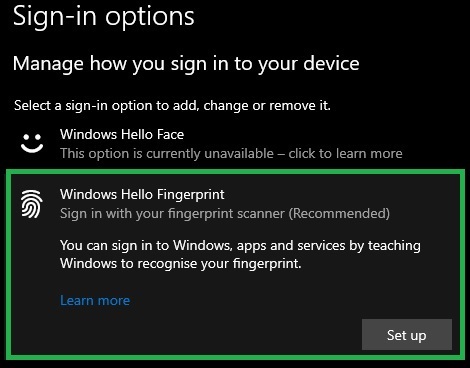
Method 2: Download and update the fingerprint driver using the Device Manager
Device Manager is a device and driver management software built into all Windows computers. It lets you perform various actions, such as driver download, installation, and update, to ensure your computer performs smoothly. Below is how to use this software to download, install, and update the biometric driver for Windows 10/11.
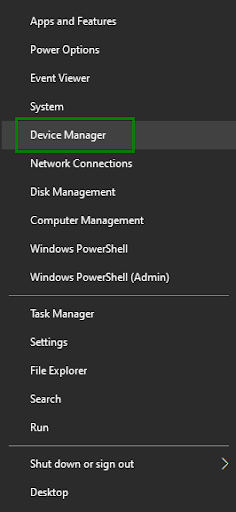
- First, right-click the Start button on the taskbar and choose Device Manager from the on-screen menu.
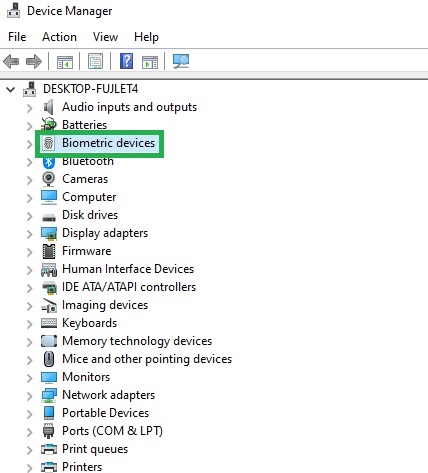
- Once the Device Manager opens, double-click Biometric devices to locate your fingerprint sensor.
- Right-click your fingerprint scanner and choose Update Driver from the on-screen options.
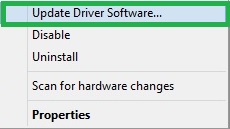
- Click Search automatically for drivers.
- Follow the on-screen instructions to download & install the available driver for your fingerprint scanner.
- Lastly, restart your computer to allow the driver to take effect.
Method 3: Update Windows to download the latest Windows Hello fingerprint driver
Windows Update is another common way to download and install the latest fingerprint reader driver. Moreover, in addition to downloading and installing the missing drivers, Windows updates patch security loopholes and solve common issues with your computer’s performance. Hence, you can follow the steps below to update Windows.
- First, access the search utility using the Windows+S shortcut.
- Next, type check for updates in the search bar and select it from the search results.
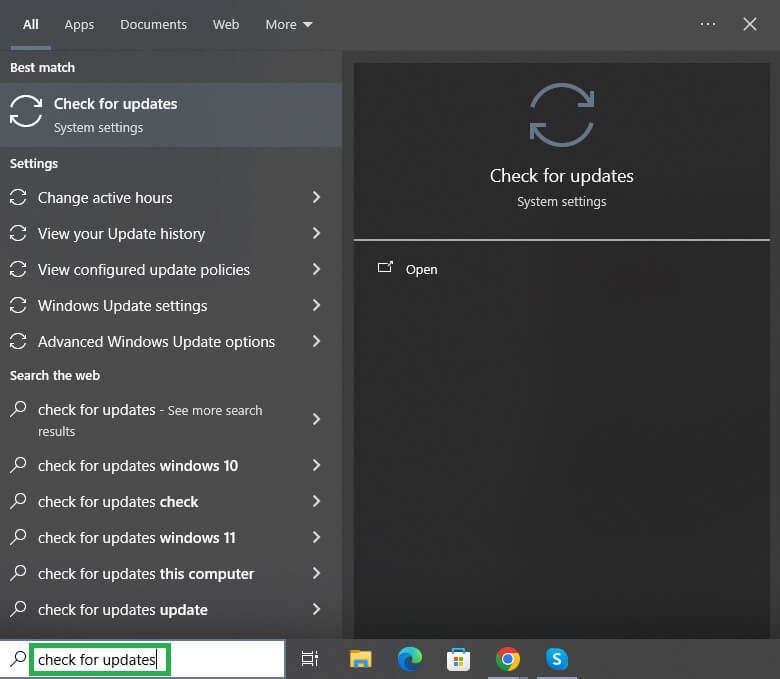
- In this step, click the check for updates button to allow Windows to find the latest operating system updates.
- Now, click Download & Install to download and install the suggested updates, including optional updates.
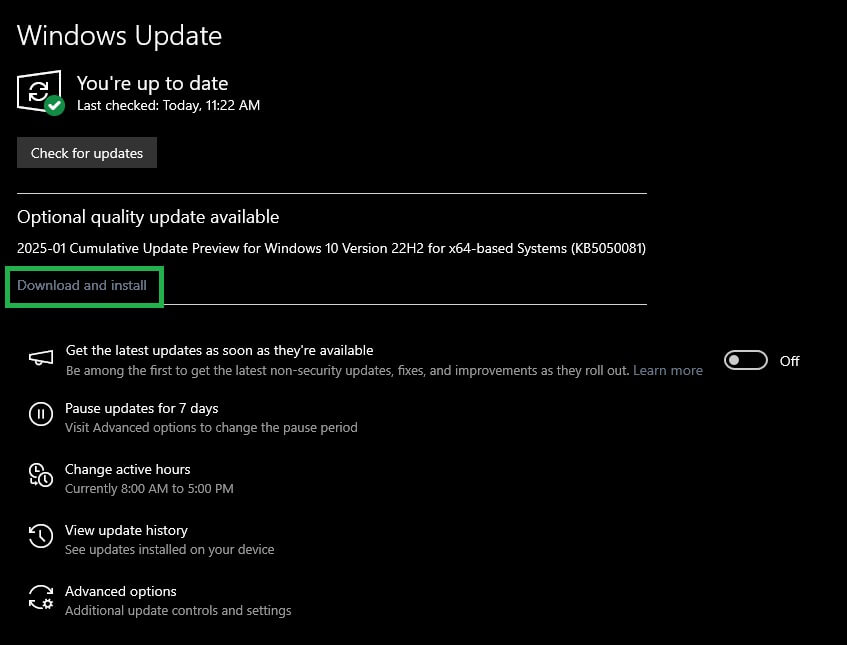
- After downloading and installing the Windows update, restart your computer to let the update take effect.
That’s how to download, install, and update the driver for your fingerprint reader. However, if you still experience problems with your fingerprint scanner, you can check the common issues and their fixes below to solve the problem.
Also know: Best Free Driver Updater Tools for Windows 10 and 11
Common Fingerprint Driver Problems and Solutions
The following are some issues users generally encounter and their fixes to ensure your fingerprint scanner functions correctly.
Fingerprint driver not detected or not working
If you get the “This option is currently unavailable” error in sign-in options or your fingerprint scanner does not appear in Device Manager, indicating it is not recognized or dysfunctional, you can:
- Right-click the Start button, choose Device Manager, double-click Biometric Devices, right-click your fingerprint sensor, click Uninstall Device, and then restart your computer to reinstall the fingerprint driver.
- Update the fingerprint reader driver following any of the three methods in the guide above.
Fingerprint reader broken after Windows update
If your fingerprint scanner stopped working after updating Windows, rolling back the driver to the earlier version, reinstalling the driver, and enabling the fingerprint reader in BIOS settings can help. Here is how to do it.
- Right-click the Start button, choose Device Manager, double-click Biometric Devices, right-click your fingerprint sensor, click Properties, navigate to the Drivers tab, click Roll Back Driver, select any reason for rollback, and click OK to roll back the fingerprint driver.
- Right-click the Start button, choose Device Manager, double-click Biometric Devices, right-click your fingerprint sensor, click Uninstall Device, and then restart your computer to reinstall the fingerprint sensor driver.
- Apply the Windows+I shortcut to open Settings, navigate to Update & Security in Windows 10 or System in Windows 11, choose Recovery, go to Advanced Startup, click Restart Now, select Troubleshoot>Advanced Options>UEFI Firmware settings on the blue screen, and click Restart to enter BIOS. After entering the BIOS, ensure the fingerprint scanner is enabled in “Security” or “Integrated Devices.”
Also know: Fix the Infinite Loop of “Preparing Automatic Repair” on Windows 10
“Something went wrong. Try again later.” Windows Hello error
“Something went wrong” is another Windows Hello fingerprint issue you may experience. To solve this issue, you can restart your biometric service and re-register your fingerprints. Here is how.
- Search “Services” on your computer, locate the “Windows Biometric Service,” right-click the Windows Biometric Service, and click Restart. If the Windows Biometric Service is not running, right-click the service and select “Start.”
- To re-register your fingerprints, search “Sign-in Options” on your computer, click “Windows Hello Fingerprint,” click the “Set Up” button, follow the on-screen prompts, and then test the fingerprint reader to ensure it works correctly.
Fingerprint scanner not recognizing finger error
If you experience issues like “Your fingerprint couldn’t be recognized,” cleaning the sensor and re-registering the fingerprint can help. Below is how to do it.
- Use a microfiber cloth to gently clean the fingerprint sensor, removing oil, smudges, or dust.
- Search “Sign-in Options” on your computer, click “Windows Hello Fingerprint,” click the “Set Up” button, follow the on-screen prompts, and then test the fingerprint reader to re-register your fingerprints.
That’s a wrap for how to download and install the fingerprint driver for Windows 11/10 and fix various problems to ensure convenience, enhanced security, and productivity. However, if your fingerprint scanner does not work even if the sensor is clean, the driver is updated, and the BIOS settings are correct, it may be a hardware issue that requires technical support. And, for all other doubts and questions, you can always drop us a comment.

