

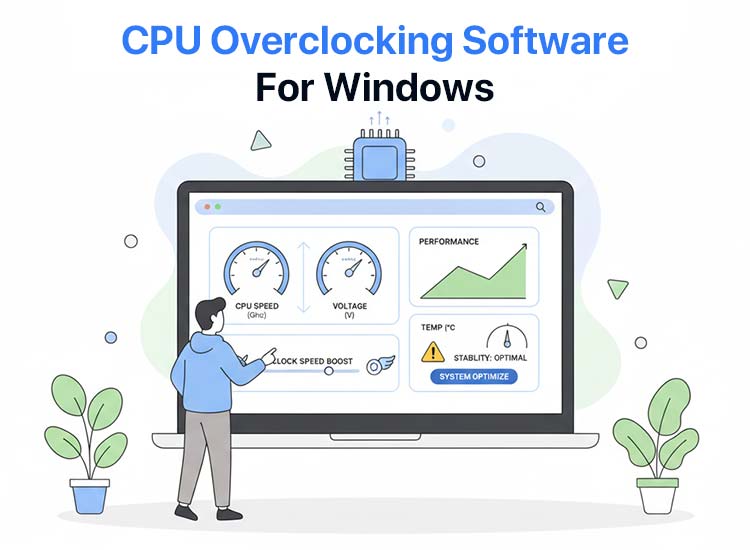
CPU overclocking is a way for PC gamers, content creators, DIY PC builders, and technical researchers to achieve higher frame rates (FPS) and smoother gameplay, reduce rendering and encoding times, and handle complex data that requires significant PC resources. Moreover, using the best CPU overclocking software helps improve your system’s performance.
However, if you are new to overclocking, it is helpful to clear up any confusion before you choose a CPU overclocking software for Windows 11/10, such as CUPID HWMonitor, Intel Extreme Tuning Utility (XTU), AMD Ryzen Master, CPU Tweaker 2.0, and SetFSB. Many newcomers often believe overclocking always leads to dramatic performance gains with little risk, or they may assume that any CPU can be overclocked safely. I
In reality, overclocking can sometimes cause higher heat, system instability, or even hardware damage if not done correctly. There are also common myths, such as thinking that software tools alone guarantee safe overclocking or that every system will see major improvements. By understanding these misconceptions and the potential risks, you can make smarter choices and feel more confident as you explore overclocking tools.
What Is CPU Overclocking
Simply put, overclocking the CPU means raising its clock rate, so it operates at a higher speed than it was designed to run. Increasing the CPU clock rate helps you perform more functions per second. Hence, if your PC is slow, you can set the higher clock rate to speed up the CPU.
The best CPU overclocking software programs are specially designed to increase the clock rate of your CPU beyond its default limits. With higher limits, your CPU can process more tasks per second, boosting your PC’s speed and performance.
Now that you are familiar with overclocking, let’s help you choose the best overclocking software for your CPU according to your requirements.
What Is the Best CPU Overclocking Software for Windows 11/10
The best software for CPU overclocking currently includes programs like CUPID HWMonitor, Intel Extreme Tuning Utility (XTU), AMD Ryzen Master, CPU Tweaker 2.0, and SetFSB. Let’s quickly review them below so that you can make the right choice.
1. CUPID HWMonitor
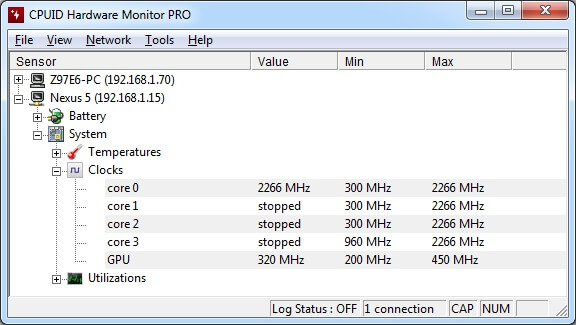
Meet CUPID HWMonitor. It is a widely popular and one of the best CPU overclocking software programs that monitors the vital CPU parameters, such as its temperature, voltage, and fan speed in real-time. Moreover, in addition to a complete system diagnostics to track hardware health, HWMonitor offers thermal throttling detection, i.e., identifies if any component is degrading performance due to high heat, and provides these notable features.
Key features
- You can use HWMonitor to ensure the CPU is overclocked correctly.
- It records the maximum voltage or temperature reached to identify a crash.
Pros
- Ensures overclocking does not cause dangerous overheating
- Clean and simple interface
- Free and portable software
Cons
- Only a supporting tool for CPU overclocking
- Occasionally reports inaccurate voltage or temperature readings
- Not enough for heavy overclockers
Click here to learn more about CUPID HWMonitor
Also know: How to Check GPU Temperature: Complete Guide
2. Intel Extreme Tuning Utility (XTU)
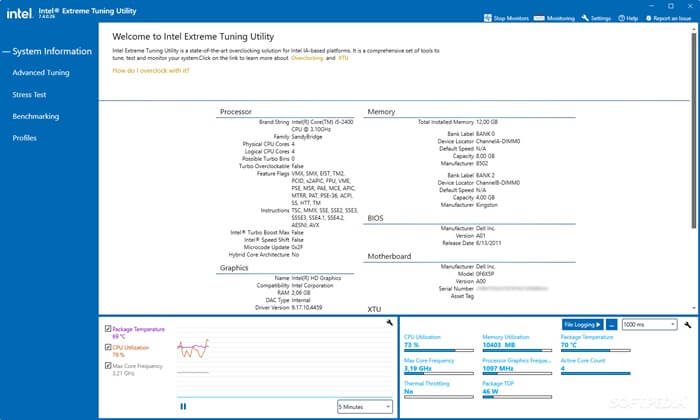
Intel Extreme Tuning Utility (XTU) is another free CPU overclocking software that overclocks, monitors, and stress tests unlocked Intel Core processors. The most likable thing about this software is its unique stress testing, allowing you to identify a stable range to overclock your CPU.
Additionally, you do not need to restart your system when overclocking with XTU, as it communicates directly with the motherboard’s BIOS. Furthermore, below are the other standout features of this software.
Key features
- It shows processor load, temperatures, and throttling in real-time.
- XTU saves custom profiles, allowing you to switch between efficiency and performance modes effortlessly.
- An AI Assist tool that profiles the CPU and suggests customized overclock settings.
Pros
- User-friendly
- Fine-grained individual core ratios control
Cons
- Only for Intel CPUs
- AI Assist is available only for 14th-gen and newer CPUs
Click here to learn more about Intel Extreme Tuning Utility (XTU)
3. AMD Ryzen Master
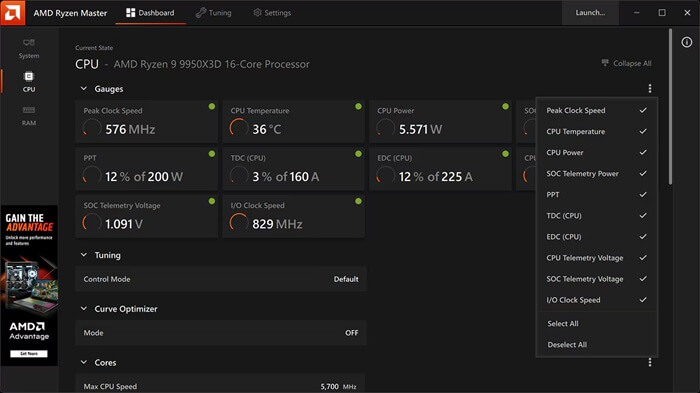
AMD Ryzen Master is yet another well-known CPU overclocking software for Windows 11/10. It appears on this list because its status monitoring gives you real-time insights about your system performance, voltage settings, temperature, processor clock, and other vital information. It also allows you to create custom profiles for your CPU and memory to customize your settings for productivity or gaming, in addition to offering the following features.
Key features
- You can exceed the CPU performance limits while ensuring voltage efficiency.
- It automatically detects the best-performing cores for manual pre-core tuning.
- If a setting leads to a crash, the computer restarts and automatically restores the stable default settings for damage prevention.
Pros
- Four different profiles for customized overclocking settings
- System status monitoring
- Clean and friendly interface
Cons
- Compatibility restricted to AMD products
Click here to learn more about AMD Ryzen Master
4. CPU Tweaker 2.0
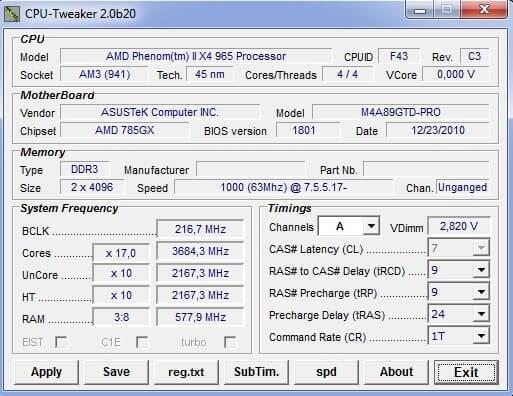
The next name on our list of the best software for overclocking a CPU for Windows 10/11 is that of CPU Tweaker 2.0. It is a lightweight software that helps users optimize their CPU performance by tweaking their voltage settings and memory timings. Moreover, it continuously monitors your processor performance and offers these features.
Key features
- You can set up precharge delay and command rate.
- It lets you change the CPU multiplier to underclock or overclock the processor.
Pros
- Lightweight software that does not pressurize system resources
- Offers deep control over system settings
- Does not need rebooting
- Improves memory bandwidth
Cons
- Beginners may find the interface complicated
- Lacks support for the newest Windows 11 features
Click here to learn more about CPU Tweaker 2.0
5. SetFSB
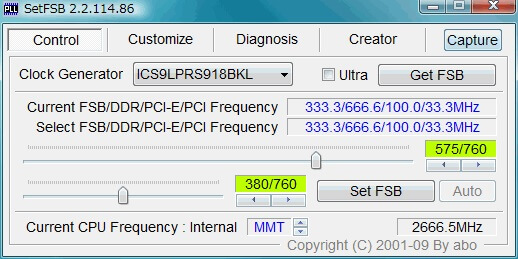
Next, we would like to introduce you to SetFSB. Specifically designed for modifying the Front Side Bus (FSB) speed, this software lets you increase or decrease the FSB to any speed you want, supports a wide variety of motherboards, and offers the following features.
Key features
- It lets you overclock the CPU temporarily, i.e., the settings return to normal when you restart your computer.
- SetFSB offers a direct slider control over PCI-E, FSB, and memory bus speeds.
- It shows detailed information about your RAM, DDR, AGP, FSB, and PCI cards.
Pros
- A lightweight software with a simple interface
- Significantly boosts performance
- Overclocks systems with restricted BIOS settings
Cons
- Needs PLL identification
- May struggle on newer PC architectures
Click here to learn more about SetFSB
That concludes our roundup of the best CPU overclocking software for Windows 11/10. Below are a few tips to help you choose the right one.
Also know: Best Memory Testing Tools Like MemTest86 for Windows
How to Select the Right CPU Overclocking Software
While choosing a software to overclock your CPU, check:
- If the software supports PCs with a modern Windows 10/11 architecture.
- If there is specific software for your processor. For example, XTU for Intel and Ryzen Master for AMD.
- Your skill level, as auto-tuning is the most suitable for beginners, and experienced users benefit from manual control.
Additionally, ensure you follow the safety tips for overclocking.
How to Overclock the CPU Safely
Below are some tips for safe CPU overclocking.
- Begin by making small frequency changes to reduce the risk of heat spikes or crashes.
- Keep monitoring the temperature and voltage. It is recommended to keep the load temperature below 85°C.
- Stress tests your system to know whether it can handle heavy workloads.
Frequently Asked Questions
Q1. Is overclocking a CPU risky?
While CPU overclocking is generally safe for modern hardware, it may lead to system instability, data corruption, or premature degradation due to increased voltage and heat if not performed carefully.
Q2. What to do if CPU overclocking goes wrong?
If things go wrong, you can undo a bad CPU overclock by resetting BIOS settings, reducing voltage or multiplier, and using Safe Mode if the system does not boot.
Q3. Does overclocking the CPU violate the warranty?
Some hardware manufacturers consider overclocking outside the intended specifications of the hardware, i.e., a warranty violation. Hence, check the hardware policy before overclocking your CPU.
Q4. Can I reverse CPU overclocking?
You can reverse overclocking to return your CPU to its default settings by resetting the BIOS/UEFI to its default settings (via F5 or an option like “Load Optimized Defaults”).

