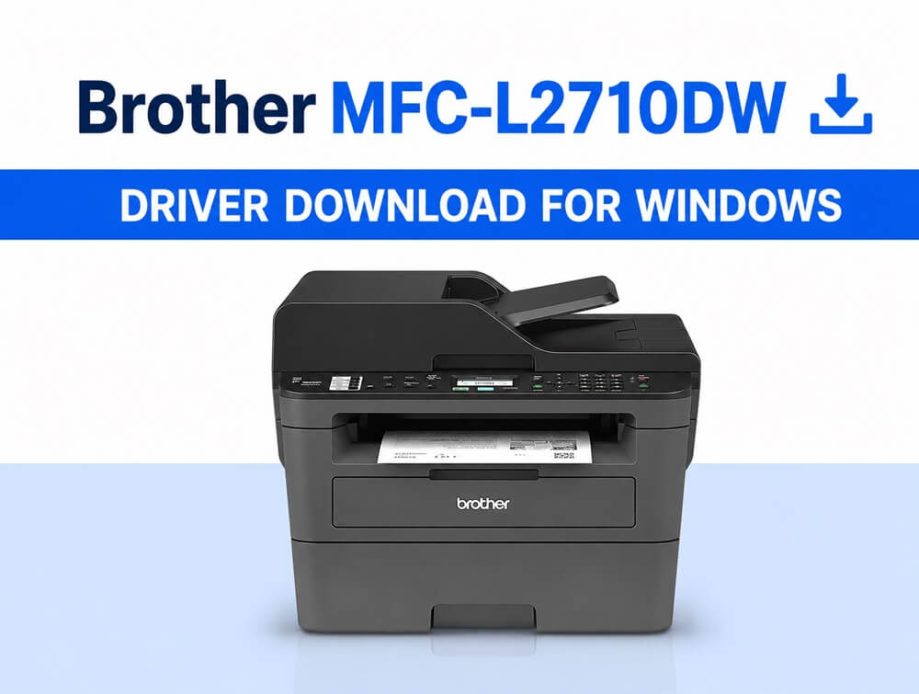
Brother MFC-L2710DW printer is a popular all-in-one printer with fast print speeds up to 30 pages per minute, automatic 2-sided print, built-in wired and wireless connectivity, and an excellent print resolution up to 1,200 x 1,200dpi. While the specifications look good, the printer, like all other printers, can function smoothly only if you have a compatible and up-to-date Brother MFC-L2710DW driver installed on your system.
If there is no driver or if the driver is incompatible, outdated, or corrupted, you may encounter several printer problems, such as the printer printing blank pages, the printer not being detected, or the printer not working.
Hence, to help you ensure a smooth and hassle-free printing experience, this article serves as a simple guide to download the Brother MFC-L2710DW driver, install it, and update it, beginning with an overview of what a driver is.
What Is the Brother MFC-L2710DW Driver
A driver is a piece of software that helps your printer and your computer’s operating system communicate with each other. Without the driver translating your instructions into the printer’s language and the printer’s response into the operating system’s language, your instructions cannot be executed correctly. Moreover, having a driver installed is not enough; you must have the right driver for the printer to function smoothly.
Hence, before proceeding to the methods to download, install, and update the printer driver, here’s an overview of the latest Brother MFC-L2710DW driver for Windows 10/11.
Latest Brother MFC-L2710DW Driver Details
Version: K1
Release Date: 12/02/2024
Size: 42.52 MB
Now that you are familiar with the latest Brother MFC-L2710DW driver for Windows 11/10, let’s help you download and install it.
How to Download, Install, and Update the Brother MFC-L2710DW Driver
You can download the Brother MFC-L2710DW driver through the official website of the printer manufacturer, Device Manager, or Windows Update, whichever way you find the most convenient. Here are all these methods explained in detail.
Method 1: Download the Brother MFC-L2710DW driver and install it from the official website
Like all printer manufacturers, Brother offers driver support on its official website. There you can find the latest driver for all Brother printers and other devices to improve their efficiency. To download and install the Brother MFC-L2710DW printer and scanner driver from the official website, you can follow the steps below.
- Visit the official Brother MFC-L2710DW Support & Downloads page.
- Click Downloads.
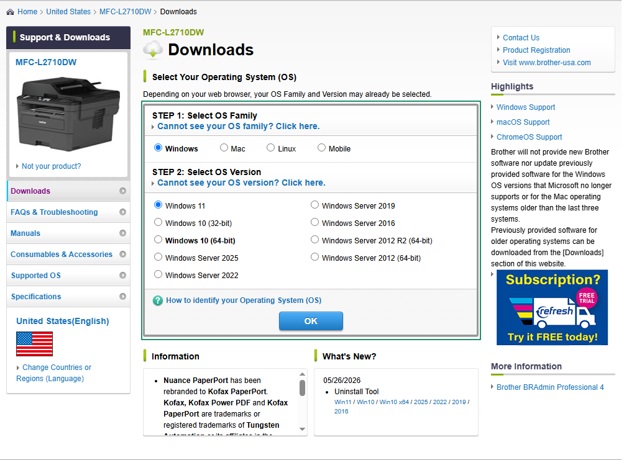
- Select your OS Version from the available options. If you are unsure about the Operating System (OS) your computer runs, follow the path Windows + I key > System > About to note the OS details.
- Click the Printer Driver & Scanner Driver for USB If you wish, you can choose only the printer driver.
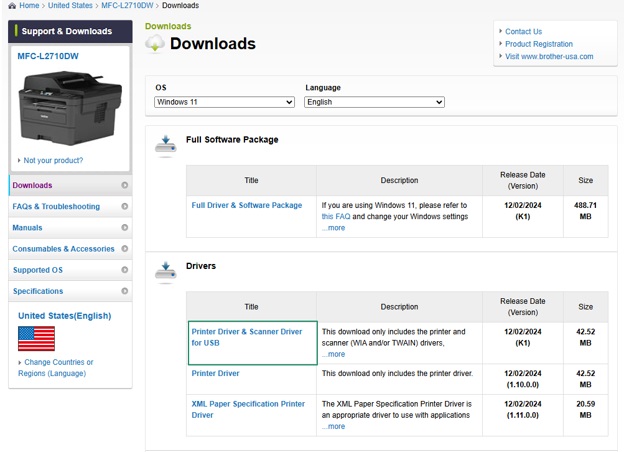
- Check the driver’s details, read the driver notes, read the End-User License Agreement (EULA), and then click Agree to the EULA and Download.
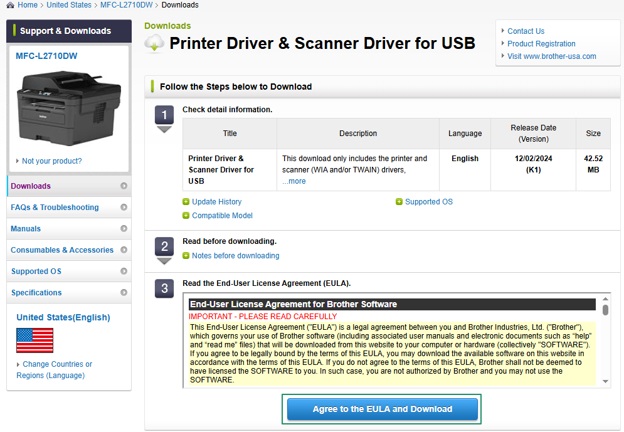
- Save the driver file to an accessible location on your PC. If you selected the printer driver in the previous steps, skip the steps below and follow the guide on Brother’s official website. If you selected Printer Driver & Scanner Driver for USB, follow the steps below.
- Disconnect the Brother printer from your computer if it is connected.
- Open the folder or directory where you saved the driver file.
- Double-click the driver file to extract it.
- 32-bit operating system users double-click exe. 64-bit operating system users double-click dpinstx64.exe.
- Lastly, connect the printer to your computer.
Also know: Epson L3210 Driver (Printer & Scanner) Download, Install & Update on Windows 11/10
Method 2: Use Device Manager to download, install, and update the Brother MFC-L2710DW driver
Device Manager is a built-in driver downloader, installer, and free driver updater in Windows. Here is how to use the Device Manager to download the Brother MFC-L2710DW driver for Windows 10 or 11, install it, and update it.
- Right-click the Start button.
- Click Device Manager to open it.
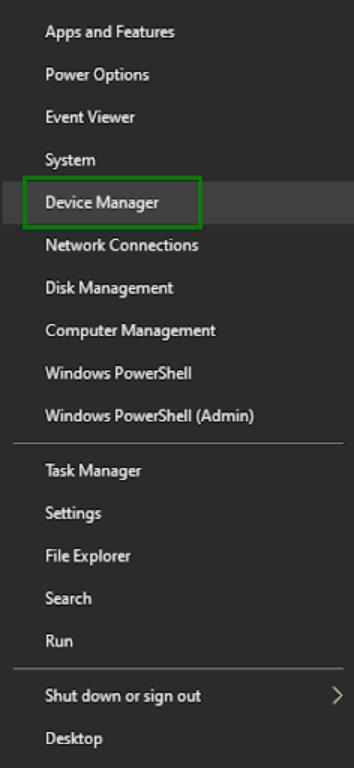
- In the Device Manager, double-click Print Queues.
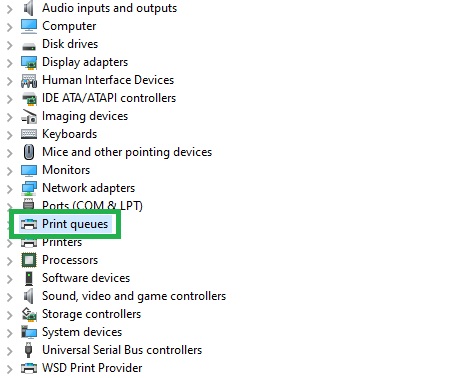
- Right-click your Brother MFC-L2710DW
- Click Update Driver or Update Driver Software.
- Next, click Search automatically for drivers or Search automatically for updated driver software.
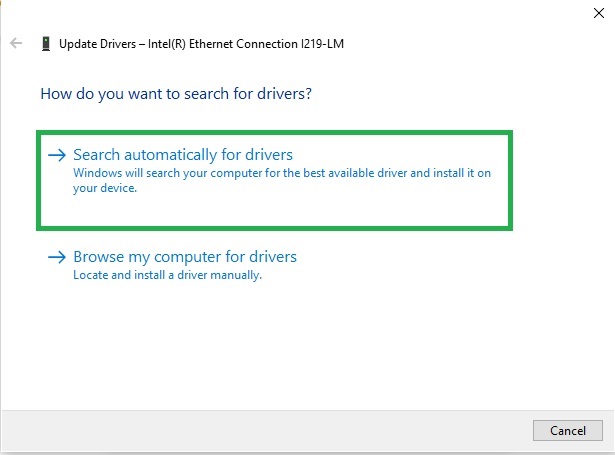
- Follow the instructions that appear on your screen to complete the driver download and installation.
- Lastly, restart your computer to complete the process.
Method 3: Update Windows to download and install the latest Brother MFC-L2710DW driver
Windows updates, in addition to fixing system bugs and security loopholes, download and install the latest drivers for hardware devices, such as the printer. Hence, the following are the steps to update Windows.
- Click the Start button.
- Type check for updates in the search bar and then click the first search result.
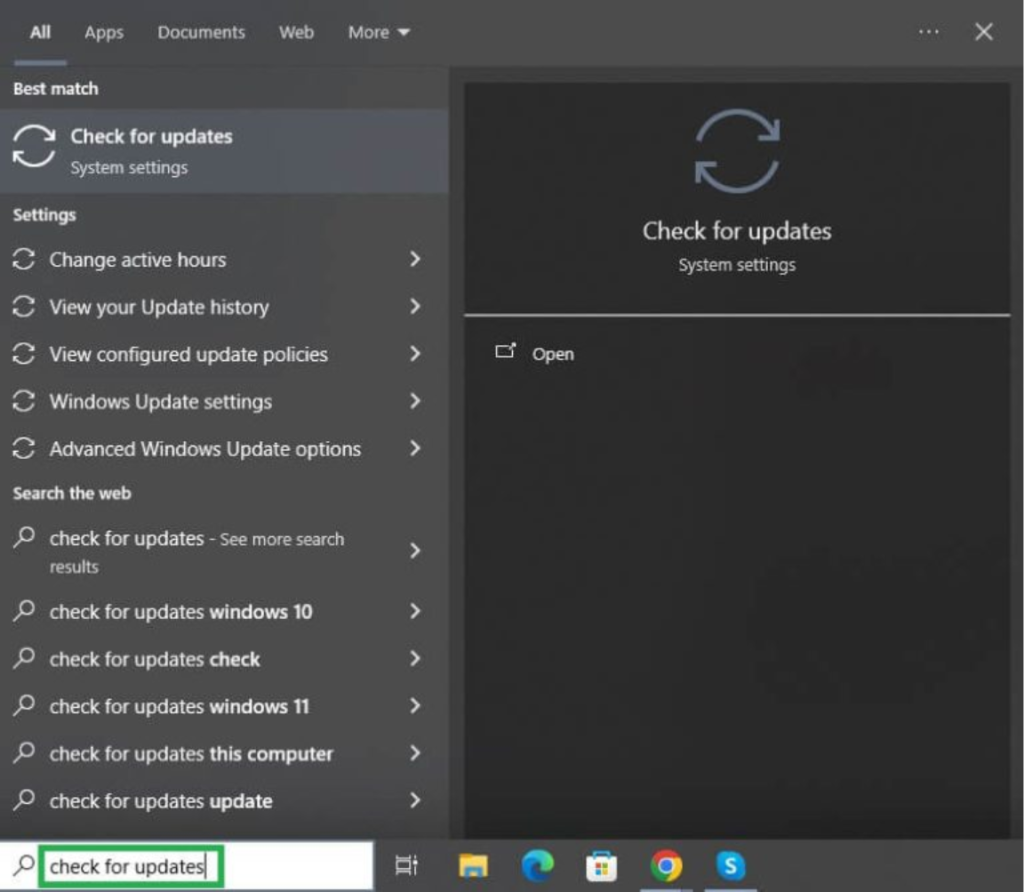
- Click the Check for updates
- Next, click Download & Install for the available Windows updates, including the optional updates.
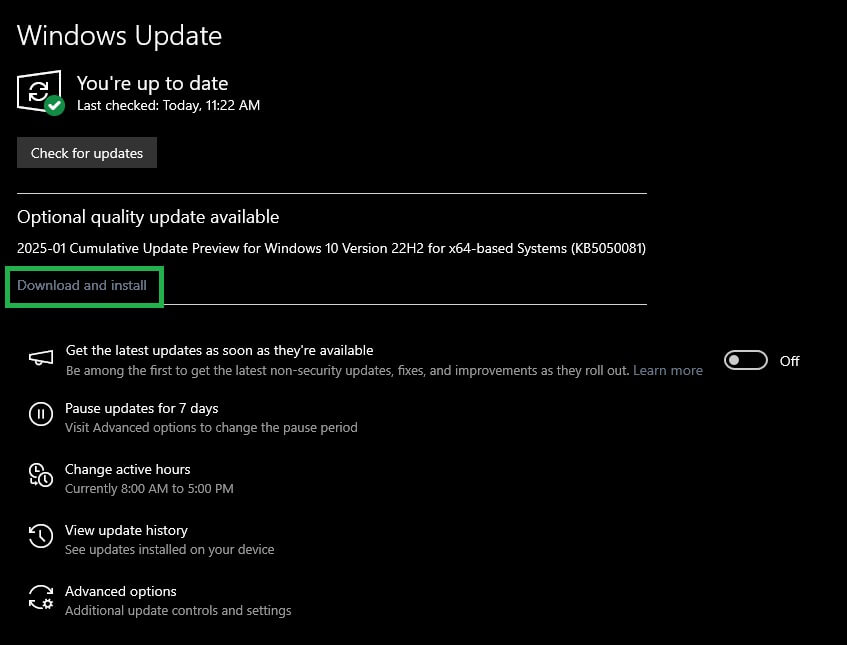
- Lastly, restart your computer to complete the Windows update process.
Also know: Download Kyocera Printer Driver Easily for Windows 11/10
Frequently Asked Questions
Q1. How do I install the MFC-L2710DW driver?
You can download and install the driver for your Brother MFC-L2710DW printer through the printer manufacturer’s official website or Windows Update, as explained in the guide above.
Q2. How do I update my Brother MFC-L2710DW driver?
To update the Brother MFC-L2710DW driver, right-click the Start button, click Device Manager, double-click Print Queues, right-click the Brother MFC-L2710DW printer, click the Search automatically for drivers option, download and install the available driver update, and restart your computer.
Q3. Why is my Brother MFC-L2710DW printer not working?
An incorrect, corrupted, or outdated Brother MFC-L2710DW driver may be the reason your printer is not printing. You can fix this issue by updating the driver.
That concludes the guide on the Brother MFC-L2710DW driver for Windows 10 and 11. Hopefully, this helps you make the most of your printer. However, if you have any unanswered questions, concerns, or suggestions to improve this guide, don’t hesitate to write us a comment.