

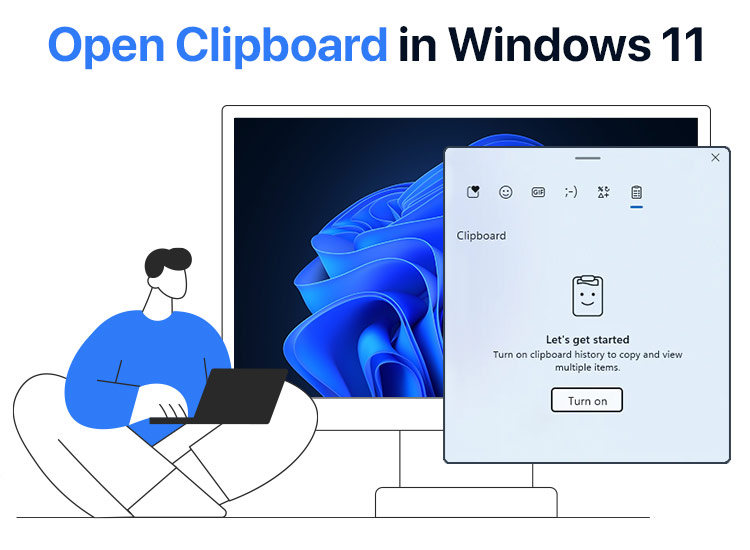
If you’ve ever found yourself balancing multiple pieces of text or images while working on your computer, you know how essential the clipboard can be for efficiency.
With all the new features and updates in Windows 11, accessing and using the clipboard has become even easier and more versatile. It is one of those helpful Windows 11 features that is often disregarded but is really helpful. However, it is also crucial that you know how to open clipboard in Windows 11.
It works silently in the background to facilitate your tasks, whether you’re transferring files, moving images, or copying text.
Even though most of us are familiar with basic copy-and-paste, Windows 11’s clipboard has a lot more capabilities if you take the time to learn more about the clipboard shortcut in Windows 11. Knowing how to open clipboard in Windows 11 and control your clipboard settings can significantly improve your productivity, particularly if you enjoy multitasking, write frequently, or handle repetitive tasks.
So, if you are wondering how to manage clipboard shortcut in Windows 11, this guide will explain how to open clipboard in Windows 11, enable and use clipboard settings, and even sync your clipboard across devices.
What is the Windows 11 Clipboard?
When you copy something on your Windows device, it goes right to the clipboard, making it easy to paste into any program you want later! The clipboard can save up to 25 different items, like text, HTML snippets, and Bitmap images, with a size limit of 4 MB for each item.
But that’s not all! With Windows 11, you’ll also have quick access to a selection of emojis, kaomojis, GIFs, and icons, no matter what you’ve copied.
If you find yourself using certain clipboard items often, you can simply “pin” them. This means they won’t get replaced when you exceed a 25-item limit. The best part is that pinned items will stick around even after you turn your device off, so they’ll be right there waiting for you when you start it back up. Meanwhile, any items you haven’t pinned will be cleared out to make space for fresh content.
How to Activate Clipboard History in Windows 11
By default, the Clipboard in Windows 11 is not enabled. You need to enable this feature in order to use it. Here is how you can manage clipboard settings:
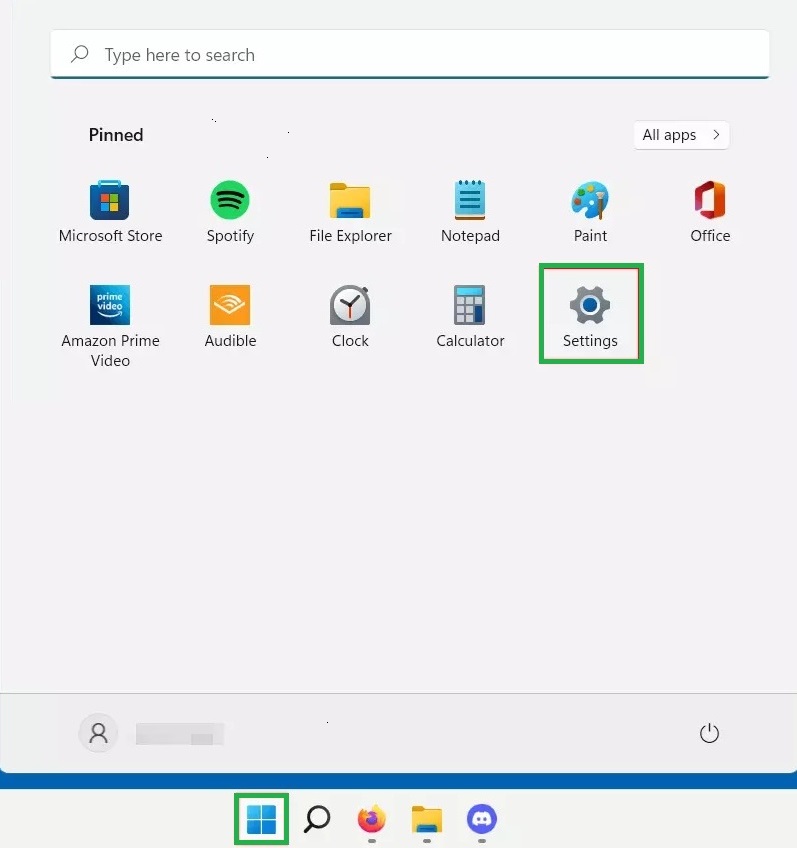
- You can access Settings by using the Windows + I key combination or by selecting “Settings” from the Windows Start menu.
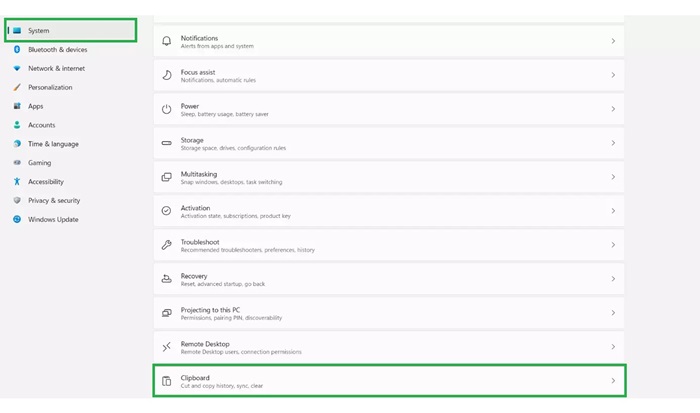
- Select “System” from the menu on the left, then scroll down the Settings list on the right to select “Clipboard.”
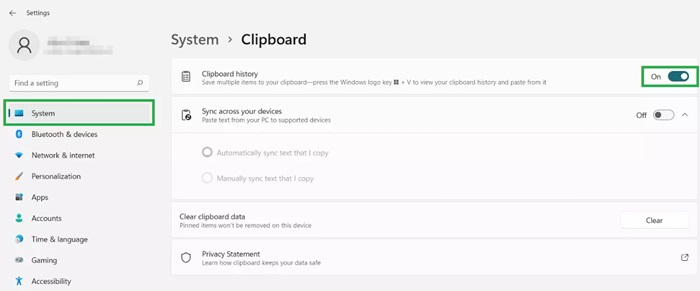
- To activate the Windows 11 Clipboard setting, move the “Clipboard history” slider to the right and make it On.
Once you activate the Windows 11 Clipboard setting, it is also crucial that you know how to open Clipboard in Windows 11.
Also know: Best Microsoft PowerToys with Download and Installation Guide
How to Open Clipboard in Windows 11
- Using the Windows + V key combination, you can access the Windows 11 Clipboard from any application at any time. It is one of the quickest ways to access the Clipboard shortcut in Windows 11.
- The Clipboard History panel opens instantly with this keyboard combination. If clipboard history is not already enabled, Windows will prompt you to do so. A list of the things you’ve recently copied will appear in the panel; click each one to paste it wherever you need it.
- For users who frequently transfer URLs, compare data from various sources, or switch between multiple pieces of text, this clipboard shortcut in Windows 11 is perfect.
- Additionally, a lot of programs have their own clipboard viewing feature. For instance, the “Clipboard” option is located in the menu ribbon of Microsoft 365 applications.
If you want to add an item to the Clipboard, you can easily do that. Use the Ctrl + C key combination to select and add an item to the Clipboard if it fits the requirements (text, HTML, or bitmap, with a maximum size of 4 MB). As an alternative, you can use the right-click menu to select “Copy” and then paste the content.
How to Insert Items From the Clipboard
- Simply press the Windows key and the V key simultaneously to add a saved item—such as a GIF, icon, kaomoji, or emoji—from your clipboard shortcut in Windows 11 into another application. This will open up your clipboard shortcut in Windows 11.
- Once the Clipboard window appears, you’ll see a bunch of thumbnail previews of all the items you’ve saved. To use one, just click on the thumbnail of the item you like. If you’re looking for a specific GIF or icon, you can browse through the various categories. It’s a convenient way to reuse your favorite graphics without having to search for them again.
How to Pin Items in Windows 11 Clipboard
To effectively pin an item to the Windows 11 Clipboard, you must first mark it as a favorite. This action allows the item to be included among the 25 available slots in the Clipboard, ensuring that it is preserved even when your system is shut down.
Here’s a step-by-step guide on how to pin your desired items in the Windows 11 Clipboard:
- Start by copying the object you wish to pin, be it a file path, image, or passage of text.
- Next, press the Windows + V key combination to open the Windows 11 Clipboard. This will open the Clipboard interface so you can see the things you’ve recently copied.
- Locate the exact item you want to pin in the Clipboard. Look for a little pin icon next to it. To add an item to your favorites list, click on this icon. This action ensures that it is saved in your Clipboard for future reference.
- If you later decide you no longer need the pinned item, you can easily remove its favorite status. Simply go back to the Clipboard and select the item’s pin icon once more. By doing this, you can unpin it and make room for new things you might want to save.
How to Delete Clipboard History and Items
- When you restart your Windows 11 device, it’s good to know that any items you haven’t pinned to your Clipboard will automatically be deleted. But don’t worry—you can still manage your clipboard shortcut in Windows 11 without rebooting your machine!
- To check out what you’ve copied, just press Windows + V to open up the Clipboard panel. If you’re looking to organize your files, you can easily clear everything at once by clicking the “Clear all” button.
- If you only want to remove a few items instead, find the three-dot icon next to the item you want to delete, click on it, and then tap the trash can icon. It’s a quick and easy way to keep your Clipboard organized and clutter-free.
How to Disable the Clipboard Shortcut in Windows 11
If you wish to stop saving copied items in Windows 11, you can disable the Clipboard feature at any time. To turn off Clipboard history, follow these steps:
- Open the Settings by either accessing it from the Start menu or using the keyboard shortcut Windows + I.
- Navigate to the “System” section and select “Clipboard.”
- Locate the “Clipboard history” option and move the slider to the left to turn it off.
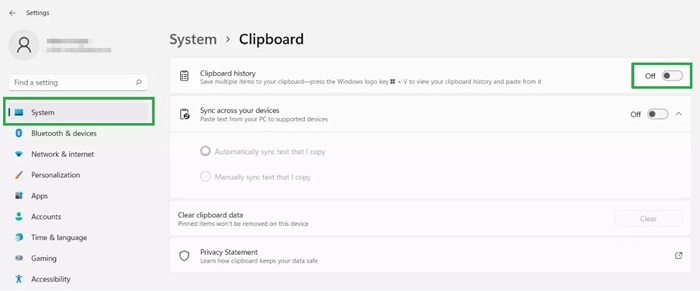
This will prevent Windows from storing your copied items.
Also know: Solved: “Your Organization’s Data Cannot be Pasted Here” Problem
Frequently Asked Questions
Q1. How to open Clipboard in Windows 11?
In Windows 11, you can easily access the clipboard by using the Windows + V key combination. This command opens the Clipboard History panel, allowing you to view and select items that you’ve previously copied.
Q2. Is the clipboard history feature enabled by default in Windows 11?
No, the clipboard history feature is not enabled by default in the system. To activate it, navigate to Settings, then System, and select Clipboard. From there, you can turn on the “Clipboard history” option to start using this feature.
Q3. Can I pin items to the clipboard in Windows 11?
You can easily pin items to the clipboard on your Windows device. After copying an item, press Windows + V to open Clipboard History. From there, simply click the pin icon next to the item you want to keep. This will ensure that the selected item remains accessible even after restarting your computer.
Mastering the clipboard in Windows 11 can significantly enhance your productivity and streamline your workflow. You can take full advantage of this feature by enabling clipboard history, using the handy Windows + V shortcut, and pinning frequently used items. Knowing how to open Clipboard in Windows 11 and use it effectively will help you manage your tasks more effectively, regardless of how skilled you are at multitasking. So try it out and enjoy the convenience it provides!
