

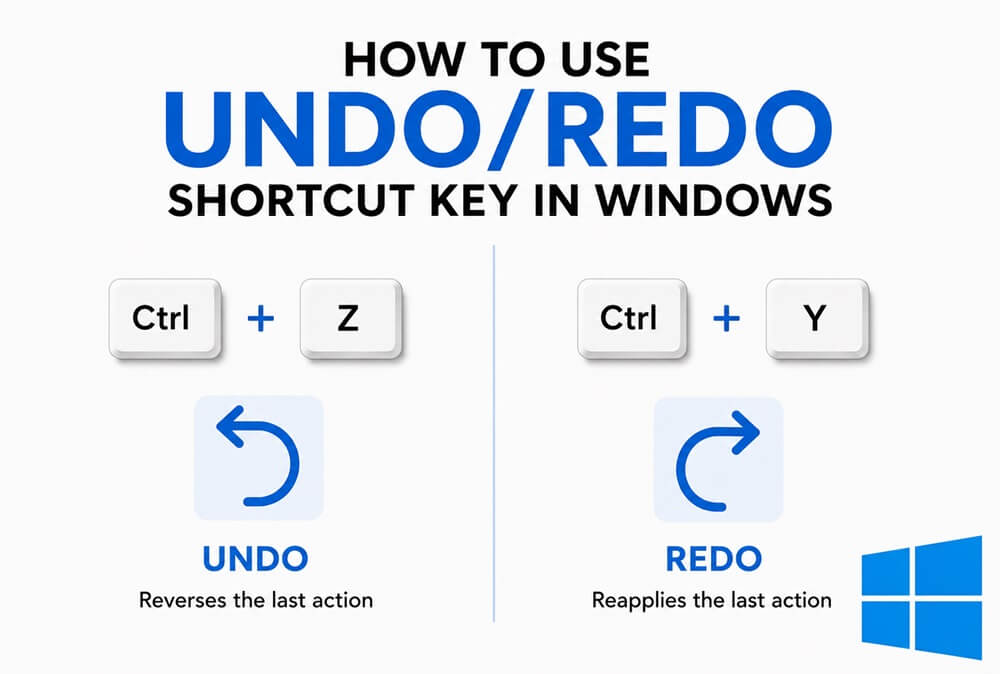
We are humans, and humans can make mistakes. Luckily, Windows lets you go back and make things right with the undo/redo shortcut keys.
Whether you are completing your school assignment or creating a spreadsheet for an organization’s expenses, the undo and redo shortcuts for Windows come in handy when you want to roll back a change or bring it back. For example, if you type an incorrect word in Microsoft Word, delete an Excel formula accidentally, or find the formatting wrong, you can make corrections instantly with the undo and redo functions. Let’s explain undo and redo in this guide.
What Is the Undo/Redo Shortcut Key in Windows
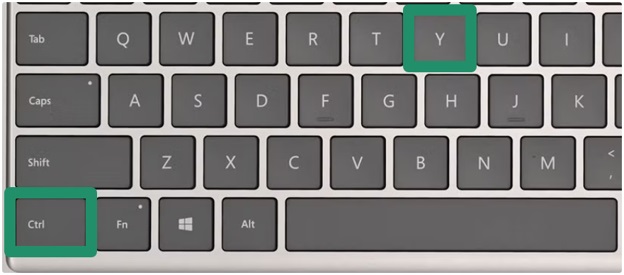
Ctrl + Z is the undo shortcut in Windows, and Ctrl + Y is the redo shortcut in Windows that works with almost all programs, including Microsoft Word, PowerPoint, Excel, and various design tools.
Pressing Ctrl + Z takes you back one step at a time. You can press this shortcut until you hit the history limit. The history limit depends on your PC’s memory. It is usually up to 100 levels in Excel and Word. However, closing the application or document clears the undo history.
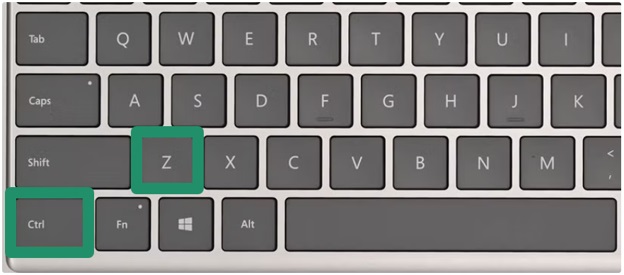
Pressing Ctrl + Y (Ctrl + Shift + Z in some programs) brings back the step you just undid. In other words, you can use the redo shortcut if you change your mind after undoing an action.
For example, if you write ‘for example’ in Word and then bold it, but then decide against bolding it, you can use Ctrl + Z to undo the bold. If, after undoing, you think bolding the words was better, you can use Ctrl + Y to redo or bring back the bold.
While that’s easy, shortcut keys for undo and redo can vary slightly across programs.
Variations of the Undo/Redo Shortcut Key
While Ctrl + Z and Ctrl + Y are the universal undo and redo shortcut keys in Windows, they can have alternatives depending on the app you are using. For example:
- Alt + Backspace: Undo shortcut in legacy text editors and some Windows interface menus.
- Ctrl + Shift + Z: Redo shortcut in Adobe Photoshop, Illustrator, and other Adobe programs, and a lot of web-based code editors.
- Ctrl + Alt + Z: Redo shortcut in advanced graphics and 3D modelling software to move forward through an undo history.
Interestingly, Windows also has other ways to help you undo and redo your actions, in addition to these shortcuts for undo and redo.
How to Undo/Redo in Windows Apps
You can undo and redo your actions in Windows using the shortcut keys or your mouse. Let’s explore both ways.
Method 1: Use the undo/redo shortcut key
Undoing and redoing your actions with the undo shortcut key and redo shortcut key is simple. To erase the last change you made to a document or to revert the file to the previous state, you can use the undo shortcut, i.e., Ctrl + Z.
To reverse the undo action, i.e., restore a file to its most recent state, you can press the redo shortcut, i.e., Ctrl + Y.
Also know: Best File Copy Utility Software for Windows
Method 2: Use the mouse to undo/redo
If you do not want to use the shortcut keys, you can use your mouse to undo and redo some of your actions in Word, PowerPoint, Excel, etc. Here is how.
Undoing an action with the mouse
- In Word or Excel, click the Undo icon in the upper-left toolbar.
- To reverse or undo multiple steps, constantly click the Undo Alternatively, you can click the arrow alongside the Undo icon and choose the actions you wish to undo, and then click the mouse.
Redoing an action with the mouse
- To redo an action, click the Redo icon, which is present next to the Undo icon.
Please note that the Redo button only becomes active after you undo any action. You can use the Redo function only after the Undo function.
- In Word, you can click the Repeat icon next to the Undo icon at the top-left corner to repeat the operation after typing something. The Redo button appears only after you undo an action.
Undo and redo are simple. However, they are not the same in every application.
In Excel, you can use the undo feature for actions like editing formulas, entering numbers, or applying styles. But actions like saving a file and deleting a worksheet cannot be undone. Hence, be very careful when performing such actions. Moreover, in Excel, you may find F4 a faster shortcut than redo for actions such as formatting or inserting rows.
In Word, the undo feature allows you to roll back formatting edits, layout changes, and typing. The redo feature brings back or repeats the last action. For example, if you underlined a text and pressed redo, it applies the underline again.
However, if for some reason, undo or redo doesn’t work on your computer, you can find the common problems and solutions below.
How to Fix Common Undo/Redo Problems
Here are the common problems you may experience with the undo or redo function and how to fix them.
- An outdated driver is among the top causes of such problems. If the driver for your keyboard is outdated, the keyboard cannot communicate correctly with the operating system. Hence, update the keyboard driver.
- Check the Edit menu to confirm the undo and redo keys your application expects.
- Open the application’s preferences, locate Keyboard Shortcuts, and search for undo/redo.
- In browsers and web applications, disable extensions that capture keys.
- If the undo button is greyed out, it means you have nothing to undo.
- If redo is unavailable, nothing was undone.
That’s how you can use the undo and redo functions in Windows with the undo/redo shortcut keys (Ctrl + Z for undo, Ctrl + Y for redo, and sometimes Ctrl + Shift + Z for redo) or your mouse and solve related problems. Hopefully, this helps you fix mistakes easily to keep your work going smoothly in Word, Excel, or other apps. However, if you have any questions or concerns that are not answered in the frequently asked questions below, or if you need any further assistance, feel free to drop us a comment.
Also know: Retrieving data. Wait a Few Seconds and Try to Cut or Copy Again. Error: Fixed
Frequently Asked Questions
Q1. What is Ctrl+Y used for?
Ctrl + Y is used to reverse or redo the last action that you undid (undo) in Windows. For example, if you accidentally deleted text and then used the undo shortcut to bring it back, you can press Ctrl + Y to delete it again.
Q2. What is Ctrl+Z used for?
Ctrl + Z is used to undo or reverse your most recent actions in Windows.
Q3. How do I undo a Ctrl+A?
To undo a Ctrl + A, i.e., Select All command, you can click anywhere inside the document or text box to deselect. If, after selecting everything with the Ctrl + A command, you accidentally typed or deleted something, you can press Ctrl + Z to reverse it instantly.
Q4. How to undo and redo in Microsoft Word and Excel?
You can undo and redo in Microsoft Word and Excel using the undo shortcut Ctrl + Z and the redo shortcut Ctrl + Y. Alternatively, you can use the undo and redo icons in the toolbar menu.
