

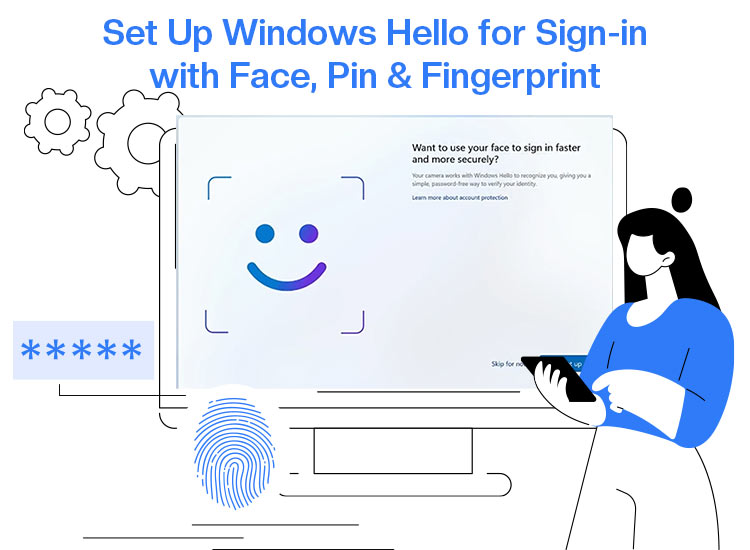
Windows Hello is a feature in Windows 10 and 11 that lets you log in to your computer securely with your fingerprints, facial recognition, or a personal identification number (PIN). You can set up Windows Hello for Windows sign-in to eliminate the need for traditional passwords, making your experience fast, smooth, and more secure.
If you forget your password, Windows Hello lets you sign in easily with your face, fingerprint, or PIN. This way, you can quickly get back to work without worrying about remembering complicated passwords. Many people forget passwords, and while password managers can help you remember passwords, Windows Hello login options make logging in faster and simpler.
In addition to convenience and ease of use, Windows Hello enhances your device’s security by reducing the risks associated with password breaches. Biometric data such as fingerprints and facial recognition details, as well as your PIN, are securely stored locally on your device and are never transmitted to external servers or the internet.
This means your private information stays on your computer, giving you an extra layer of privacy and protection. Windows Hello also helps you standardize your login across multiple devices and systems.
While you can effortlessly enable Windows Hello face recognition, fingerprint, or PIN through the step-by-step process in this article, your computer must support this feature in the first place.
Key Requirements for Windows Hello
To check if your device works with Windows Hello, follow these steps:
- First, open settings using the Windows+I shortcut.
- In Windows settings, navigate to the Accounts option.
- Next, choose Sign-in options to find Windows Hello.
Additionally, check your device manual to ensure that your computer is compatible with a fingerprint reader and an infrared (IR) camera to be able to use the fingerprint and facial recognition features of Windows Hello.
You can also look for these devices in Device Manager (right-click the Start menu, select Device Manager, and look for ‘Biometric devices’ or ‘Imaging devices’). If you do not see them listed, your device may not have the necessary hardware built in. For laptops, you can review the specifications on the manufacturer’s website or product page to confirm if a fingerprint reader or IR camera is included.
If your device meets all requirements, you can proceed to the Windows Hello setup.
How to Set Up Windows Hello for Windows Sign-In
To set up and enable Windows Hello face recognition, fingerprint, or PIN sign-in, you can follow the steps below.
Enable Windows Hello PIN
- First, use the Windows+I shortcut to open Settings.
- Next, choose Accounts from the Settings menu that appears.
- Select Sign-in options from the Accounts menu.
- In the Sign-in options or the Ways to sign in section, click PIN (Windows Hello) and then click Set Up.
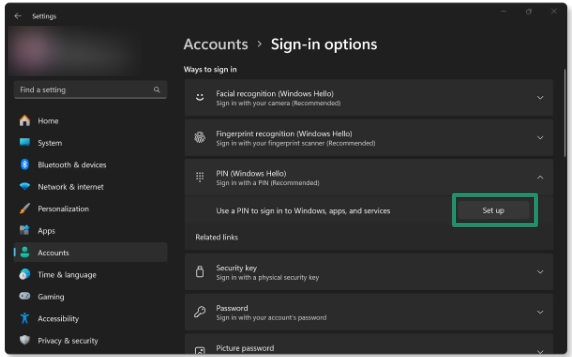
- Next, confirm your account password when Windows asks you to do it.
- In this step, follow the instructions that appear on your screen to create a PIN of at least four digits. You can also include symbols and letters to make the PIN more secure.
- Lastly, re-enter the newly created PIN to confirm it.
Enable Windows Hello fingerprint
- First, open settings using the Windows+I shortcut.
- Next, navigate to the Accounts settings and choose the Sign-in options.
- Click Fingerprint recognition (Windows Hello) or Windows Hello Fingerprint, and then click Set up.
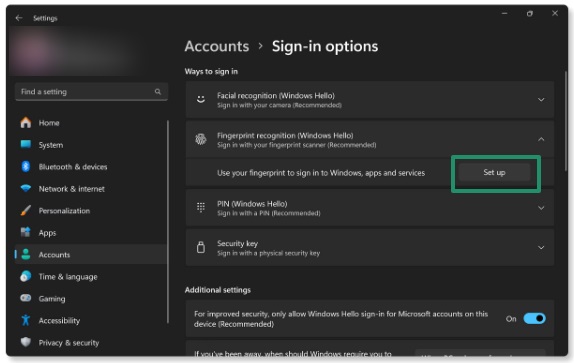
- Next, click Get Started and confirm your password when prompted.
- Follow the instructions that appear on the screen to scan your fingerprint from varied angles multiple times until it is fully registered.
- Lastly, you can use your fingerprint to unlock your device.
Also know: Best Password Manager Software for Windows
Enable Windows Hello face recognition
- First, open settings (you can use the Windows+I shortcut).
- Choose Accounts from the settings panel.
- Go to the Sign-in options.
- Click Facial recognition (Windows Hello) or Windows Hello Face, and then click Set up.
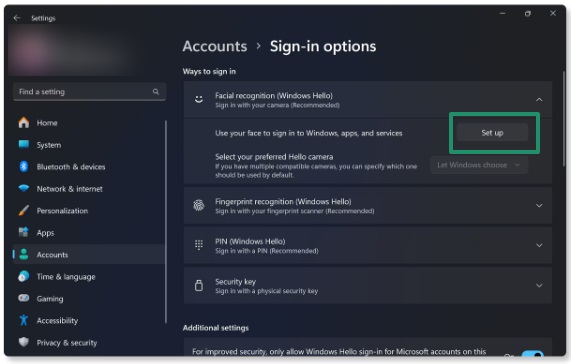
- Next, click Get Started and then confirm your password.
- Follow the instructions that appear on the screen to position your face in front of the device camera until it records your facial features.
- Lastly, look at the camera to unlock your computer.
Note: If you share your PC, you can set up multiple user profiles so each person can use Windows Hello with their own sign-in options. Here is how to add someone to your PC and enable Windows Hello for them:
- Open Settings (Windows+I shortcut).
- Go to Accounts.
- Select Family & other people on the left.
- Click Add a family member (if the person is a family member) or Add someone else to this PC.
- Enter the email address of the person you want to add, or follow the prompts to create a new account.
- After adding them, sign out of your account so they can sign in with theirs.
- When they sign in for the first time, Windows will guide them through setting up their profile. They can then go to Settings > Accounts > Sign-in options to set up their own Windows Hello (face, fingerprint, or PIN) for added security and convenience.
However, if you experience problems with the Windows Hello Windows sign-in or setup, you can check the section below for solutions to common issues.
How to Troubleshoot Windows Hello Sign-In Problems
If you experience problems, such as Windows Hello facial recognition failures, PIN failures, or fingerprint recognition failures, grayed-out options, or “unavailable” error messages, you can try the solutions below.
- Restart your computer to fix temporary authentication issues.
- Update the biometric device drivers and camera drivers.
- Clean the camera or your fingerprint sensor.
- If experiencing problems with Windows Hello facial recognition, you can navigate to sign-in options in settings, select Improve recognition under the Facial Recognition (Windows Hello) feature, and then follow the on-screen directions to re-scan your face.
- If experiencing Windows Hello fingerprint recognition failures, try using another finger to sign in. If it does not work, sign in with a password or PIN and then re-register your fingerprints. Moreover, ensure your fingerprint reader is clean and dry.
To re-register your fingerprint or add another fingerprint, follow the path Settings (Windows+I shortcut)>Accounts>Sign-in options>Fingerprint recognition (Windows Hello)>Add a finger.
- For PIN failures, create the PIN again or update Windows. To update Windows, search for and open Check for updates, click Check for updates, and download & install the available updates.
For problems during PIN creation, sign out of your device, sign back in, and then try creating the PIN again. You can also follow this guide to try resetting your PIN.
Also know: How to Restore Passwords Saved to this Computer
We hope this guide for Windows Hello sign-in setup helps you log in faster with enhanced security. However, if you continue to experience Windows Hello issues, you can contact Microsoft Support for expert assistance. You may also find helpful answers and troubleshooting tips by visiting the official Microsoft Support website or joining the Microsoft Community forums, where you can search for Windows Hello topics or ask your questions directly.
If you found this guide helpful, feel free to share it with others interested in Windows Hello. If you have any questions or concerns about this article, we are here to help through the comment
