

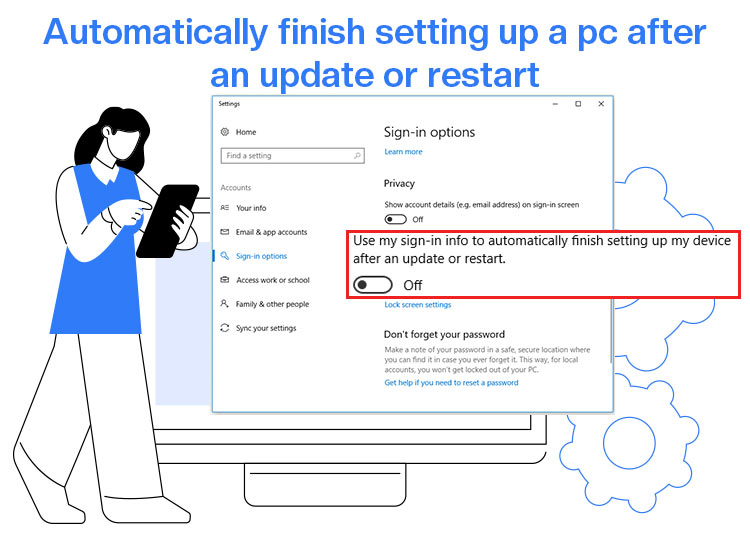
Automatically finish setting up a PC after an update or restart feature allows you to speed up your login time and resume your work faster. Moreover, it adds to your convenience by fully restarting your computer, installing updates, and opening your previous apps without a manual login, also saving you the headache of the constant “Let’s finish setting up your PC” prompt that appears post-update.
For example, while writing this article, our computer went into a major update, but we could resume working soon enough because we had the automatic PC setup enabled. Moreover, we can disable this feature anytime we have to deal with any sensitive files to protect our data.
Hence, you can also enable and disable this feature at your convenience to return to your computers with your startup apps already running, or be immediately locked out of the system after restarting to protect your sensitive data.
This article explains how. However, let’s first throw some more light on this feature so that no confusion exists.
What Is the “Automatically Finish Setting Up a PC after an Update or Restart” Feature
The Automatic Restart Sign-On (ASRO) or automatically finish setting up a PC after an update or restart is a Windows 10/11 feature that uses your account information to speed up the sign-in process, finalizing updates, and reopening applications, often automatically signing in and out of the system to enhance security. It saves you valuable time on post-update configuration. Hence, let’s proceed towards enabling this feature.
How to Enable the Automatically Finish Setting Up a PC after an Update or Restart Feature
You can activate the automatic sign-on through Windows Settings, Group Policy Editor, or the Windows Registry Editor. Here is how.
Method 1: Enable the automatically finish setting up a PC after an update or restart feature using Settings
To enable or disable the “Use my sign-in info” or the option to auto-finish setting up a device after an update or restart via Settings, you can follow these steps.
- First, press the Windows key+I to open Settings.
- Next, navigate to the Accounts settings.
- In the Accounts settings, go to the Sign-in options. Windows 11 users may also need to go to the “Additional Settings.”
- Locate Use my sign-in info to automatically finish setting up my device after an update or restart option.
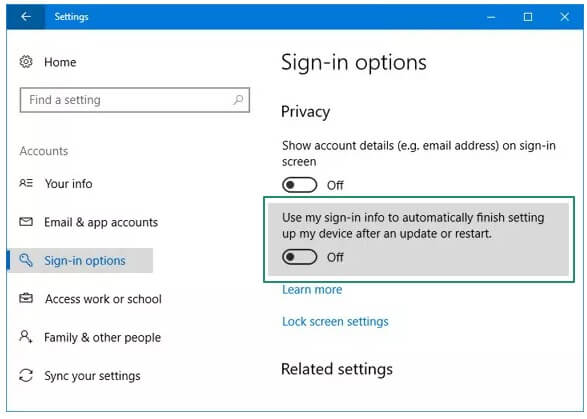
- Lastly, you can toggle on or off the feature located in the previous step depending on your requirements.
Also know: How to Set Your Time and Time Zone Manually in Windows
Method 2: Use the Group Policy Editor to automatically finish setting up a PC after an update or restart
If you are a Windows 10 or Windows Pro/Enterprise user, you can use the Group Policy Editor to turn on or off the “Sign-in and lock last interactive user automatically after a restart” feature. Below are the steps to do it.
- First, press the Windows key+R, type gpedit.msc in the box that appears, and press Enter to launch the Group Policy Editor.
- In the Group Policy Editor, go to Computer Configuration > Administrative Templates > Windows Components > Windows Logon Options.
- Find Sign-in and lock last interactive user automatically after a restart.
- Double-click the policy located in the previous step and set it to enabled to activate it or disabled to deactivate it.
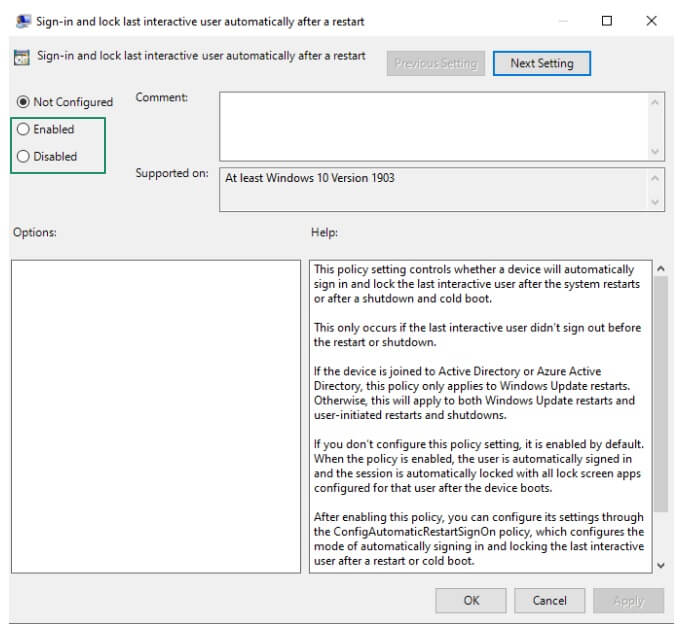
- Lastly, click Apply and OK to save the changes and restart your computer to complete the process.
Method 3: Edit the Windows Registry Editor to automatically finish setting up a PC after an update or restart
Another way to turn on or off the option to use sign-in info to auto-finish setting up a device after an update or restart is through the Registry Editor. Below is how to activate or deactivate this feature via the Registry Editor.
Note: Before proceeding with the steps below, back up your Registry, as incorrect keys can lead to system instability.
- First, press Windows key+R, type regedit in the box that appears, and press Enter to open the Registry Editor.
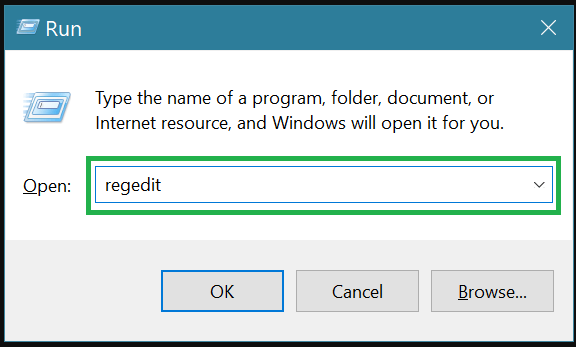
- In the Registry Editor, go to HKEY_LOCAL_MACHINE\SOFTWARE\Microsoft\Windows\CurrentVersion\Policies\System
- Find DisableAutomaticRestartSignOn. Create a new DWORD (32-bit) Value if it does not exist.
- Set its value to 0 to enable the feature or 1 to disable it.
- Lastly, exit the Registry Editor and restart your computer.
That’s how you can enable or disable the feature to automatically finish setting up a PC after an update or restart. Let’s now help you troubleshoot common issues.
How to Fix Issues with the Automatic PC Set Up Feature
Below is how to solve common problems with the option to use sign-in info to auto-finish setting up a device after an update or restart in Windows.
Use my sign-in info option is missing in Settings
If you cannot find the “Use my sign-in info” option in Settings, you can:
- Update Windows. To update Windows, search “check for updates” using the search utility on Windows, click the first search result, click the “Check for Updates” button, and click “Download & Install” to get the latest updates downloaded and installed.
- Ensure the Group Policy Editor setting is not overriding this option. You can access this setting by following the first three steps in Method no. 2 above.
Auto sign-in and lock feature grayed out
If the auto sign-in and lock feature has been grayed out, you can:
- Add a PIN, password, or a Windows Hello credential to solve this problem.
- Contact your IT administrator for necessary permissions or workarounds if your device is a part of a school network, corporate, or managed by any organization.
- Check the Group Policy settings to ensure local Group Policy configurations do not override local computer settings.
Also know: KB890830 Windows Malicious Software Removal Tool(MSRT): Download & Use
BitLocker prompts appear after a system restart
If you have BitLocker encryption enabled on your system drive, BitLocker prompts may appear after your system restarts, interrupting automatic sign-in. Hence, you can turn off or disable BitLocker.
Automatic login not working after a Windows update
A specific startup configuration or other factors can prevent the automatic login feature from functioning after a Windows update. Hence, if the automatic login is not working after updating Windows, you can:
- Turn on the Fast Startup mode. To do so, go to Control Panel > Power Options, select “What the power buttons do” > “Change settings that are currently unavailable,” and then choose the “Turn on fast startup” option.
- A third-party security software may also interfere with the feature and stop it from working. Hence, you can check if your third-party antivirus or security software interferes with this feature.
Unable to modify Registry or Group Policy
You may not be able to modify your Registry or Group Policy settings due to system restrictions or insufficient permissions. Hence, you can:
- Contact your system administrator to get the necessary permissions.
- Restart your computer after making changes to check if these changes take effect.
Let’s now answer a few more related questions. If any of your questions are unanswered, do not hesitate to write us a comment or contact Microsoft Support for help.
Frequently Asked Questions
Q1. Why does Windows keep asking me to finish setting up my computer?
Windows constantly asks to finish setting up your computer to prompt you to configure Microsoft applications, such as Microsoft 365, OneDrive, or Windows Hello, after a Windows update.
Q2. How to turn off “Let’s finish setting up your PC?”
To disable the “Let’s finish setting up your PC” screen in Windows 11/10, you can navigate to the Settings > System > Notifications, expand the Additional Settings, and then uncheck “Suggest ways to get the most out of Windows and finish setting up this device.”
Q3. Does Windows automatically restart after an update?
While Windows automatically restarts to apply updates, it is usually outside your configured “active hours” so that your work is not disturbed.
Q4. Does enabling the “Use my sign-in info” feature compromise security?
It can compromise the security if multiple users have access to your device. Hence, you should only activate this feature when you are using a device that you do not share with anyone outside of your trusted circle.
Q5. What happens if I turn off the “Use my sign-in info” feature?
If you turn off this feature, you will be required to manually sign in after the system updates or restarts, requiring you to manually enter your login credentials to access your accounts.
