

There were some problems installing updates,” accompanied by 0x80070643 error code, is a common problem many users experience when trying to install system updates, especially the January 2024 Windows security update (KB5034441).
If you also experience the fatal error 0x80070643 during the installation of Windows updates, important security updates may not install on your computer, leaving your system vulnerable to security risks.
Hence, it is essential to fix the error and update Windows. You can easily fix the 0x80070643 Windows error with the step-by-step solutions in this article, ranging from restarting your computer to installing the updates manually.
Before we go deeper into troubleshooting, understanding the problem and its causes is an important first step in solving it.
What Is Windows Error 0x80070643
0x80070643 is an error code that appears when Windows fails to install a Windows update or software. This issue is most frequently connected to Windows updates, .NET Framework installation, and antivirus updates. Moreover, it indicates an update process failure, which may cause various problems, such as incomplete installations, system conflicts, or file corruption.
What Causes Windows Error 0x80070643
0x80070643 is a fatal error during the installation of updates and software that may occur due to various system issues, such as the following.
- System file corruption: Damaged or corrupted critical system files may prevent Windows updates from installing properly.
- Faulty .NET Framework installation: .NET Framework-related updates may run into this error because of a corrupted or incomplete installation.
- Antivirus or security software problems: An incorrectly configured or outdated security software can block the update process.
- Windows installer issues: Windows installer service problems can cause errors, such as Windows error 0x80070643, when installing new programs or software updates.
- Software Distribution Folder problems: The Software Distribution folder temporarily saves the files needed for updates. Update errors can occur if these files are outdated or corrupted.
- Issues with Windows update components: The services or files needed for the update may be corrupted or damaged.
- Incomplete earlier updates: Previous updates may be incomplete or incorrectly installed, leading to failure of the subsequent updates.
Now that you are familiar with the error code 0x80070643 when installing updates and its causes, let’s help you fix it.
How to Fix Windows Error 0x80070643
To fix the 0x80070643 fatal error during the installation of updates, you can restart your computer, run the Windows update troubleshooter, delete the update cache, run the .NET Framework Repair Tool, free up the disk space, run SFC and DISM scans, reset the Catroot 2 folder, reset Windows update components, disable your antivirus temporarily, or install the updates manually. It is best to try each solution one at a time and check if the problem is resolved before moving to the next step. This way, troubleshooting will feel less overwhelming, and you can avoid unnecessary steps.
The following sections explain all these solutions in detail. Please note that you do not have to try all the solutions—you can start with the first solution and stop when the problem is fixed.
Fix 1: Restart the PC
Sometimes, even the most complex problems have the simplest possible solutions. A simple computer restart can fix temporary glitches and reset the critical services, fixing the 0x80070643 Windows error. Hence, you can follow the steps below to restart your PC.
- First, right-click the Start button on the Taskbar.
- Next, hover over the Shut down or sign out
- In this step, choose Restart from the menu that appears.
- After the PC restarts, try performing the installation or update again.
Also know: Solve WHEA Uncorrectable Error in Windows
Fix 2: Use the Windows Update Troubleshooter
There is a built-in troubleshooting tool, known as the Windows Update Troubleshooter, to fix update issues. This tool automatically diagnoses many problems related to the 0x80070643 error, such as service interruptions and registry issues. You can follow the steps below to use this tool.
- Begin by pressing Windows + I to open Settings.
- Next, click the System option in the Settings panel. Windows 10 users can click Update & Security.
- Scroll down to the Troubleshoot option and click on it.
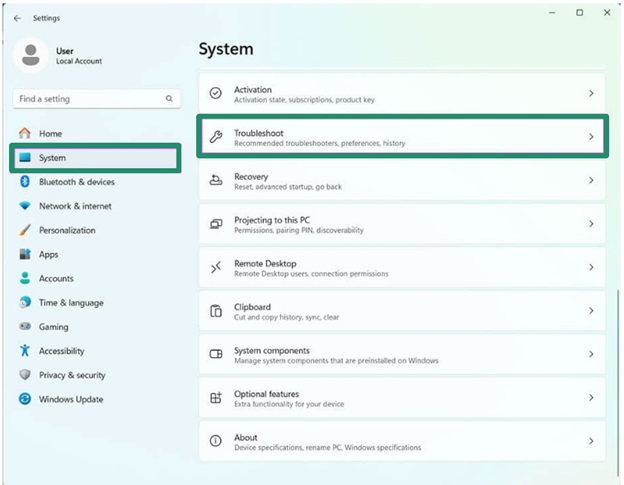
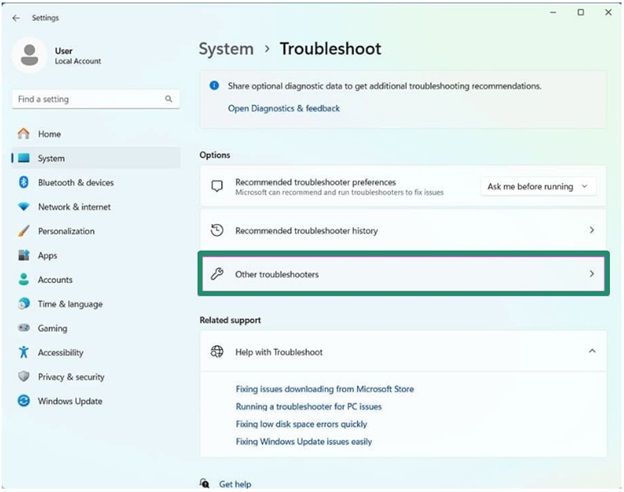
- Click Other Troubleshooters or Additional Troubleshooters.
- Next, click the Windows Update
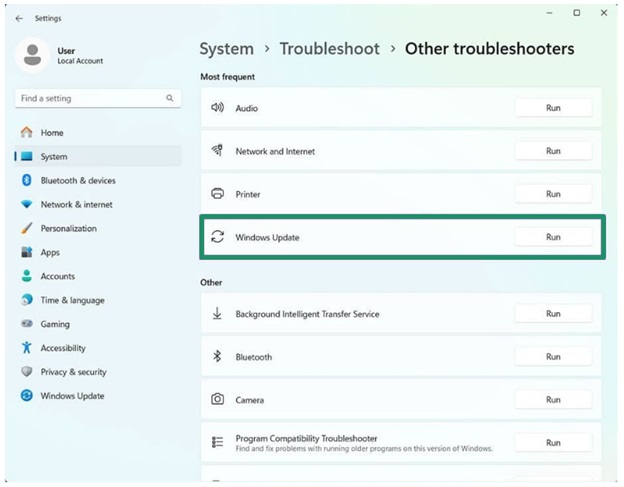
- In this step, click the Run
- Follow the prompts that appear on your screen to fix the detected issues.
- Lastly, restart your computer to complete the update process and re-try the update or installation.
Fix 3: Clear the update cache
If incomplete or corrupted download files exist in the update cache, you may experience the 0x80070643 fatal error during the installation of subsequent updates. Hence, you can delete the update cache to solve the problem. Don’t worry—deleting the update cache only removes temporary update files and will not affect your personal data or settings. Here is how.
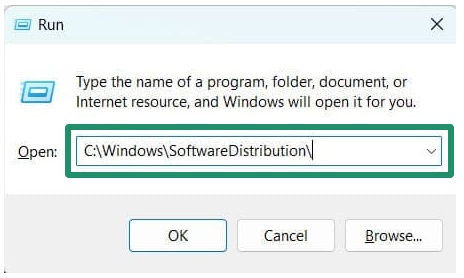
- First, press Windows + R to access the Run utility.
- In the Run box that appears on your screen, copy and paste C:\Windows\SoftwareDistribution\ and then press Enter.
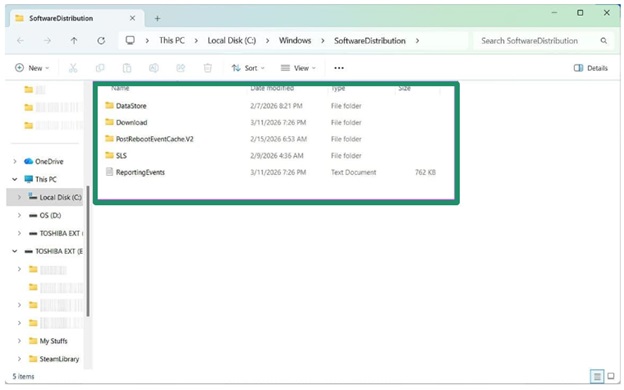
- Next, use the Ctrl + A shortcut to select all the files and folders in the Explorer window, and then press Shift + Del to delete these files and folders permanently.
- Lastly, restart your computer and re-try the update after it restarts.
Fix 4: Try the .NET Framework Repair Tool
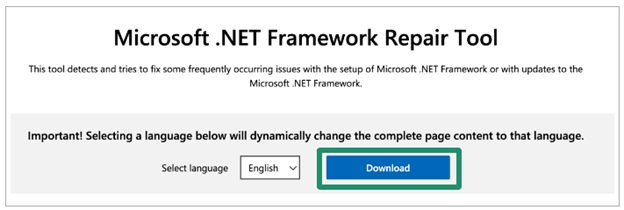
The .NET Framework is essential for many Windows and third-party apps. A corrupted .NET Framework can lead to numerous problems, 0x80070643 error being one of them. The .NET Framework Repair Tool is an official tool by Microsoft to fix such issues. Here is how to use it.
- To begin, download the Microsoft .NET Framework Repair Tool from the official website and run it.
- Next, follow the instructions that appear on your screen to update or repair the .NET Framework.
- Lastly, restart the PC and re-try the update.
Fix 5: Free up the disk space
Updates cannot be installed if there is not enough disk space. The Windows error 0x80070643 may indicate the need to free up the disk space with one of the best free disk cleaner software, such as Win Riser, Auslogics Disk Defrag, and CCleaner.
However, if you want to clean the disk manually, you can do so from the “Storage” tool in your PC’s “System” settings.
Fix 6: Run SFC and DISM scans
Since corrupted/missing system files may also be responsible for the 0x80070643 fatal error during installation, you can run the SFC and DISM scans to fix the issue. Here is how.
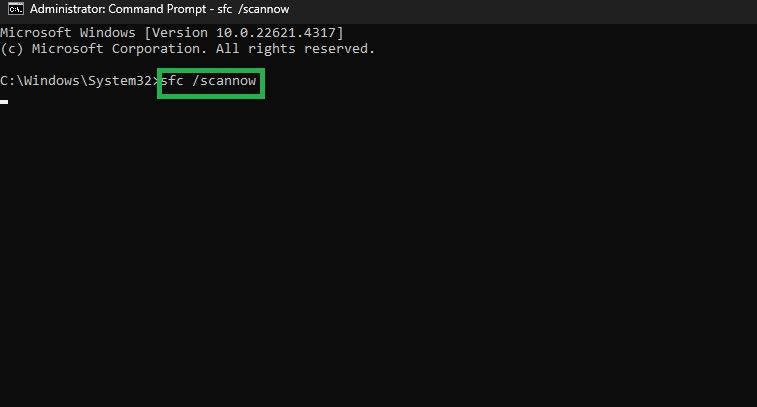
- First, right-click the Start button and choose Windows PowerShell (Admin) or Windows Terminal (Admin)/Command Prompt (Admin) from the menu that appears.
- Next, copy and paste the following command in the command line and press
sfc /scannow
- After the scan is complete, follow the prompts that appear on your screen to fix detected issues.
- Once the SFC scan and related troubleshooting are complete, copy and paste the following command in the command line and press
DISM.exe /Online /Cleanup-image /Restorehealth
- Lastly, restart your PC to complete the process.
Fix 7: Reset the Catroot 2 Folder
Catroot is a crucial system folder to update information. The catroot folder reset helps complete the update process. You can follow the steps below to reset your Catroot folder.
- Press Windows + R to access the Run utility.
- In the Run box, type cmd and press Ctrl + Shift + Enter.
- Once the Administrator Command Prompt appears, copy and paste the following commands in the command line. Remember to press Enter after each command.
net stop cryptsvc
md %systemroot%\system32\catroot2.old
xcopy %systemroot%\system32\catroot2 %systemroot%\system32\catroot2.old /s
- Next, press Windows + E to launch File Explorer.
- In the File Explorer, follow the path [Drive] > Windows > System 32.
- Next, press Shift + Del to delete all the files and folders from the Catroot 2 folder.
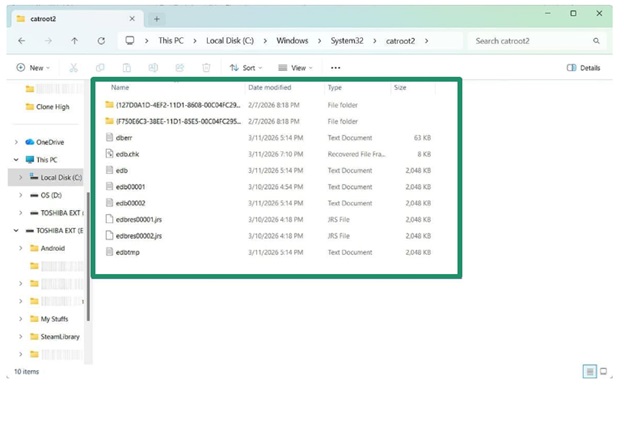
- Go back to the Command Prompt, type net start cryptsvc in the command line, and press
- Lastly, restart your computer to complete the folder reset.
Also know: How to Update Windows Security Signatures Manually Windows
Fix 8: Perform Windows update component reset
The error that you are experiencing may be a result of deregistered system components or the component files being replaced by third-party applications or failed installations. Hence, you can follow the steps below to re-register these components.
- First, click the Start button, type cmd in the search bar, right-click the first search result, and then choose Run as administrator from the menu that appears.
- In the Administrator Command Prompt, copy and paste the following commands one by one. Remember to press Enter after each command.
net stop wuauserv
net stop cryptSvc
net stop bits
net stop msiserver
ren C:\Windows\SoftwareDistribution SoftwareDistribution.old
ren C:\Windows\System32\catroot2 catroot2.old
net start wuauserv
net start cryptSvc
net start bits
net start msiserver
- Lastly, restart your PC and perform the update again.
Fix 9: Disable your antivirus temporarily
Third-party antivirus programs, such as McAfee and AVG, can block the system’s files when installing updates, mistaking them as threats. Hence, you can go through the software manual of your antivirus to learn the exact steps to disable it. Below are the general steps. However, please remember to re-activate the antivirus after completing the update to protect your system from unnecessary risks.
Once you have finished updating Windows, you can re-enable your antivirus protection by right-clicking the antivirus icon in the system tray and selecting the option to enable or resume protection. If your software has a different method, open the antivirus program and look for the button or setting to turn real-time protection back on, then confirm your selection. Ensuring your antivirus is active will keep your computer safe from potential threats.
- First, right-click the antivirus icon.
- Next, right-click the antivirus and select the option to disable or pause it.
- After disabling the antivirus software, you can re-try the update.
Fix 10: Install Windows updates manually
If none of the above solutions work, you can download and install the update manually as a last resort. Here is how.
- Begin by navigating to the Microsoft Update Catalog and searching for the update you want to install using its KB or Knowledge Base number. You can note the KB number of the update from the 0x80070643 error message.
- Next, download the update package for your specific Windows version.
- Lastly, install the update and restart your computer.
That concludes our guide on how to fix the Windows error 0x80070643. We hope it helps solve your problem. However, if the issue remains unresolved, you can contact Microsoft Support for professional assistance. If you have any related questions or concerns, you can leave us a comment.
How to Avoid Windows Update Errors: Effective Tips
As a bonus for our readers, here are a few proactive measures that you can take to avoid such errors in the future.
- Ensure all device drivers are up-to-date.
- Make sure Windows Security signatures are always up-to-date.
- As much as possible, do not force shut down your PC to prevent file corruption.
- Clean the disk regularly to ensure enough disk space at all times.
Frequently Asked Questions
Q1. How to fix corrupted Windows updates?
Resetting the Windows Update components is among the best fixes for corrupted Windows updates. You can go through the guide above to learn how to reset the Windows Update components.
Q2. How do I fix error 0x80070643?
To fix the Windows update error 0x80070643, the most effective solutions include running the Windows Update Troubleshooter, resetting Windows Update components, and checking the system files. You can refer to the guide above for details.
Q3. Is it safe to ignore the Windows update error 0x80070643?
No, it is not safe to keep the 0x80070643 error unresolved, as it may prevent Windows updates, which may be necessary for system security and bug fixing.
