

Is your Corsair keyboard or mouse unresponsive, malfunctioning, or not being detected on Windows? Or the keyboard/mouse lights are on when your PC wakes up from sleep mode? Or is your wireless mouse or keyboard flashing red, failing to connect with the USB receiver, or lagging? The Corsair keyboard and mouse not working in any such scenarios is a common problem that you can fix easily with the effective solutions in this guide.
However, before beginning troubleshooting, it is on point to answer the question, “Why are my Corsair mouse and keyboard not working all of a sudden?” to understand and solve the problem more efficiently.
Why Are the Corsair Keyboard and Mouse Not Working
Several factors, such as the keyboard being in a locked mode, keyboard/mouse firmware issue, hardware defect, and the following, may be why your Corsair keyboard or mouse does not work.
- The device is not plugged in correctly.
- Outdated keyboard or mouse driver.
- Faulty USB port.
- Keyboard/mouse settings interfere with its functionality.
- Dirty keyboard or mouse.
- A low or deteriorating wireless keyboard battery.
- Outdated firmware.
Since you are now familiar with what may have caused your Corsair keyboard or mouse not to work, let’s help you fix it.
However, before trying any solutions, connect a spare keyboard or mouse or turn on the on-screen keyboard. To enable the on-screen keyboard, go to Settings, choose Accessibility or Ease of Access, navigate to Keyboard, and toggle on the On-screen keyboard.
How to Fix the Corsair Keyboard and Mouse Not Working Issue
You can fix the Windows 11 or Windows 10 Corsair keyboard or mouse not working problem by checking the keyboard/mouse connection and resetting the device, running the keyboard/mouse troubleshooter, updating your keyboard driver/mouse driver, checking your device for hardware issues, reinstalling your keyboard/mouse driver, updating the keyboard or mouse firmware, checking the keyboard batteries, disabling the USB selective suspend setting, turning off fast startup, uninstalling and reinstalling your keyboard or mouse, adjusting your keyboard and mouse settings, or reinstalling iCUE.
However, you do not necessarily have to try all these solutions. You can begin troubleshooting with the first fix and stop when the problem disappears.
Fix 1: Check the keyboard/mouse connection and reset the device
Loose or damaged cables may have caused the Corsair keyboard and mouse not working issue if you have a wired keyboard or mouse. Hence, ensure the cable does not have signs of wear and tear. Also, check that the cable fits securely in the computer’s USB ports. If the cable is damaged or does not fit its respective ports, you can remove and reinsert the cable.
If you have a Bluetooth or wireless keyboard or mouse, a low battery or insufficient charge may have made it dysfunctional. Hence, check the battery level and charge the battery of your keyboard or mouse if it is low. If the batteries keep disconnecting or turning off, consider replacing them with new ones.
Moreover, ensure the lock button on your keyboard is turned off. To turn off the lock button, press the button with an imprinted lock icon.
Also know: How to Download and Update AMD X570 Chipset Driver
Fix 2: Run the keyboard/mouse troubleshooter
Windows has built-in troubleshooting tools to help you fix bugs and issues, such as a Corsair mouse not working or a keyboard not working. Thus, you can follow the steps below to run the native Windows troubleshooter.
Windows 11
- Click the Start button.
- Next, click Settings in the on-screen menu.
- Go to the System
- Click Troubleshoot in the system settings.
- Click Other Troubleshooters.
- Go to the Bluetooth
- Click the Run button next to the Bluetooth troubleshooter.
- Follow the on-screen prompts to fix the detected issues.
Windows 10
- Click the Start button and choose Settings from the Start menu.
- Go to Update & Security.
- Choose Troubleshoot from the Update & Security menu.
- Click Bluetooth (to fix Bluetooth device issues), Keyboard (to solve keyboard-related problems), or Hardware and Devices (to fix devices and hardware-related issues).
- Click Run the troubleshooter.
- Follow the on-screen instructions to find and fix the detected issues.
Note: Alternatively, you can use Get Help in Windows 11 and 10 to solve mouse and keyboard problems. To do this, open the Get Help application, type “Keyboard troubleshooting” or “Mouse troubleshooting” in the search box that appears, and follow the on-screen recommendations.
Fix 3: Update your keyboard/mouse driver
A driver is a software that helps the Windows operating system communicate with peripheral devices, such as a keyboard or mouse. If the driver is outdated, this communication breaks, causing the Corsair keyboard and mouse not to work. Thus, here is how to update your keyboard and mouse driver.
- Click the Start
- Next, type Device Manager in the search bar.
- Select the first search result.
- In the Device Manager, double-click Keyboards if you are experiencing keyboard problems. If you are dealing with mouse issues, double-click Mice and other pointing devices.
- Right-click your Corsair Keyboard or Corsair Mouse and select Update Driver.
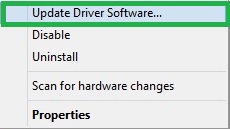
- Windows 11 users select Search automatically for drivers. Windows 10 users select Search automatically for updated driver software.
- Follow the on-screen directions to download and install the available keyboard or mouse driver.
- Lastly, restart your computer to complete the mouse/keyboard driver update process.
Fix 4: Check your device for hardware issues
Dust and grime in the keyboard or mouse may be the reason your Corsair mouse or keyboard is not working in Windows 10/11. Hence, you can clean your mouse and keyboard to fix the issue.
Cleaning the mouse
- Unplug the mouse.
- Use an old sock or rag to wipe the top of the mouse.
- Gently scrape off the pads at the bottom to remove the chunky stuff.
- To clean the optical sensor at the bottom of the mouse, use a Q-tip.
Cleaning the keyboard
- Unplug the keyboard.
- Turn the keyboard upside down and shake it to remove any debris or liquid.
- Use a keycap puller to remove your keyboard keys one after the other.
- With a brush or microfiber cloth, clean the keyboard surface. You can also use Isopropyl Alcohol in a small quantity to clean the keyboard.
- Use a spray can for Corsair keyboards to lube the switches. If you have a K70 Pro Mini Wireless keyboard, use a switch puller to take off the switches and then lube each part.
- Reattach all the keys and wait for the keyboard to dry.
- Connect the keyboard after it is dry.
Also know: Logitech K400 Plus Driver Download and Update for Windows
Fix 5: Reinstall your keyboard/mouse driver
An improperly installed or corrupted keyboard or mouse driver may be another reason you experience problems like a Corsair mouse or Corsair keyboard not working. Thus, follow the steps below to reinstall your keyboard and mouse driver.
- Click the Start button, type Device Manager in the search bar, and select it from the search results.
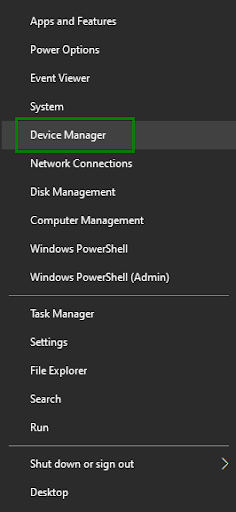
- In the Device Manager, double-click Keyboards (for the keyboard) or Mice and other pointing devices (for the mouse).
- Right-click your keyboard or mouse and select Uninstall from the available options.
- Click Uninstall to confirm the uninstallation.
- Lastly, restart your computer.
Fix 6: Update the keyboard or mouse firmware
Updating the keyboard or mouse firmware helps resolve performance glitches you may be experiencing. Hence, here are the steps to update the firmware.
- Navigate to the iCUE download page.
- Click Firmware Utility Update.
- Next, click Check my devices and then Authorize Access.
- After your device is detected, follow the on-screen prompts to update the firmware.
Note: Alternatively, you can update the firmware using the iCUE software. To do this, ensure your device is connected and open iCUE, click Settings at the top right, select your device, click Check For Updates, and then follow the on-screen directions to complete the firmware update.
Fix 7: Disable the USB selective suspend setting
If the USB selective suspend setting is enabled, Windows may disable your keyboard or mouse’s port to save power. Thus, here is how to turn off this setting to fix the Corsair keyboard or Corsair mouse not working issue.
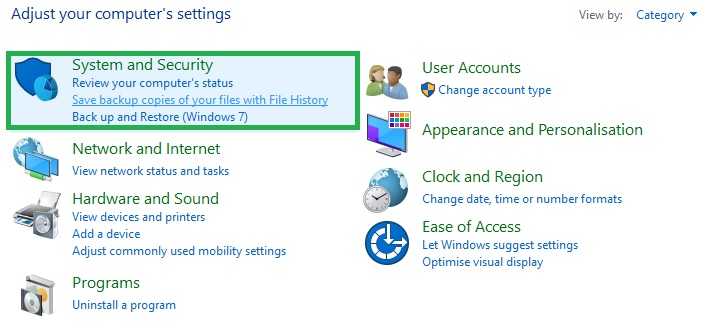
- Type Control Panel in the Windows search and select it from the search results.
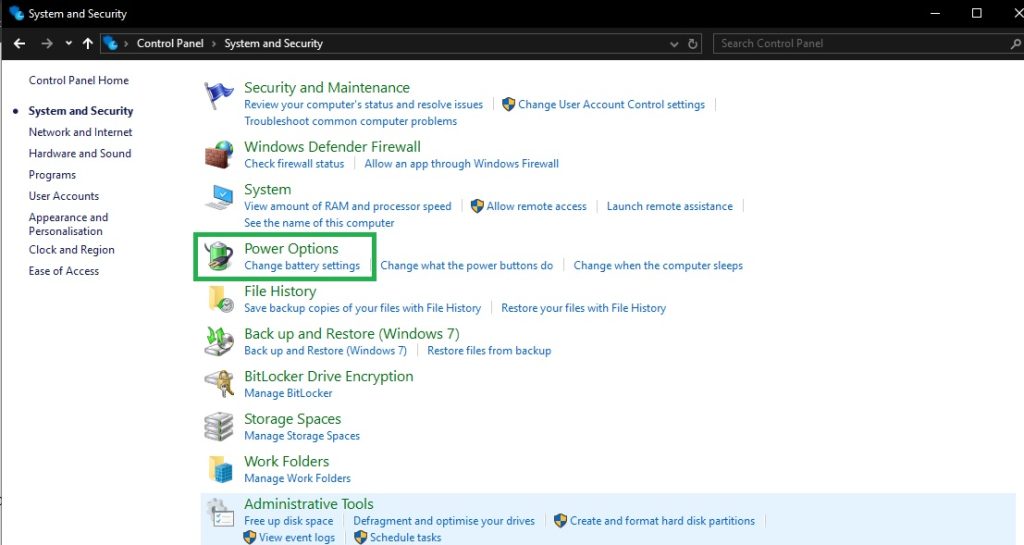
- Choose System and Security from the Control Panel menu.
- Click Power Options.
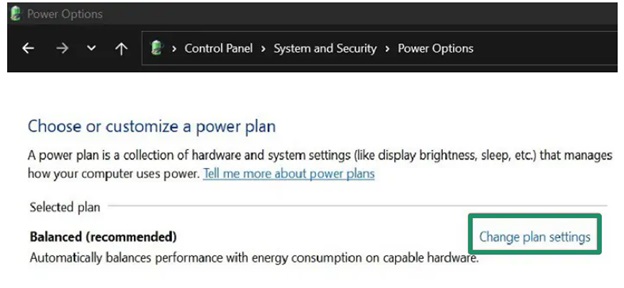
- Next, click Change plan settings for your current plan.
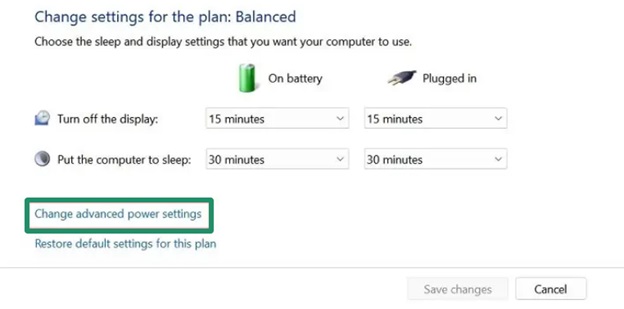
- Click Change advanced power settings.
- Next, click + to expand the USB Settings.
- Click + beside the USB selective suspend setting.
- Desktop users choose Laptop users choose Disabled for both On Battery and Plugged In settings.
- Lastly, click OK and restart your computer.
Fix 8: Turn off fast startup
The fast startup settings interfere with the functionality of your keyboard or mouse by not allowing bug fixes and updates. Hence, here is how to disable fast startup.
- Type Control Panel in Windows search and select it from the search results.
- Click System and Security and then navigate to Power Options.
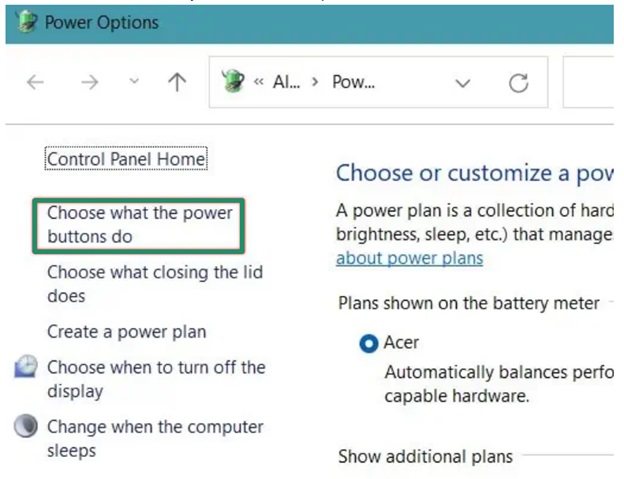
- Click Choose what the power buttons do.
- Next, click Change settings that are currently unavailable.
- Uncheck Turn on fast startup.
- Save Changes and restart your computer.
Also know: Fixed: TP-Link Wifi Not Working in Windows PC
Fix 9: Adjust your keyboard and mouse settings
Adjusting the keyboard or mouse settings, such as precision or pointer speed, can fix the Windows 11 or Windows 10 Corsair mouse or Corsair keyboard not working issue. To adjust your mouse and keyboard properties, you can follow the steps below.
- To change the mouse settings, press Windows + R to access the Run box, type Control Mouse in the Run box, and click Then, tweak settings, such as scroll speed and double-click speed, in the Mouse Properties window. To fix the slow mouse speed, click Pointer Options and set the speed according to your preference.
- To change the keyboard properties, type Control keyboard in the Run box and click OK, tweak the repeat rate and delay, click Apply, and OK to save the changed settings.
Fix 10: Reinstall iCUE
iCUE software helps you manage and customize the Corsair devices. However, software corruption can cause the problem you are trying to solve. Hence, follow the steps below to reinstall this software.
- Click the Start button and choose
- Next, click
- Click Installed Apps or Apps and Features.
- Find and click iCUE in the list of software.
- Click Uninstall and confirm the uninstallation.
- Lastly, reinstall the software from the official website.
Hopefully, the fixes above help you solve the Windows 11/Windows 10 Corsair keyboard and mouse not working issue. However, if you continue experiencing problems, you can contact Corsair for assistance.
Frequently Asked Questions
Q1. Can outdated iCUE software or firmware cause Corsair keyboard issues?
Yes, an incompatible or outdated iCUE software or firmware can be the reason your Corsair keyboard does not work. To fix this issue, you can reinstall the iCUE software and update the device firmware.
Q2. What if my Corsair keyboard is still not working after troubleshooting?
If you continue experiencing problems, hard reset the device. To do this, unplug the keyboard, press and hold the Escape key, re-plug the keyboard, and then release the Escape key after 5 seconds. If this does not work, contact Corsair support.
Q3. How do I connect my Corsair keyboard to my laptop?
You can connect your wired Corsair keyboard to the computer by plugging it into a USB 3.0 port. For wireless keyboards, you can connect using the 2.4GHz USB wireless dongle; insert the dongle into a USB port and toggle on the wireless switch

