

Is the Windows 10/11 night light not working, greyed out, cannot be toggled, or does not change color after a Windows update? The situation is especially frustrating if you are someone who has a lot to do on their PC at night, like relaxing and playing PC games after a not-so-exciting day at work. However, we have got your back.
This article explains how to fix the Windows 11/Windows 10 night light doesn’t work issue effectively. Most of these solutions are safe to try and easily reversible, so you can follow along with confidence. We will guide you step by step through each fix, making the process simple even if you are not a technical expert. However, before beginning with the solutions, let’s answer the burning question, “Why is the night light disabled?” Understanding the causes helps troubleshoot the right way.
Why Is the Night Light Not Working in Windows 10/11
The Windows 11 or Windows 10 night light may not be available for several reasons, such as outdated or glitchy display drivers, disabled location services, corrupt system files, outdated Windows, and conflicting settings.
- Outdated or buggy display drivers: An outdated or inappropriate driver breaks the communication between the Windows operating system and the night light, making the light dysfunctional.
- Location services turned off: Disabled location services gray out night features, for example, Sunset to Sunrise, making the night light stop working.
- Outdated Windows: Windows becomes buggy over time, and Microsoft releases updates to fix these bugs. Missing out on Windows updates may have prevented these night light fixes from working on your computer.
- Corrupt system files: Corrupted operating system files can interfere with the functionality of various features, such as the night light.
- Conflicting settings: Incorrectly set settings, such as an incorrect date and time, can be the reason Windows 11/Windows 10 night light won’t turn off.
In addition to the above reasons, note that a few modern monitors, for example, BenQ and Samsung M7, have a built-in eye-saver mode. The eye-saver mode functions much like the Night light. Hence, to make the night light work on these monitors, you must turn off the eye-saver. To do this, you can use the physical buttons or joystick, usually underneath or on the back of your monitor. If you are unsure how to access these settings, refer to your monitor’s manual or visit the manufacturer’s website for specific instructions.
Other than this, here are the most effective solutions to the Windows 11/Windows 10 night light not available issue.
How to Fix Windows 11/Windows 10 Night Light Not Working
You can fix the Windows 11/Windows 10 night light won’t turn off issue by logging out and in of your Windows account, updating your graphics driver, restarting Windows Explorer, turning on location services, correcting the date and time, increasing the night light strength, switching the HDR feature off and on, changing night light settings using Windows Registry, reinstalling the display driver, updating Windows, and performing an SFC scan.
However, you need not try all these fixes. You can start troubleshooting with the first solution and stop when the night light starts working.
Fix 1: Log out and log in to your Windows account
A temporary glitch may have caused the Windows 10/Windows 11 night light not working problem. Signing out of your account and signing in again can help fix this issue. Here is how to do this.
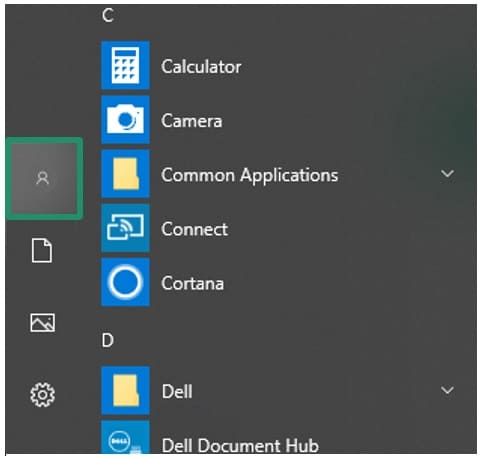
- Click the Start button.
- Click your user picture or the Accounts icon.
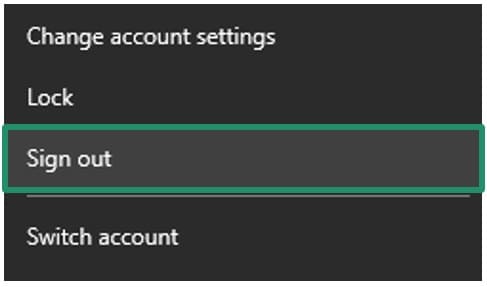
- Click Sign Out. Once you have signed out, log in again.
Fix 2: Update your graphics driver
The graphics or display driver is a software that translates your instructions in the language the monitor understands and its response to the language the operating system understands, helping them communicate with each other. If the driver is outdated, this communication gets interrupted, resulting in issues like Windows 10 night light won’t turn off. Here is how to fix it.
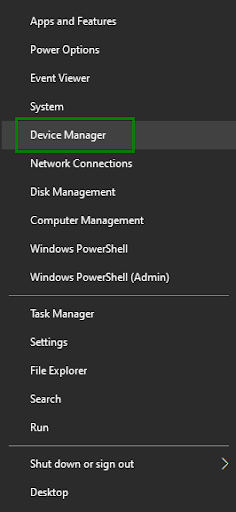
- Right-click the Start button.
- Click Device Manager.
- Double-click Display adapters.
- Right-click your graphics card.
- Click Update Driver.
- Click Search automatically for drivers. Windows 10 users click Search automatically for updated driver software.
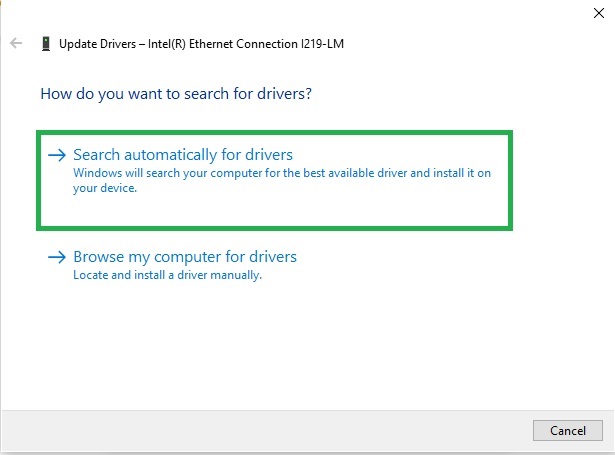
- Follow the on-screen prompts to download and install the driver.
- Lastly, restart the computer.
Also know: How to Fix THX Spatial Audio Not Working
Fix 3: Try restarting Windows Explorer
Restarting Windows Explorer refreshes a frozen display interface, solving many problems, Windows 11 night light not working being one of them. Hence, you can follow the steps below to restart Windows Explorer.
- Press Ctrl + Shift + Esc to access Task Manager.
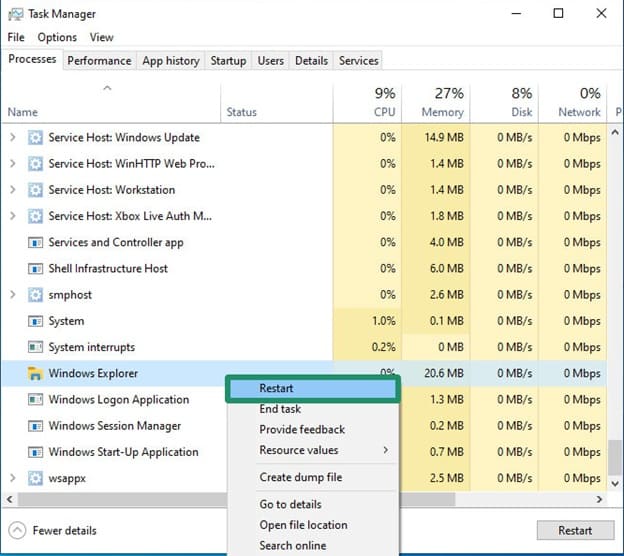
- Right-click Windows Explorer.
- Lastly, click Restart.
Fix 4: Turn on location services
Location services are essential for features, such as Sunset to Sunrise, required for the night light to work. Thus, here is how to enable the location services.
- Press Windows + I.
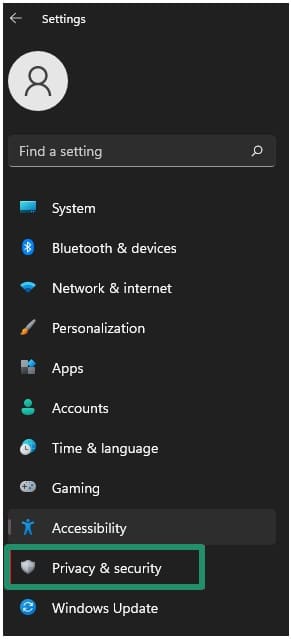
- Click Privacy & Security.
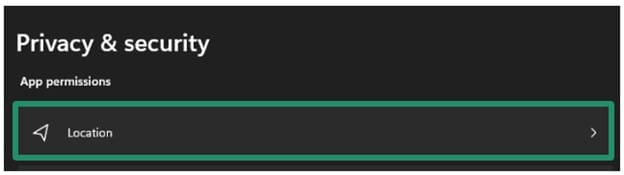
- Navigate to Location.
- Toggle On the Location Services.
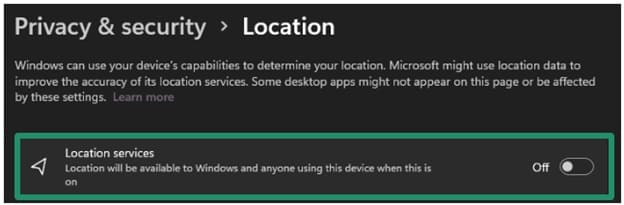
- Scroll down to ensure location access is available for the System Services.
Fix 5: Correct the date and time
If the date and time settings are incorrect on your PC, they may interfere with the night light, causing issues like the Windows 10 night light not being available. Thus, here are the steps you can use to check and correct the date and time settings.
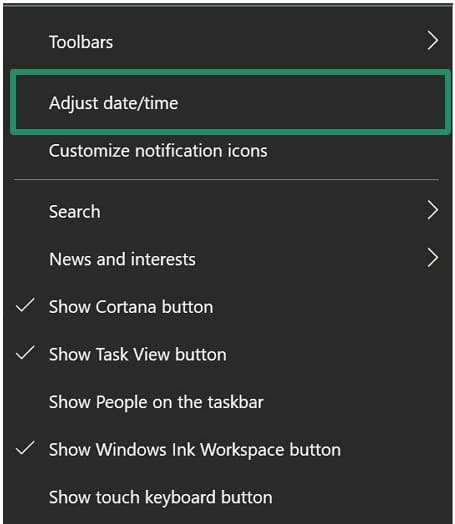
- Right-click the time in the right corner of the taskbar.
- Click Adjust date/time.
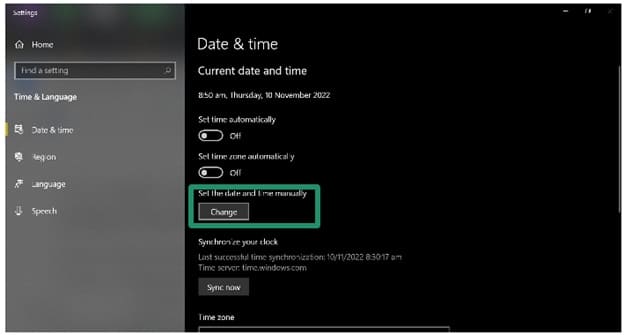
- If the date and time are not set correctly for your time zone, click the Change To change the date and time, “set time automatically” and “set time zone automatically” options must be off.
- Set the correct date and time.
- Click Change to save the changes.
Fix 6: Increase the night light strength
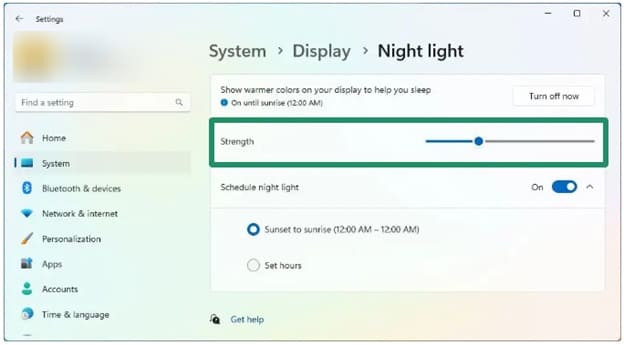
A weak night light strength may be another reason the Windows 11 or Windows 10 night light doesn’t work. Hence, here are the steps to increase the night light strength.
- Press Windows + I to open Settings.
- Click System in the Settings panel.
- Click Display in the system settings.
- Lastly, click Night Light and move the Strength slider towards the right to increase it.
Also know: How to Hide or See File Extension in Windows 11
Fix 7: Switch the HDR feature off and on
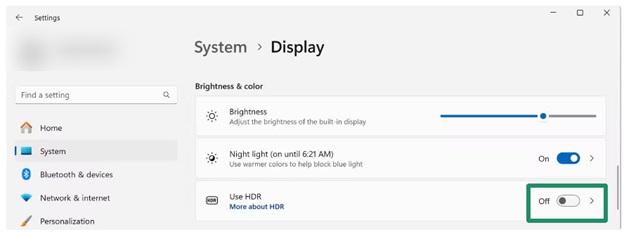
The HDR feature helps increase the picture’s vibrancy. However, this feature can sometimes be why Windows 11 or Windows 10 night light won’t turn off. Hence, here is how to disable and re-enable this feature to fix it.
- Press Windows + I.
- Click System.
- Click Display.
- Turn the HDR feature off and on.
Fix 8: Change night light settings using Windows Registry
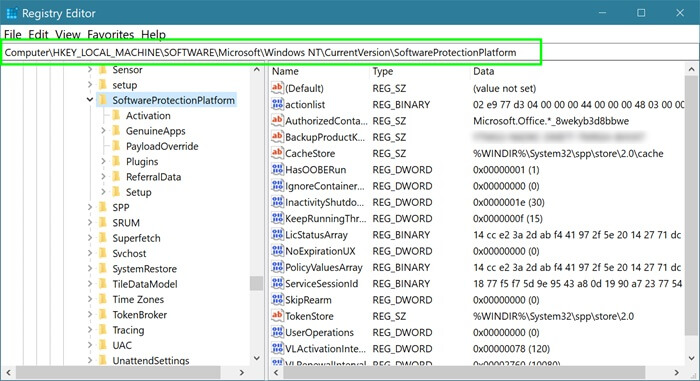
Changing a few Windows Registry settings can help make the night light work again. However, before making any change to the Windows Registry, back up your Registry. To back up the Registry, press Windows + R, type Regedit in the Run box, press Enter, select File > Export, and save the file as .reg to a secure location.
After creating a Registry backup, follow the steps below to change the Windows Registry night light settings.
- Press Windows + R.
- Type Regedit in the Run box and press
- Navigate to the path HKEY_CURRENT_USER > Software > Microsoft > Windows > CurrentVersion > CloudStore > Store > DefaultAccountCloud > Cloud.
- Right-click the default$windows.data.bluelightreduction.bluelightreductionstate and $$windows.data.bluelightreduction.settings
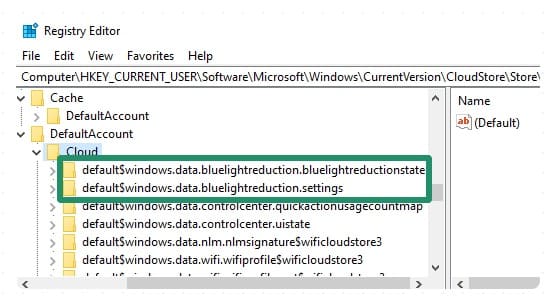
- Click Delete.
- Lastly, restart your computer.
Fix 9: Reinstall the display driver
The Windows 11/Windows 10 night light won’t turn off or work if the display driver is corrupt or buggy. Thus, you can follow these steps to uninstall and reinstall the display driver.
- Right-click the Start button.
- Click Device Manager.
- Double-click Display adapters.
- Right-click your display adapter and then click Uninstall.
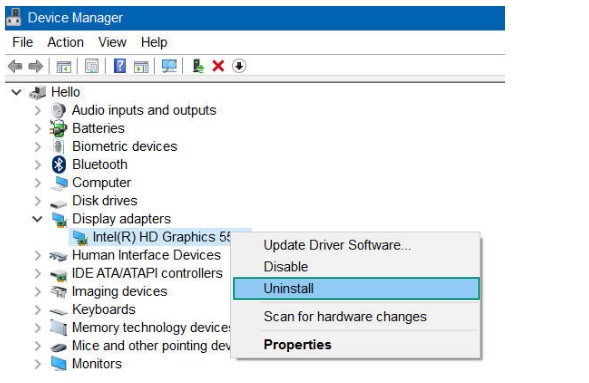
- Click Delete the driver software for this device, confirm, and complete the uninstallation.
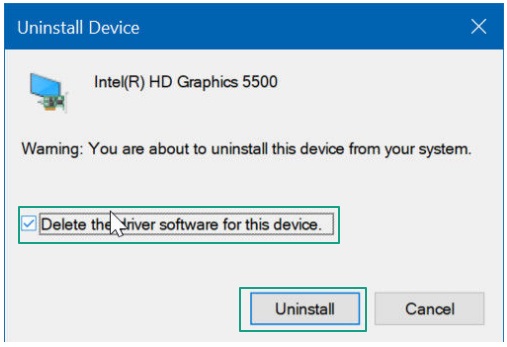
- Lastly, restart your computer. If you use a dedicated graphics card, such as an Nvidia card, download the latest compatible driver from the official website.
Fix 10: Update Windows
While outdated Windows becomes buggy, Windows updates fix bugs, patch security loopholes, and add new features. Hence, you can update Windows to fix the Windows 10 or Windows 11 night light not working issue. Here is how.
- Click the Start button.
- Type check for updates in the search bar.
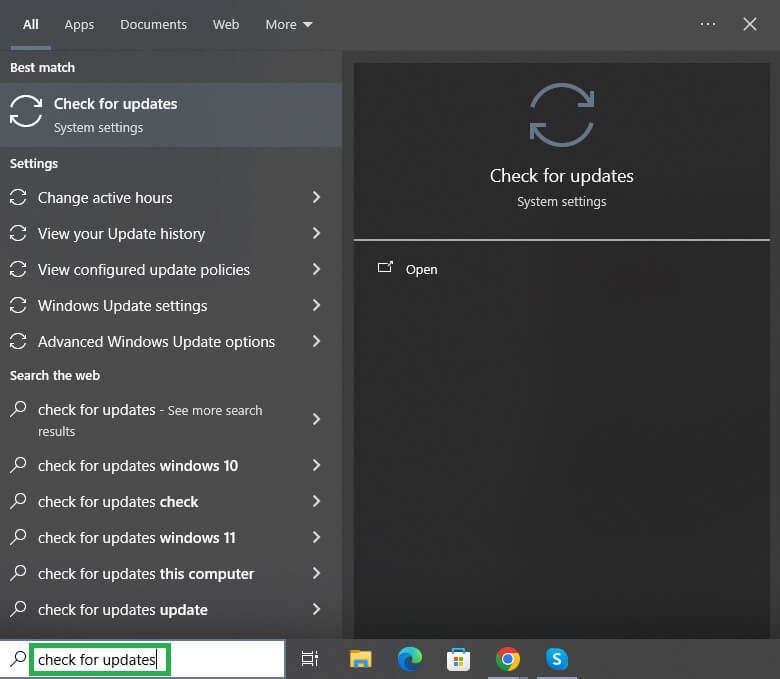
- Select check for updates from the search results.
- Click the Check for updates
- Next, click Download & Install for the available update.
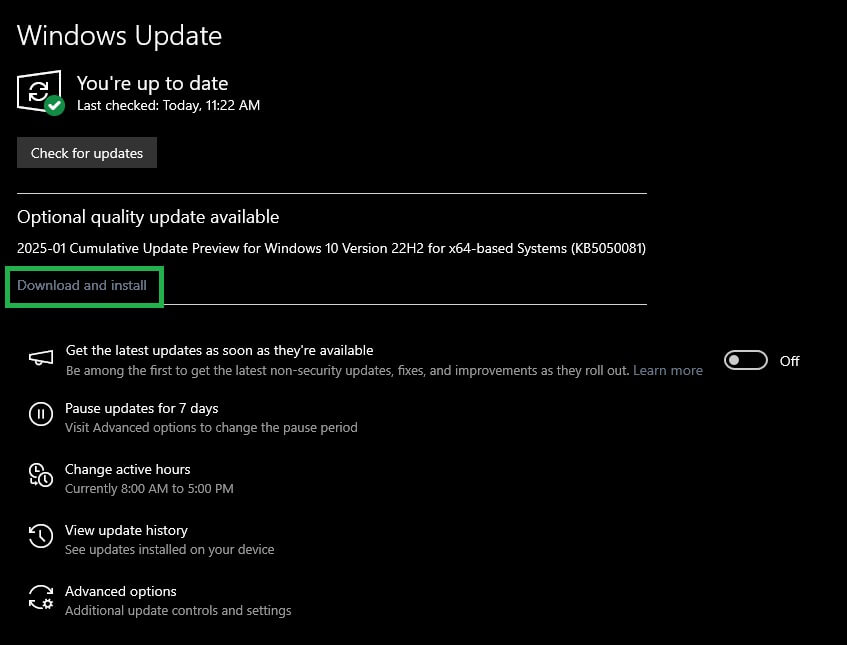
- Let the update download and installation complete.
- Lastly, restart your computer to apply the update.
Fix 11: Perform an SFC scan
An SFC scan fixes the corrupted system files that may have led to the night light problems in Windows 11 or Windows 10. Hence, the following are the steps to run a quick SFC scan.
- Click the Start button.
- Type cmd in the search bar.
- Right-click Command Prompt in the search results and then click Run as administrator.
- If prompted, grant the necessary user account control permissions.
- In the Administrator Command Prompt, type sfc /scannow and press
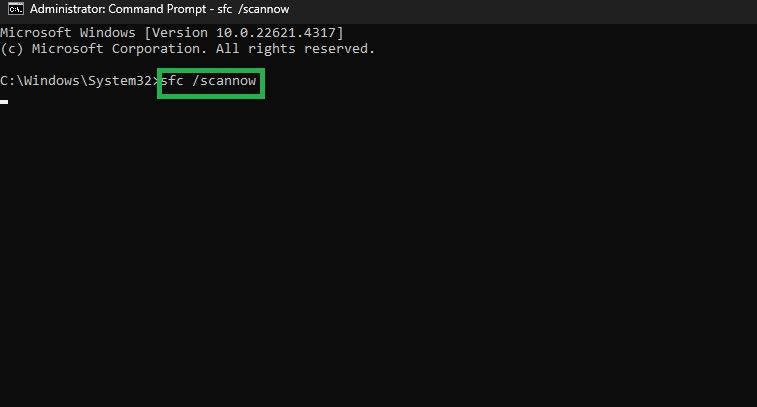
- Lastly, restart your computer after the scan is complete.
Hopefully, the fixes above will help solve the Windows 11/Windows 10 night light not working problem, so you can use your computer at night without eye strain. However, if the problem persists, you can contact Microsoft support for assistance or leave your doubts and suggestions to improve this guide in the comments section.
Also know: How to Fix a Corsair Mouse and Keyboard Not Working
Frequently Asked Questions
Q1. How to fix Windows 11 night light not working on a second monitor?
To fix the Windows 11 or Windows 10 night light doesn’t work issue on an external or second monitor, unplug and reconnect the monitor, restart the computer, update the graphics drivers, toggle between “Second screen only” and “Duplicate/Extend” display modes, toggle “Use HDR” off/on (follow the path Settings > System > Display), and restart color management (press Win + R, type services.msc, find color management, and click restart).
Q2. Is the Windows night light a blue light filter?
Windows Night Light is a blue light filter that decreases the amount of blue light your monitor screen emits. After enabling the night light, the Windows colors change to warmer colors. This reduces eye strain, keeping your eyes relaxed while working on the PC for an extended period.
Q3. Does a night light decrease the PC performance?
Night Light does not decrease the PC performance. It only impacts how the computer screen looks. You can enable this mode while performing demanding tasks, such as gaming, on your computer to reduce eye strain.
