


Many people get it wrong. Productivity is not working 70 hours a week. A person can be unproductive if they remain unsatisfied with how their day progressed, despite working continuously. While achieving more in less time is a significant part of being productive, the best productivity apps for Windows help improve the quality of life through better learning, improved sleep, collaboration, task management, time tracking, and note-taking.
While the web is flooded with productivity apps, having too many options can actually create more chaos and confusion, leading to app overwhelm instead of efficiency. Using too many apps at once can be counterproductive and may distract from your actual work. To make your life easier and, of course, more productive, we recommend starting with just one or two apps that best fit your personal needs and workflow, and then expanding only if necessary. In this article, we present the best productivity apps that we use ourselves for tracking where time goes, organizing and managing our tasks, scheduling events, making team collaboration easier, easy note-taking, note organization, note searching, and working smartly with AI.
For example, we take notes of the topic ideas for our blog in Obsidian (our personal knowledge system), brainstorm the ideas with our team and Claude to get a wider perspective, Calendly to schedule calls with our remote team members to discuss these ideas, Asana to track who is writing what and the deadlines in one place, Todoist to track what’s done and what’s left, and RescueTime as a personal time tracker to know when the work begins to eat up our social life and the other way round.
It’s not just us, but anyone can use these apps in their office or day-to-day life; they are easy to use, help solve productivity problems, are customizable and flexible, and reliable. For example, imagine you’re swamped trying to balance work tasks and personal commitments. With Todoist, you can quickly list your priorities for the day, get reminders at the right time, and even check off smaller tasks to get that sense of progress that keeps you motivated. These moments add up and help you feel more in control, no matter how busy your day gets. Let’s get started with a quick overview of our picks.
The Best Productivity Apps for Windows: A Quick Look
| Windows Productivity Tools | Category | Best For | Key Features | Free/Paid | Price |
| Todoist | Task management and organization | Small teams with simple workflows and productivity enthusiasts | Natural language processing | Free version available | Pro version starts at $7 per month |
| RescueTime | Automated time tracking | Professionals, freelancers, students, and individuals | Proactive focus sessions to block distractions | 14-day free trial | Solo version for individuals starts at $7/month, team version starts at $10/month/user |
| Calendly | Automated event scheduling | Professionals, freelancers and consultants, small businesses, and enterprise teams | Automated scheduling and an AI notetaker to generate meeting summaries and action items | Free version available | Standard for professionals and small teams at $12/seat/month, Teams for growing businesses at $20/seat/month, and Enterprise for large companies starts at $15K/year |
| Asana | Project management | Marketing teams, small-to-mid-sized companies, and organizations where goal tracking and cross-functional collaboration matter | Flexible project views (List, Kanban, Timeline), automated workflows, AI-driven project summaries and insights, and goal tracking | Free version available | AI teammates (contact sales), Timesheets and Budgets at $5.99/user/month (billed annually), Compliance management for enterprise plans (contact sales), Permissions management for enterprise plans (contact sales) |
| Claude | AI productivity app | Knowledge workers, developers, and creators | Projects with context management, artifacts with live UI and coding, and extensive document analysis | Free version available | Pro for everyday productivity at $20/month, Max with higher usage limits and advanced features starts at $100/month |
| Obsidian | Note-taking | Researchers, writers, students, and professionals | Bidirectional thinking, visual graph view, and highly customizable locally stored Markdown notes | Free version available | Sync at $5/month/user, Publish at $10/site/month, Catalyst (with early beta version access, VIP channel, and community badges) at $25, and Commercial (with support development) at $50/user/year |
What Are the Best Productivity Apps for Windows: Detailed Review
The best Windows desktop productivity apps include Todoist, RescueTime, Calendly, Asana, Claude, and Obsidian. Each of these applications boosts productivity in its unique ways.
For example, Todoist makes it easy for you to check tasks off your to-do list. RescueTime helps you balance your productive and leisure hours. Calendly reduces no-shows with effective meeting scheduling. Asana helps teams collaborate on projects, set individual tasks, and manage deadlines. Claude helps with idea generation and brainstorming. Obsidian is like a “second brain” with notes linked for personal and professional use.
Let’s review these apps in greater detail.
1. Todoist
Todoist is among the best productivity apps for Windows for those who have too much on their plates. Its simple and efficient task-keeping features, such as setting up separate to-do lists for different projects, creating reminders, and setting different task priorities, make it an excellent app for time management.
We use Todoist to track all tasks for an article from start to finish, i.e., from generating ideas and creating an outline to the first draft, through the required edits, revisions, and graphics for the final piece. Personally, too many of our teammates use Todoist to manage their everyday tasks, from grocery shopping to laundry. Here are the Todoist features you may find helpful for task management and organization.
Key features
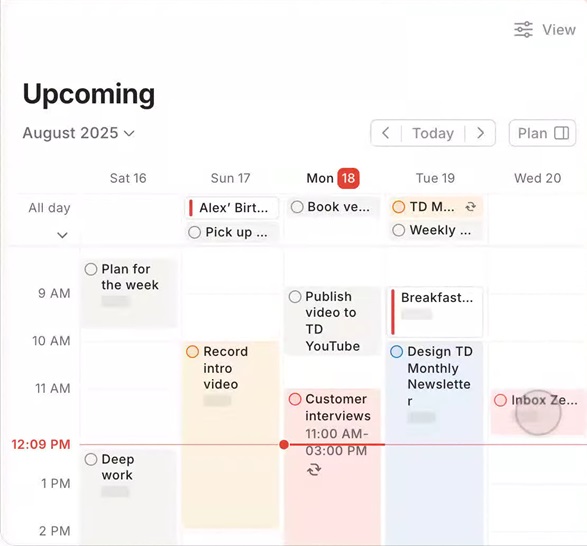
- Natural language processing. You can simply type “Email Tom the draft tomorrow” or “Buy groceries tomorrow.” Todoist adds these to your task list for the next day.
- The “Karma” reward system keeps you motivated to complete tasks.
- It sends reminder emails for overdue tasks. This feature has helped us many times.
- You can switch between list layout and board view. However, for a big activity log, we recommend an easy-to-navigate kanban-style board.
- The two-way calendar sync displays your tasks along with your calendar events.
- It offers smart scheduling suggestions according to available time slots and your task completion patterns.
- Filters and labels allow you to set custom task views based on any criteria.
Pros
- Minimal yet feature-rich
- Flexibly accommodates almost all workflows
- Cross-platform support with syncing
- Collaboration support
- Functions offline
Cons
- A few important features, such as custom reminders, unavailable in the free version
2. RescueTime
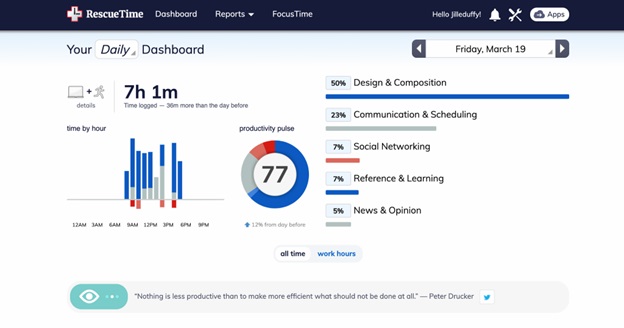
RescueTime is one of the best productivity apps for Windows in 2026 for time tracking. It helps you track the activities that consume most of your time. Running in the background of your phone or computer, it tracks which websites and applications you use and how much time you spend on those websites and apps. In a way, it can help users with social media addiction as well. With RescueTime, you can categorize activities as productive and unproductive, get a weekly summary of how you spent your time, and receive real-time alerts if you spend more than desired time on a particular website or app.
We use RescueTime during our research process. To write the best tech stuff, a writer also needs to read the best tech articles. Reading can sometimes be so engrossing that we lose track of time, and RescueTime helps bring us back. It also helps us cut down distractions by blocking websites that send too many unnecessary notifications. Moreover, we use it to track our break time so that we remember to take that much-needed time off work to sleep and play.
As for the features, here is what is most notable about RescueTime.
Key features
- It organizes your activities into various productivity levels, such as focus work, other work, personal, neutral, and distracting.
- RescueTime timesheets help track your projects, create timesheets, and generate detailed reports for managers or clients.
- You can integrate RescueTime with Slack, Evernote, Google Calendar, etc.
- It scores your productivity from 0 to 100. The more time you spend on productive tasks, the higher the score.
- 5 report types that track your behavior from every angle, including apps & websites, categories, productivity, your goals, and highlights.
- Color codes goals achieved with red and goals not achieved with blue.
Pros
- Well-synchronized mobile and desktop application
- Ties daily notes (highlights) to stats
Cons
- Tough-to-understand interface for beginners
- Minimal supportive documents and videos
Also know: How to Repair Apps That Aren’t Working Properly in Windows
3. Calendly
Calendly is one of the best free productivity apps for Windows to schedule meetings. This app allows you to set your availability for the meeting and then create an event link that you can share directly or add to your website to help others schedule a meeting with you. It notifies you when booking new meetings and adds these meetings automatically to the calendar you like through integrations with Outlook, Google, and Office 365 calendars.
We use Calendly to schedule meetings with our remote team members. It sets up automatic meeting reminders for them. No show for the meeting is such a nuisance for everyone; Calendly helps reduce that. Moreover, when we need urgent help for a task, we use Calendly to assign an appointment request to the most available person.
Additionally, here are some other attractive features of Calendly.
Key features
- It automatically detects time zones, making it easy for you to schedule meetings with those in different locations.
- The group scheduling feature allows everyone to see each other’s available times to choose a time slot that works for all.
Pros
- Easy meeting scheduling for beginners
- Many team features, such as a team page that allows clients to choose who they want to meet with.
- Integration with over 80 applications, such as Google Meet, Zoom, Salesforce, HubSpot, Pipedrive, and Microsoft Teams.
Cons
- Features like reminders and branding customization are unavailable in the free version
- Only basic customization options; it does not let you add videos, personalized widgets, or change the page layout much.

4. Asana
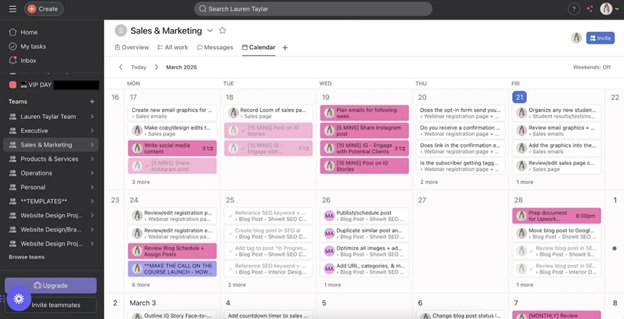
Asana is one of the most popular project management productivity apps for Windows in 2026. It helps manage various complex projects. Asana shows your tasks and ideas in multiple ways, such as lists, Kanban boards, and timelines. You can use this app to create and share task lists with others, assign others what they need to do, allow people to add new tasks, and get comments.
We use Asana to assign writing tasks and track their completion. For example, this review of the best Windows productivity tools was assigned to Niharika. She reviewed the tasks with all their details and completed the article within the set deadline to advance it to the publishing stages.
This tool makes task assignment easy with a customizable dashboard where you can present all the project information in the preferred way to your team members and other stakeholders. Moreover, the dashboard shows charts updated in real-time for overdue tasks, work process status, and other details. Additionally, here are the other likable features of Asana.
Key features
- Workflow automation with an option to create automation bundles for specific projects and keep the automation uniform across projects.
- Detailed reports for project and company-wide goals and progress tracking over time.
- An option to set up dedicated portfolios where your team can organize various projects, especially helpful if you are a services company.
- It creates project summaries, insights, and tracks progress with AI.
Pros
- Subtasks to break complex work
- Dependencies to ensure work gets completed in the correct order
- Task start dates and times, not only due dates
- Comments to keep the discussion threaded with a task
- Activity logs to let you know what changed and when
- Integrates with 100+ apps, such as Slack, Google Drive, GitHub, and Salesforce
Cons
- No native templates for tasks
- Subtask management is messy for complex projects
- Built-in time tracking is unavailable in the starter plan
5. Claude
Claude is among the best productivity apps for students, developers, creators, and knowledge workers alike. It helps users brainstorm and generate ideas, break writer’s block, analyze documents, clear academic concepts, and do a lot more.
Moreover, this conversational chatbot has powerful reasoning capabilities and language translation skills, especially beneficial for multilingual teams.
We use Claude to get a new perspective on the idea in our minds. For example, the word “productivity” may mean different things to different people. Claude helps consolidate all these meanings, perspectives, and ideas, so our article caters to the needs of everyone.
In addition to this, here are the features that make Claude popular as one of the best free productivity apps for Windows in 2026.
Key features
- It instantly analyzes huge books, documents, and codebases to make it easy to summarize research and edit long texts.
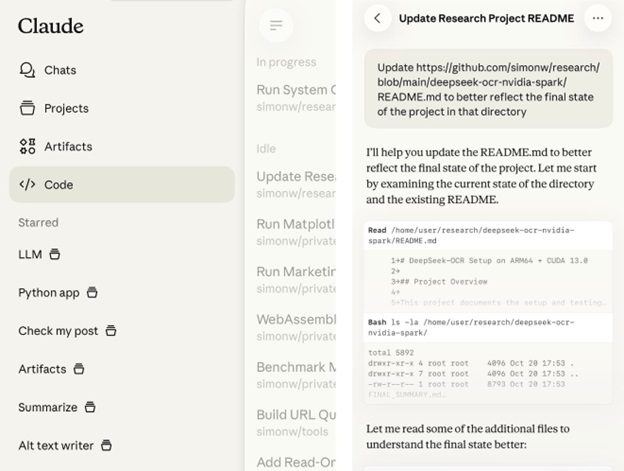
- Renders HTML, code, SVG, and documents in a side panel for real-time visualization.
- Group related workflows and documents for structured workflows.
- The best AI coding tool to help with writing, debugging, and explaining code.
Pros
- Makes email and report drafting easier with high-quality human-like text
- Highly effective interpretation of spreadsheets, data visualization, and PDFs
Cons
- Low message caps in the free version
6. Obsidian
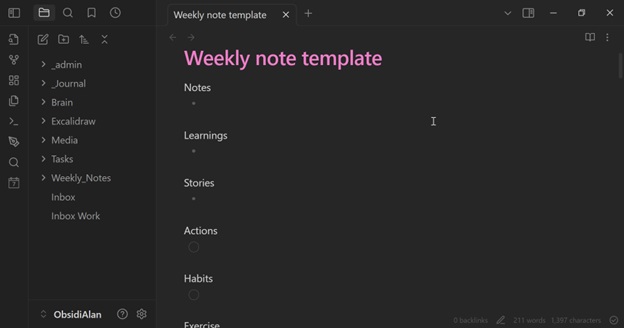
Obsidian is another top pick for the best productivity apps on Windows for students, researchers, writers, professionals, and everyone into note-taking. The way your brain links thoughts and ideas, Obsidian is a second brain with linked notes. It helps create your personal knowledge system with its note linking.
While previously a fan of Notion, which is another excellent app for note-taking, we switched to Obsidian for its complete offline functionality, local file storage as Markdown text, and faster performance.
Whenever we come across something exciting, we add it to Obsidian. It then helps us connect it with other relevant topics in our knowledge base, helping us visualize unexpected relationships between our ideas in a graph view.
In addition to the graph view idea visualization, here is what else is exciting about Obsidian.
Key features
- Extendable functionality through plugins. There are hundreds of plugins available for tasks, such as advanced search, spaced repetition, and other features.
- Themes to customize Obsidian’s appearance, making it more pleasant to use.
Pros
- Local file storage ensures data privacy
- Many customization options
Cons
- Steep learning curve for beginners
- No collaboration features like real-time multi-user editing
While the above are our top picks for the best productivity software examples for Windows, choosing the right app for your needs can be confusing. Hence, here is what you should consider when selecting one or more of these apps.
Also know: Best Free Drawing Apps for Windows
How to Choose the Best Windows Productivity Apps (Top Factors to Consider)
To choose the right Windows productivity tools for your needs, consider these factors.
- The application must run smoothly on Windows and function seamlessly with other tools you use.
- Collecting productivity apps does no good unless you actually use them. Thus, ensure the app does not feel confusing; it is easy to use, and you plan to use it consistently.
- The application should support your workflow; instead of forcing you to dramatically change everything, as we all feel productive working a certain way. For example, we do our best writing when we take a break after every one and a half hours.
That’s all for our take on how to boost productivity with the best productivity apps for Windows. If you have any doubts or questions, feel free to leave us a comment.
Frequently Asked Questions
Q1. What are the best built-in productivity tools on Windows 11/12?
While not as helpful as the apps in this article, the best built-in Windows productivity apps include Groups/Snap Layouts for multitasking, Copilot AI to automate tasks, and Microsoft Power Toys, such as FancyZones, for window management.
Q2. Do AI tools improve productivity on Windows?
Yes, AI tools, such as Claude, automate repetitive tasks, speed up content creation, and offer smart assistance to improve productivity.
Q3. What is a key challenge of using productivity apps?
Productive procrastination, i.e., too much focus on organizing tasks rather than completing them, and the effort going into managing, organizing, and updating productivity applications (if you have too many of these apps) are the biggest challenges. Hence, discipline and having only the apps you truly need are the keys to productivity.
Q4. What are the best free productivity apps for Windows?
The best free Windows productivity apps include Todoist for task management, Calendly for automated event scheduling, Asana for project management, Claude for AI-powered productivity, and Obsidian for note-taking.
