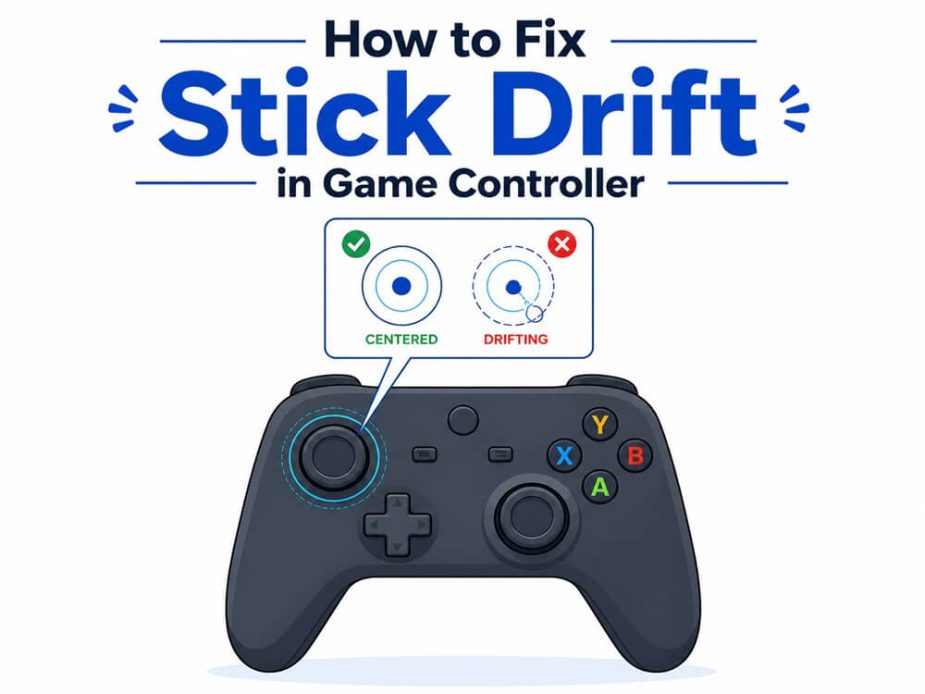
Is your game character walking on its own without you touching the controller? It’s not a ghost; it is a ghostly stick drift issue that causes your controller to register a movement or the camera to pan even when you don’t touch the controller. Imagine missing shots, ruined precise crosshair placements, and being unable to hold the sniper angle in games like Apex Legends or Fortnite. That frustrating situation takes a toll on your game unless you know how to fix stick drift.
Fixing the controller thumbstick drift is easy on PS5, PS4, and Xbox; we have been there and done that. This article is here to help you understand what caused the drift, fix it with some simple solutions, and prevent it from recurring. Let’s get started right away.
What Causes Stick Drift
Centre-point offset, analog input instability, dirt or debris, work joystick components, and driver firmware or calibration issues are the top causes of stick drift.
- Analog stick not returning to neutral position: A centre-point offset or if the analog stick fails to return correctly to its neutral position, the controller sends a directional input even if the stick is resting, resulting in a constant movement.
- Analog input instability: The controller keeps sending fluctuating values even if you do not touch the stick, leading to a noisy input that causes camera movement at rest, unpredictable direction changes, or jitters.
- Dirt or debris accumulation: Dust or debris accumulated around the joystick can affect smooth physical movement or stop the stick from returning to its neutral position.
- Worn or deteriorated components: Mechanical joystick components or electrical parts can deteriorate over time, causing centre offset and inconsistent movement. This may eventually need repair.
- Driver, firmware, or calibration issues: Outdated controller or USB joystick driver, outdated firmware, or incorrect calibration can cause connection problems, or software may interpret the neutral position inaccurately.
Now that you are familiar with what may have caused stick drift, let’s help you fix it.
How to Fix Stick Drift on PC
You can fix controllers like the Xbox and PS5 stick drift on PC by cleaning the controller, adjusting the dead zone settings, reconnecting the controller, updating the controller driver and firmware, recalibrating and correcting the input, changing the connection method, resetting the controller, and using a Hall Effect sensor. Below are all these solutions explained in detail. Follow them sequentially until the problem is solved.
Fix 1: Clean the controller
Dust or debris may prevent the controller stick from functioning normally. Hence, you can follow the steps below to clean the controller to fix stick drift on PS5 or Xbox.
- Turn off your console and controller.
- Gently clean the area around the sticks using a cotton swab dampened with cleaning alcohol. Rub the swab around the analog stick base to clean it.
- Move the cotton swab left and right to clean the stick better.
- Push down the sticks, rotate them 360 degrees for about 10 seconds, clockwise and counterclockwise, and clean them using compressed air. Shake the compressed air well before using it and avoid spraying too close to the sticks.
Also know: How to Fix File Explorer Not Opening Windows
Fix 2: Try adjusting the dead zone settings
A dead zone is a safe center zone in the stick that ignores the movement. The game does not register the drift if the dead zone is greater than the drift. While not a fix in the true sense, it helps the game ignore minor stick movements. You can increase the dead zone to 5% to 10% in the game settings to prevent insignificant unintended moves from registering. Here are the dead zone settings for popular games.
- Apex Legends: Settings > Controller > Deadzone > Left/Right Stick Deadzone
- Fortnite: Settings > Controller Options > Deadzone > Set to 10-15%
- Call of Duty (Warzone/MW3): Settings > Controller > Left/Right Stick Deadzone > Increase to 0.10-0.15
- Rocket League: Settings > Controls > Deadzone > Increase as required
- Halo Infinite: Settings > Controller > Input > Look/Move Deadzone
Fix 3: Disconnect and reconnect the controller
Disconnecting and reconnecting the controller can fix the stick drift issue you are experiencing. The following are the steps to disconnect and reconnect your Xbox and PS5 controllers.
Xbox controller
- Press and hold the power/sync button at the top for about 15 seconds until the controller vibrates and shuts off to disconnect it.
- To reconnect the controller, turn on the console, press and hold the pair button on the console until the light flashes, and then press and hold the pair button on the controller’s top until the Xbox logo flashes and the lights turn solid.
PS5 controller
- Press and hold the PS5 button for about 10 to 15 seconds until the controller lights turn off to disconnect the controller.
- After the controller disconnects, connect it using a USB cable and press the PS5 button to reconnect it.
Fix 4: Update the controller driver and firmware
A controller driver is a bridge between your computer’s operating system and the controller to help them communicate. Firmware is software in your controller’s memory to make it function. Both the driver and the firmware must be up-to-date to prevent controller performance problems such as the one you are trying to solve. Below is how to fix stick drift by updating the controller driver and firmware.
Updating the controller driver (Xbox)
- Right-click the Start button on the Taskbar.
- Click Device Manager in the options that appear.
- Double-click Xbox Peripherals.
- Right-click Microsoft Xbox One Controller.
- Click Update Driver or Update Driver Software in the menu that appears.\
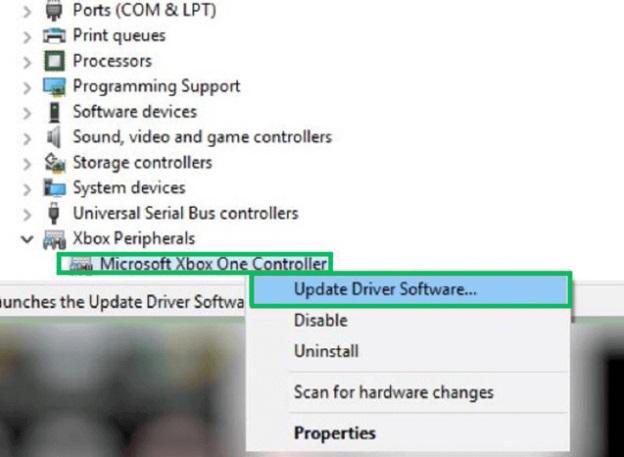
- Next, click Search automatically for drivers.
- Download & install the available driver update.
- Restart your computer to complete the process.
Also know: How to Fix Dolby Atmos Not Working in Windows
Updating the controller driver (PS5)
- Use a USB cable to connect the controller to your console.
- Navigate to Settings, choose Accessories, and then select Controllers (General).
- Next, select DualSense Wireless Controller Software to check for available updates and install them.
Updating the firmware
Before following the steps below, ensure you have the affiliated software for PS or Xbox installed on your computer. If you don’t have it installed, download and install it.
- Connect your controller to the computer using USB.
- Click Update and follow the steps to complete the firmware update. If the update option is unavailable, it means your controller firmware is up-to-date.
Fix 5: Recalibrate the controller
Recalibrating the controller is another solution for how to fix stick drift. Here are the steps to recalibrate your controller.
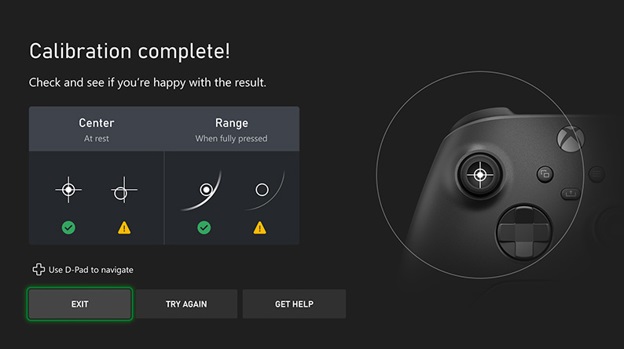
Recalibrating the Xbox controller
- Open the Xbox Accessories
- In the Xbox Accessories app, click ••• next to the wireless controller.
- Click Recalibration options.
- Choose the left or right thumbstick for calibration.
- Follow the on-screen directions to complete the calibration and repeat the process with the other stick.
- Wait for the calibration complete screen to appear and then click
Recalibrating the PS5 controller
- Use a USB cable to connect your controller to the computer.
- Navigate to dualshock-tools.github.io and then click
- When prompted, select your controller model.
- Click Calibrate Stick Center.
- Move the sticks to various positions and then release them.
Fix 6: Change the connection method
You can test different connection methods to fix the issue. Change to a wired connection on the console or switch USB ports on the computer to solve the problem.
Fix 7: Use a Hall Effect sensor (the only permanent fix)
Unlike a traditional potentiometer, Hall Effect sensors have magnets to detect position. The magnet attaches to the stick, and the sensor detects magnetic field changes to fix the stick drift issue, as opposed to the traditional potentiometers that use a metal wiper that slides across a resistive track.
The Hall Effect sensors ensure no physical contact, as wear due to physical contact is among the top causes of stick drift. Hence, using a controller with the Hall Effect sensor is a permanent solution to this problem.
Some popular controllers that come equipped with Hall Effect sensors include the 8Bitdo Ultimate Controller, Gulikit KingKong 2 Pro, and GameSir G7 SE. Brands like NYXI and RetroFlag also offer Hall Effect models designed for Nintendo Switch and PC gaming. In addition, several modular controller kits allow you to swap out your analog sticks for Hall Effect modules, providing more flexibility if you want to upgrade your existing controller. You can usually find these controllers or upgrade kits on major online retailers and gaming accessory stores.
While the solutions above work to fix stick drift on PS5 and Xbox, you may also need long-term prevention strategies so the issue does not recur.
How to Stop Drift Stick from Recurring
You can follow the tips below to prevent the drift stick issue effectively in the long term.
- Proper storage: Never leave the controller face down with pressure on the sticks, and store it properly.
- Regular cleaning: Clean your controller at least once a month with compressed air to keep it free from problem-causing dust and debris.
- Anti-drift effect: Use Hall Effect sensors that work using magnetic fields and not physical contact to prevent drift stick.
If you have any questions, you can find the answer in the common questions below.
Also know: Fix Surface Pro 3 – White Spots on Screen Issue
Frequently Asked Questions
Q1. Can you actually fix stick drift?
Yes, you can fix the stick drift problem. To fix the issue, clean the controller, reset the controller, or ensure you have the latest driver and firmware updates for your controller. For more effective and detailed solutions, check the guide above.
Q2. How do I test if I have stick drift?
You can use a web-based tool, such as Gamepad Tester, to check if you have stick drift. Simply, connect the controller to your PC via USB or Bluetooth, visit the Gamepad Tester website, and move the analog sticks to check if the readout values move back to exactly 0.00 on the X and Y axes.
Q3. How much stick drift is normal?
For standard controllers, a stick drift of up to 5% is normal. Basically, you don’t have to worry until the stick drift causes unintentional movements that hamper your game.
Q4. How do I fix stick drift without controller disassembly?
To fix stick drift without disassembling the controller, clean the controller with compressed air and alcohol, update the driver and firmware, recalibrate, and set high dead zones. The guide above explains all these solutions in detail.
That’s all for how to fix stick drift. If the problem persists, you can contact the controller manufacturer for assistance or buy a new controller. It is anyway a smart idea to replace the controller if your controller is more than 3 years old, as other components like triggers and buttons may also fail soon, there are multiple problems with the controller, the repair cost is more than 50% of the price of a new controller, or you want an anti-drift controller with Hall Effect. If you have any unanswered questions or concerns, feel free to write us a comment.