Is the File Explorer not opening? Understandably, this must be frustrating, especially if finding files, opening folders, managing storage, and other everyday tasks become difficult. The good news is that most issues with File Explorer are fixable and your files are usually safe, even if the program isn’t opening right now. However, you can fix this issue in Windows 11 or 10 quite easily with the fixes in this article.
Before we can move to those solutions, it is important to understand why the File Explorer is not opening in Windows 11/10. Understanding the possible causes of a problem helps get help with File Explorer the right way.
Why Is File Explorer Not Opening
There can be several reasons File Explorer won’t open, such as temporary glitches, corrupted or bloated File Explorer history, damaged Windows files, problematic shell extensions, outdated or buggy driver updates, or a third-party program interfering with File Explorer.
Due to these factors, the File Explorer problems can manifest as the File Explorer not opening at all, Windows flashing and disappearing, menu freezing, or hanging file operations (copy, move, or rename). Let’s fix all these issues.
How to Fix File Explorer in Windows 11
To fix the File Explorer not opening in Windows 11/10, restart the File Explorer, clear the File Explorer history, restore default settings, check and repair the system files, scan the PC for viruses, update Windows, clean boot your computer, run the System Maintenance Troubleshooter, disable third-party shell extensions, or reinstall the display drivers. Below are all these fixes explained in detail. Follow them sequentially until the File Explorer functions normally.
Fix 1: Restart File Explorer
Restarting File Explorer fixes temporary glitches that may be responsible for the “File Explorer not opening” issue. Here is how to restart File Explorer.
- Press Ctrl + Shift + Esc to access the Task Manager.
- If a simplified view appears, click More details.
- In Windows 10, click Processes and then locate Windows Explorer. In Windows 11, click Processes, go to Windows Processes, and then find Windows Explorer.
- Right-click Windows Explorer and then click Restart.
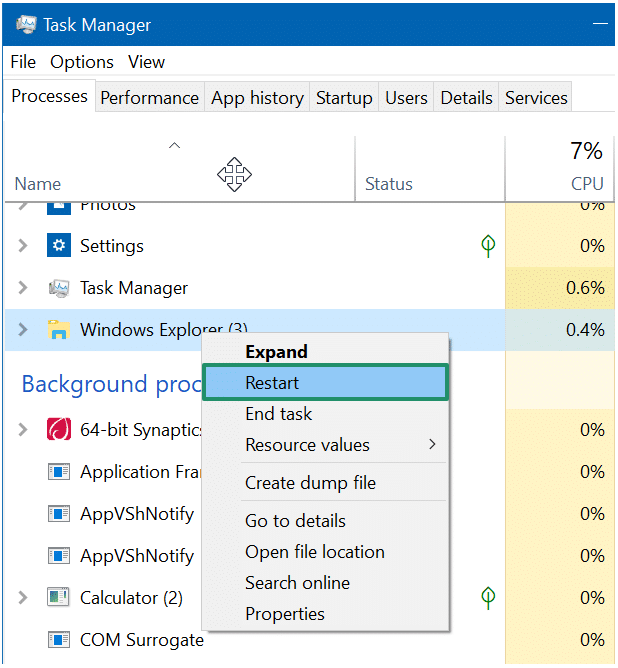
- Press Win + R, type Windows Explorer in the search bar, and then click If Windows Explorer is unavailable, go to the Details tab, find explorer.exe, end it, and then restart the File Explorer.
Also know: How to Use the Undo/Redo Shortcut Key in Windows PC
Fix 2: Clear your File Explorer history
Clearing the corrupted or bloated File Explorer history can fix the File Explorer freezes or slowdowns. Here are the steps to clear the history.
- Press Win + R.
- In the Run box, type control folders, and press
- Click the General tab and then navigate to the Privacy
- Click the Clear option next to Clear File Explorer history.
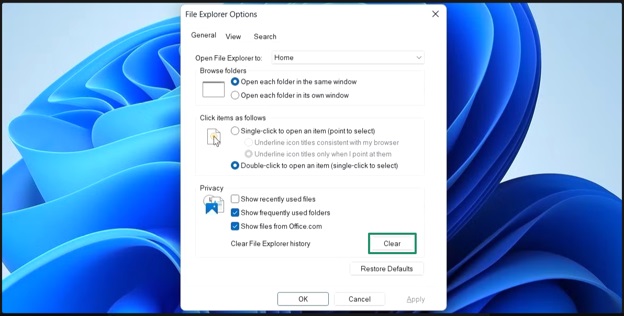
- Optionally, you can uncheck Show recently used files in Quick access and Show frequently used folders in Quick access.
- Lastly, click Apply and
Fix 3: Restore File Explorer defaults
Setting File Explorer to default settings fixes the hanging settings, because of which the File Explorer is not opening in Windows 10/11. The following are the steps to set File Explorer defaults.
- Click the Start button.
- Type Open File Explorer Options and click the first search result.
- In the General tab, click the Restore Defaults
- In the View tab, click Reset Folders, and then click Restore Defaults.
- Under the Search tab, click the Restore Defaults
- Lastly, click Apply and OK to save the changes.
Fix 4: Check the system files
To check and repair the damaged Windows files responsible for the Windows File Explorer not opening issue, you can run the System File Checker (SFC) and DISM scans. Here is how.
- Press Win + S.
- Type cmd in Windows search.
- Right-click Command Prompt in the search results.
- Click Run as administrator.
- Click Yes if the User Account Control (UAC) prompt appears.
- In the Administrator Command Prompt, copy and paste the following command and then press
sfc /scannow
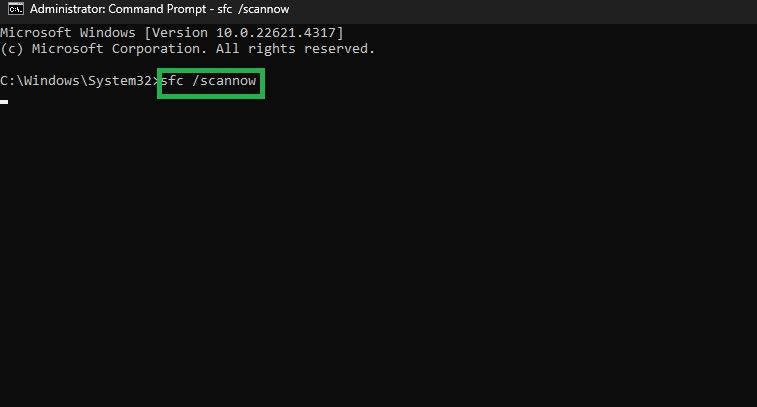
- If File Explorer does not open even after running the SFC command, copy and paste the following commands into File Explorer and press Enter after each command.
DISM /Online /Cleanup-Image /CheckHealth
DISM /Online /Cleanup-Image /ScanHealth
DISM /Online /Cleanup-Image /RestoreHealth
- Lastly, restart your PC.
Also know: Snipping Tool Not Working in Windows
Fix 5: Scan your PC for viruses
A malware infection may block the File Explorer from opening. You can use a reliable antivirus software to resolve virus and malware issues, or follow the steps below to fix them with the built-in Microsoft Windows Security.
- Click the Start button.
- Type Windows Security in the search bar.
- Click the first search result.
- Next, click Virus & threat protection.
- Under Current threats, click Quick scan.
- After the process is complete, restart your PC.
Fix 6: Update Windows
Outdated Windows builds may turn buggy, resulting in issues like the File Explorer not opening in Windows 10/11. Thus, you can follow the steps below to update Windows.
- Click the Start
- Type check for updates in Windows search.
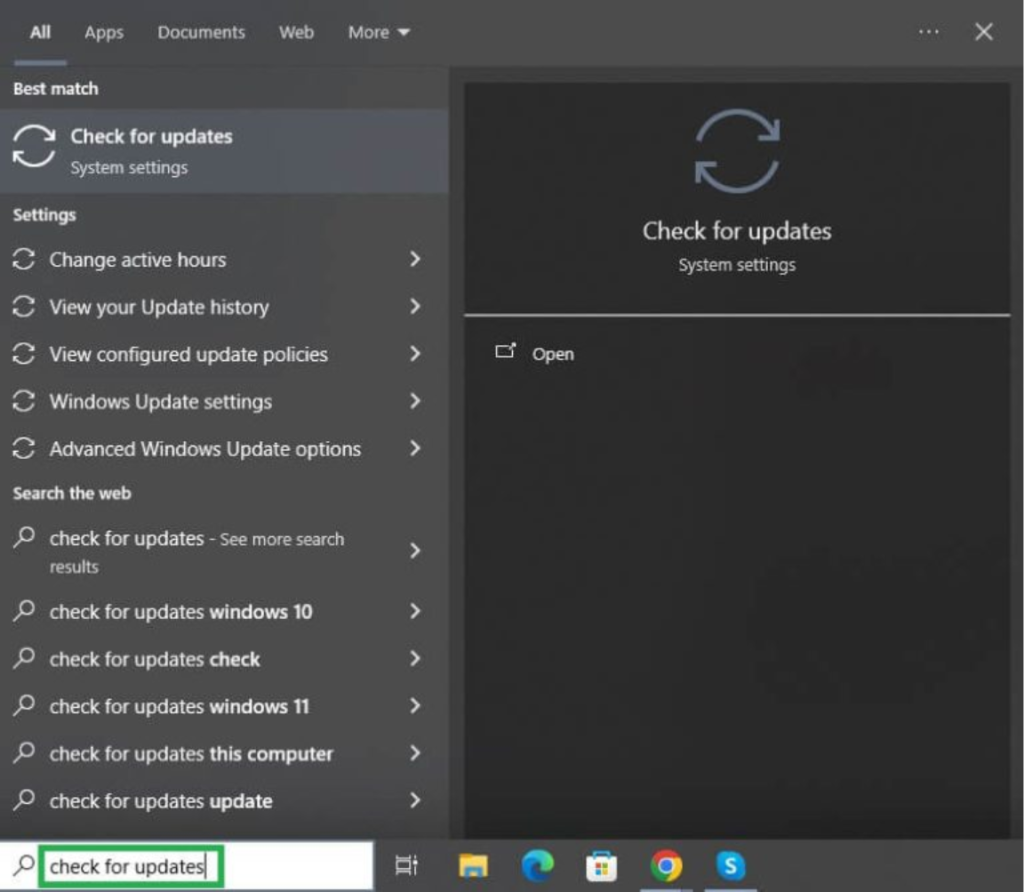
- Click Check for updates in the search results.
- Next, click the Check for updates
- Click Download & Install for the available updates.
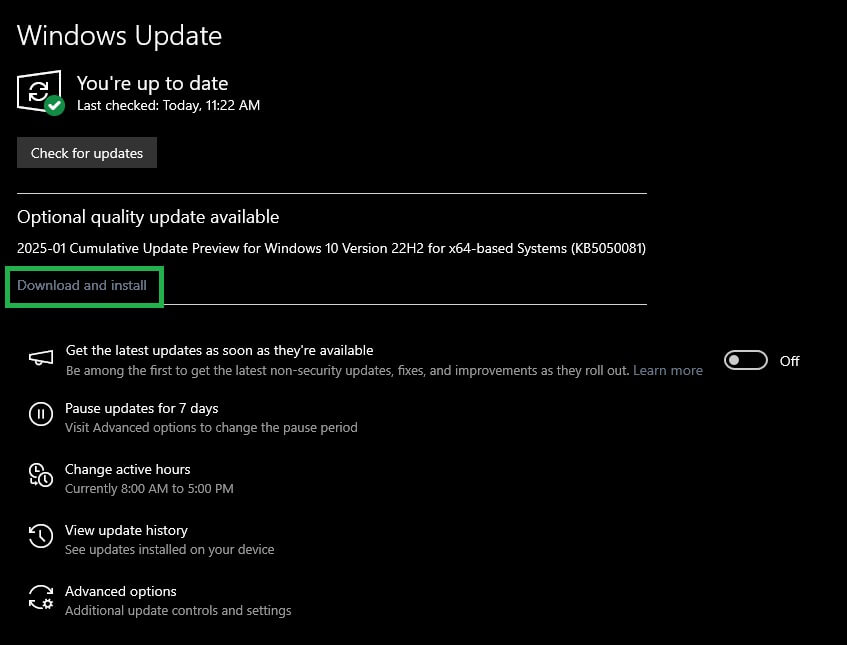
- Lastly, restart your PC.
Fix 7: Clean boot your PC
Third-party processes or add-ons may interfere with the File Explorer, resulting in the problem you are trying to fix. Hence, below is how to clean boot your computer to resolve these issues.
- Press Win + R.
- In the Run box, type msconfig and click
- In the System Configuration window, click the General
- Uncheck the Load startup items
- Ensure the Load system services box is checked.
- Click Services in the System Configuration window.
- Next, check the Hide all Microsoft services
- Click Apply and
- Lastly, restart your computer to boot in a clean mode.
Fix 8: Try the System Maintenance Troubleshooter
System Maintenance Troubleshooter is a built-in Windows tool that detects and repairs any issues with desktop shortcuts, file paths, disk volume, etc., automatically. Hence, below is how to run this troubleshooter for the File Explorer not opening issue.
- Press Win + R.
- In the Run box, type control and press
- Click If you do not see the Troubleshooting option, click the View By dropdown and select Large Icons.
- Next, click System and Security.
- Click System Maintenance and follow the on-screen prompts to run the troubleshooter.
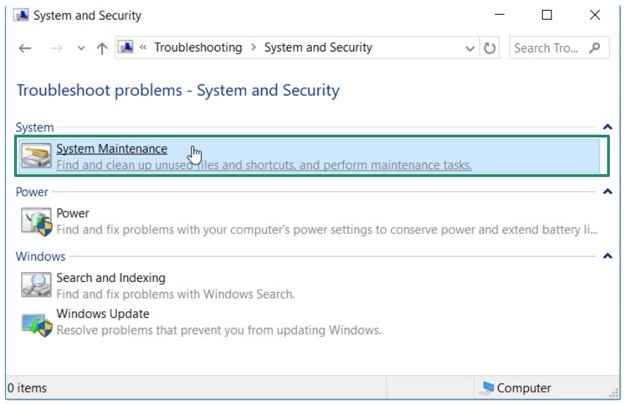
- Lastly, restart your computer after completing the troubleshooting process.
Fix 9: Turn off third-party shell extensions
Third-party shell extensions or context menu items can prevent File Explorer from functioning smoothly. Hence, below are the steps to check for and disable problematic shell extensions.
- Press Ctrl + Shift + Esc to open Task Manager.
- Go to Startup apps.
- Disable all recently installed non-Microsoft context menus and shell extensions.
Fix 10: Reinstall the display drivers
A display driver is the software that your operating system needs to communicate with your display device. If this software is outdated, improperly installed, or corrupted, you may experience problems like the Windows 11 File Explorer not opening folders. Thus, the following are the steps to reinstall the display drivers to solve this problem.
- Right-click the Start button.
- Click Device Manager.
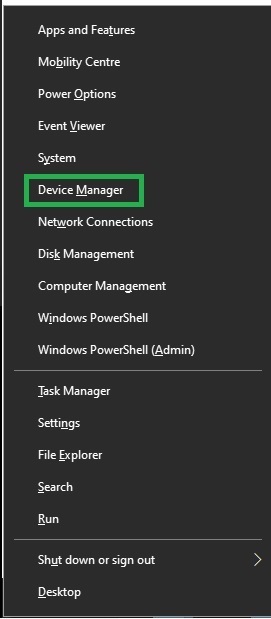
- In the Device Manager, double-click Display Adapters.
- Right-click your display device and then click
- Confirm the uninstallation.
- After the uninstallation is complete, click Action and Scan for hardware changes.
- Allow the process to complete.
- Lastly, restart your computer to complete the display driver reinstallation.
That’s how you can get the File Explorer working again. However, if the File Explorer is not working even now, you can contact Microsoft support for assistance and check the following section for answers to questions you may have. If any of your questions remain unanswered, you can write us a comment.
Also know: How to Debloat Windows 11 for Better Performance
Frequently Asked Questions
Q1. How do I make File Explorer open to this PC on Windows 11?
Windows File Explorer opens to the Quick Access location by default. However, if you want to open it to any other drive or folder, such as This PC, open File Explorer, click View, click Options, click This PC in the Open File Explorer drop-down, and then click Apply and OK to save the changes.
Q2. Why does File Explorer keep restarting on Windows 11?
Corrupted system components, driver issues, or bad shell extensions may be why File Explorer keeps restarting on Windows 11. To fix this issue, restart the File Explorer, run the SFC and DISM scans, and disable third-party shell extensions.
Q3. What to do if File Explorer is not opening?
If the File Explorer is not opening in Windows 10/11, press Ctrl + Shift + Esc, right-click Windows Explorer (you can find it under Processes or Apps), and then click Restart. If it still does not open, you can clear the File Explorer history, restore default settings, check and repair the system files, scan the PC for viruses, update Windows, clean boot your computer, run the System Maintenance Troubleshooter, disable third-party shell extensions, or reinstall the display drivers by following the guide above, which explains these solutions sequentially.