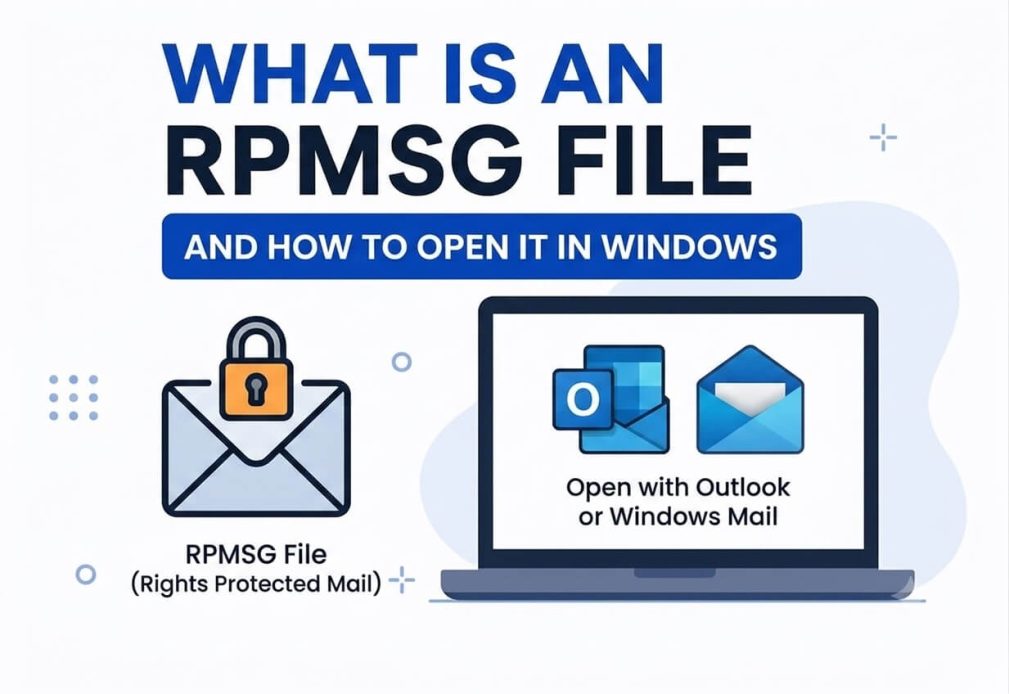
“My client sent me an RPMSG file as an email attachment, but I can’t open it.” It is one of the user queries we received. Many users are asking how to open an RPMSG file, as these encrypted emails in Outlook require a different approach to accessing them than a standard Outlook email file. If you are also experiencing issues opening these files, this article explains the easiest step-by-step way to open them using Outlook, without an Outlook email client, and in Outlook web.
However, before opening these files, here is a quick overview of RPMSG (Rights Protected Message File), which Outlook uses to share secure, encrypted emails.
What Is an RPMSG
RPMSG is a “Rights Protected Message” that Microsoft’s Information Rights Management (IRM) creates to encrypt and prevent email copying, printing, forwarding, or access by unauthorized persons. Unlike the common JPG or JPEG attachments, not everyone can view these files.
Think of it like end-to-end message encryption on WhatsApp, the way encryption prevents third parties, even WhatsApp, from reading your chats; similarly, Microsoft 365 uses RPMSG to ensure only authorized people can read, print, forward, and copy the email content. Encrypting Outlook emails with RPMSG is a practice many organizations follow to keep their data confidential and have complete control over who can access their emails.
Now that you have received a .rpmsg file, you can open it easily with or without the Microsoft Outlook email client. The coming sections in this article explain how.
How to Open an RPMSG File with Microsoft Outlook
If you use Outlook regularly, you can open an RPMSG file in the Microsoft Outlook email client by following the steps below.
- Open Outlook on your computer.
- Navigate to the Inbox.
- Select the email containing the RPMSG file attachment or protected message.
- Double-click the message to open it or view it in the reading pane.
- If prompted, sign in with the account that the email sender authorized.
- Wait until Outlook retrieves permissions from Microsoft’s protection service.
- Read the message once Outlook has decrypted it and applied any required restrictions, for example, blocked message forwarding or view-only.
While Outlook handles permissions for the messages sent to your Microsoft 365 work or school account automatically, a banner such as “This message is protected, Do Not Forward, or Encrypt-Only” may appear. These banners describe your rights as applied by the email sender. Depending on the rights granted to you by the sender or their organization, you can reply, copy text, print, or download email attachments.
Also know: How to Download Tiny10 ISO File for Windows PC
How to Open an RPMSG File downloaded in Outlook
To open the RPMSG file downloaded to your computer, you can open it by:
- Clicking the .rpmsg file twice if you have Outlook installed and have made it your default mail client.
- If a .rpmsg file double-click does not work, right-click the file, click Open with, and then click Outlook.
If Outlook is unable to open the RPMSG file directly, you can go to the original email and open the file from there.
How to Open an RPMSG File in Outlook Web
If you don’t have an Outlook desktop, you can open an RPMSG file in Outlook Web. Here is how.
- On your browser, open Microsoft Outlook web.
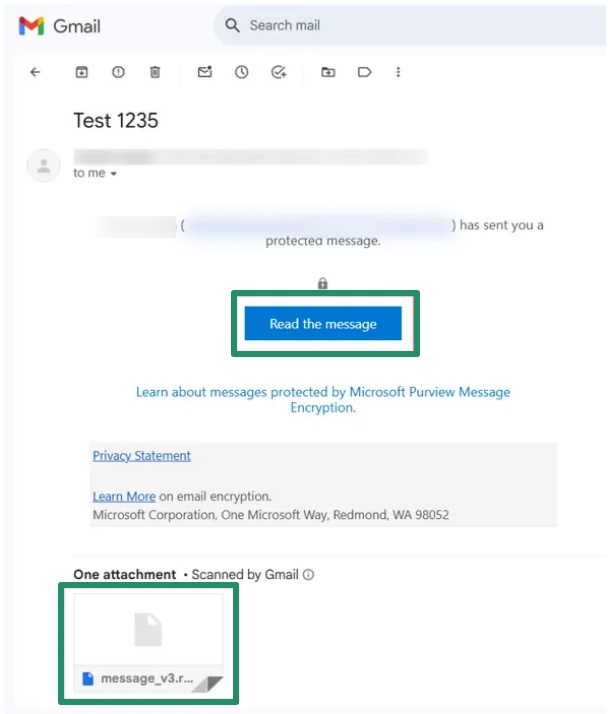
- Click the Read the Message link.
- Sign in with your Microsoft account credentials.
- Once you sign in with your Microsoft account, your RPMSG file will be decrypted and become accessible.
How to Open an RPMSG File without Microsoft Outlook
If you cannot open the RPMSG file with desktop or web Microsoft Outlook, you can open it with Gmail or another email client. The following are the steps to do it.
- First, launch Outlook; download it if required.
- Add your Gmail/other email account to Outlook.
- Open the email you want to open. Outlook will automatically perform the verification for authenticity and open the message.
- If prompted, log in to your email account to access the message.
If you experience problems opening the RPMSG file, such as the file content staying blank or unavailable, update Outlook, check your internet connection, ensure you have permission to access the file, and make sure you sign into Outlook with the exact address that received the RPMSG file.
Hopefully, you find this helpful. However, if you have any questions or confusion, you can find answers in the frequently asked questions below or drop us a comment to get your queries resolved.
Also know: How to Fix File Explorer Not Opening Windows 11
Frequently Asked Questions
Q1. Why can’t I open an RPMSG file?
An outdated Outlook version, disabled Information Rights Management (IRM), a damaged or corrupted RPMSG file, and sender restrictions are the top reasons you cannot open an RPMSG file. To solve these problems, update Outlook, ensure the Information Rights Management is enabled, ensure your email client supports .rpmsg files, make sure you have permission to access the file, and ask the sender to resend the file.
Q2. How do I open an RPMSG file as a PDF?
To open an RPMSG file as a PDF, open MS Outlook, open the RPMSG file, click File, click Print, click Save as PDF, and then click Save. You can also use an online converter tool to convert RPMSG into PDF. However, this would mean uploading the file to a third-party server, which could be risky from a security point of view.
Q3. What program will open an RPMSG file?
You can open an RPMSG file using the Outlook Desktop Application, Outlook Web App (OWA), or a third-party RPMSG viewer tool. However, using a third-party tool is not recommended for security reasons.
Q4. How do I convert an RPMSG file?
To convert an RPMSG file, open the file in Outlook, follow the path File > Print, click Microsoft Print to PDF, choose the destination folder, and then click Save. This converts an RPMSG file to PDF. Similarly, you can also convert to any other format.