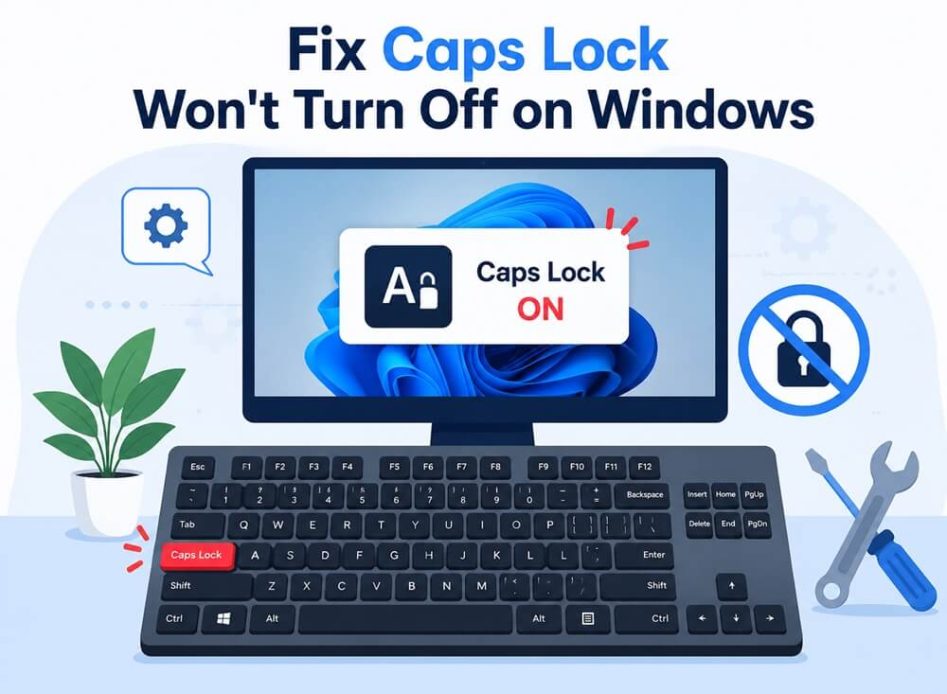
A smoothly functioning keyboard is crucial for a smooth experience. A stuck Caps Lock key can be frustrating, especially when you need to type something important, such as an email, a report, or a message to friends.
Unexpected case changes and a glowing Caps Lock indicator light are all signs of a Caps Lock that won’t turn off on your keyboard.
Though annoying, the Caps Lock issue is easily fixable. This guide walks you through quick and easy solutions, such as updating your keyboard drivers.
However, before getting into troubleshooting, it is important to understand why your keyboard, especially the Caps Lock, is acting up to troubleshoot the right way.
Why Is the Caps Lock Stuck on Windows
Accumulated dirt or debris, software glitches, incompatible or inappropriate keyboard settings, and outdated keyboard drivers are the top reasons the Caps Lock key is stuck on a Windows laptop or PC.
Now that you are familiar with the possible reasons your Caps Lock on the keyboard is not working as expected, let’s help you fix it.
How to Fix Caps Lock Stuck on Windows
To fix a Caps Lock that won’t turn off or is stuck, clean the key, restart your PC, adjust the keyboard settings, update the driver, try using the SHIFT key, disable the Caps Lock key, remap the key, and reset your keyboard. Below is a detailed explanation of all these solutions; follow them sequentially until the Caps Lock key starts working correctly.
Fix 1: Clean the Caps Lock key
Accumulated dirt or debris may prevent the Caps Lock key’s movement, making it dysfunctional. Hence, follow the steps below to clean the key.
- Power off your computer completely; unplug the computer from the power source.
- If applicable, use a keycap puller or small flathead screwdriver to remove the Caps Lock keycap gently.
- Blow out any accumulated dust or debris using compressed air to clean the area beneath the key, and then use a microfiber cloth to wipe the area gently.
- Attach the keycap again and press it a couple of times to ensure it is operational.
Also know: How to Open and Use Windows Action Center
Fix 2: Restart your computer
Restarting the computer fixes minor software issues and resets the keyboard settings to fix the keyboard locked in caps. Here is how to restart the PC.
- Close all programs.
- Right-click the Start button.
- Hover over Shut down or sign out.
- Click Restart.
Fix 3: Change the keyboard settings
Adjusting keyboard settings, such as turning off sticky keys, disabling toggle keys, and turning off filter keys, can fix the stuck keyboard Caps Lock key. To change the settings:
- Click the Start button.
- Click the gear-shaped icon to open Settings.
- Next, navigate to the Ease of Access or Accessibility
- Click Keyboard in the available menu.
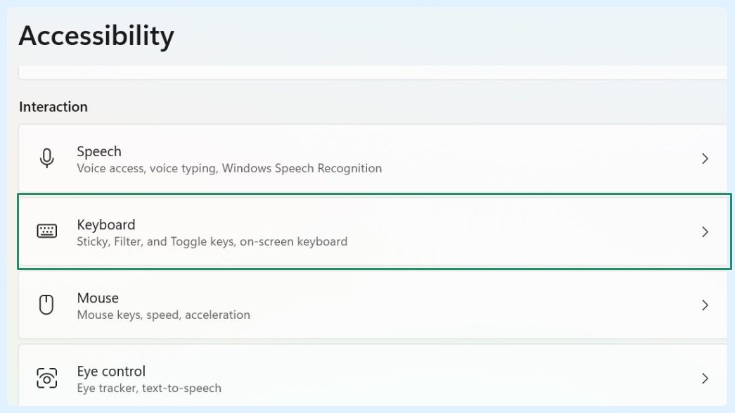
- Toggle off Sticky Keys, Toggle Keys, and Filter Keys.
- Lastly, uncheck the Allow shortcut key to start Sticky Keys.
Fix 4: Update the keyboard driver
The keyboard driver is a software through which the operating system communicates with the keyboard. If the driver is outdated, you may encounter keyboard performance issues such as Caps Lock being stuck. Hence, you can follow the steps below to update the keyboard driver.
- Right-click the Start button.
- Click Device Manager.
- Double-click Keyboards.
- Right-click your keyboard.
- Click Update Driver.
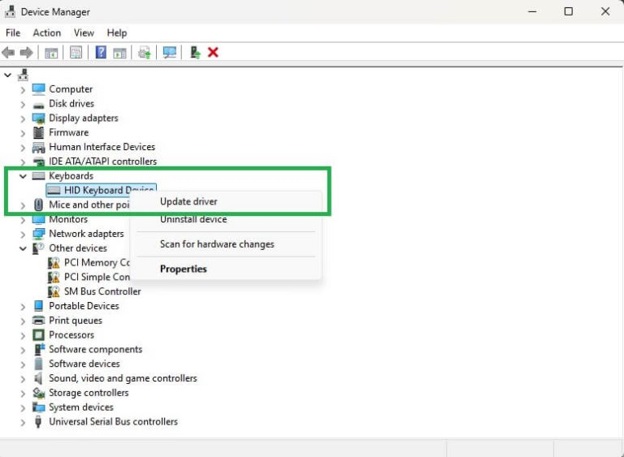
- Next, click Search automatically for drivers.
- Follow the prompts that appear on your screen.
- Lastly, restart your computer to let the new keyboard driver take effect.
Also know: How to Run a Troubleshooter for PC Issues in Windows
Fix 5: Use the SHIFT key
The SHIFT key overrides the Caps Lock temporarily, fixing the stuck Caps Lock key. Hence, press SHIFT + Caps Lock to deactivate the Caps Lock.
Fix 6: Disable the Caps Lock key
You can disable the Caps Lock key if the Caps Lock repeatedly keeps malfunctioning. To disable the key, you need the PowerToys Microsoft tool. With this application’s keyboard manager, you can also remap your Caps Lock or any other key.
Fix 7: Remap the Caps Lock key
You can remap your Caps Lock key to another key that you do not use to make that key function like the Caps Lock key. Here is how.
- Get the Keyboard Manager in Microsoft PowerToys.
- In the Keyboard Manager, click Remap a key to open the Remap Keyboard settings window.
- Click Add key remapping.
- Select an input key in the Select column. It is the key whose output you want to change; in our case, it is the Caps Lock key.
- Next, select the new key in the To Send column. It is the key you want to use for the functions of the Caps Lock key.
Fix 8: Reset your keyboard hardware
If none of the above solutions work, reset the keyboard hardware as a last resort. Below are the steps to do this.
- Disconnect the keyboard from your computer.
- Wait for 30 seconds.
- Reconnect the keyboard to the computer.
The steps above may have fixed the Caps Lock won’t turn off. However, it is also important to prevent this problem from recurring to ensure a smooth workflow.
Also know: How to Debloat Windows 11 for Better Performance
How to Prevent a Stuck Keyboard Caps Lock
To prevent Caps Lock from getting stuck on Windows, keep your workspace clean, cover your keyboard with a silicone cover, and practice gentle typing.
- Do not let dust and debris accumulate; clean your keyboard weekly or bi-weekly using compressed air.
- Use a silicone cover for your keyboard to prevent food crumbs or drink spills from damaging the keyboard.
- Type gently to avoid unnecessary pressure on the keys.
Below, we have also answered a few commonly asked questions to clear all your doubts.
Frequently Asked Questions
Q1. Why is my Caps Lock key not turning off?
An outdated or incompatible keyboard driver, random software glitches, or accumulated dirt and debris may be why your Caps Lock key is not turning off.
Q2. How to unstuck Caps Lock?
To unstuck Caps Lock, clean the Caps Lock key, restart your computer, change the keyboard settings, and update your keyboard driver. For more details and effective solutions, check the guide above.
Q3. How do I deactivate Caps Lock?
To deactivate the Caps Lock key, press Caps Lock on your keyboard. If this does not work, press the SHIFT key. If this also fails, deactivate the key using Microsoft PowerToys.
That concludes our guide to fixing a stuck Caps Lock key. Hopefully, it helps solve the problem for a smoothly functioning Caps Lock key and the keyboard. If the problem persists, seek professional help if your keyboard is under warranty or other keys are also failing to function properly. Consider replacing the keyboard if the physical key does not have a spring or the keyboard mechanism is damaged. If you have any questions or concerns, feel free to leave a comment.