

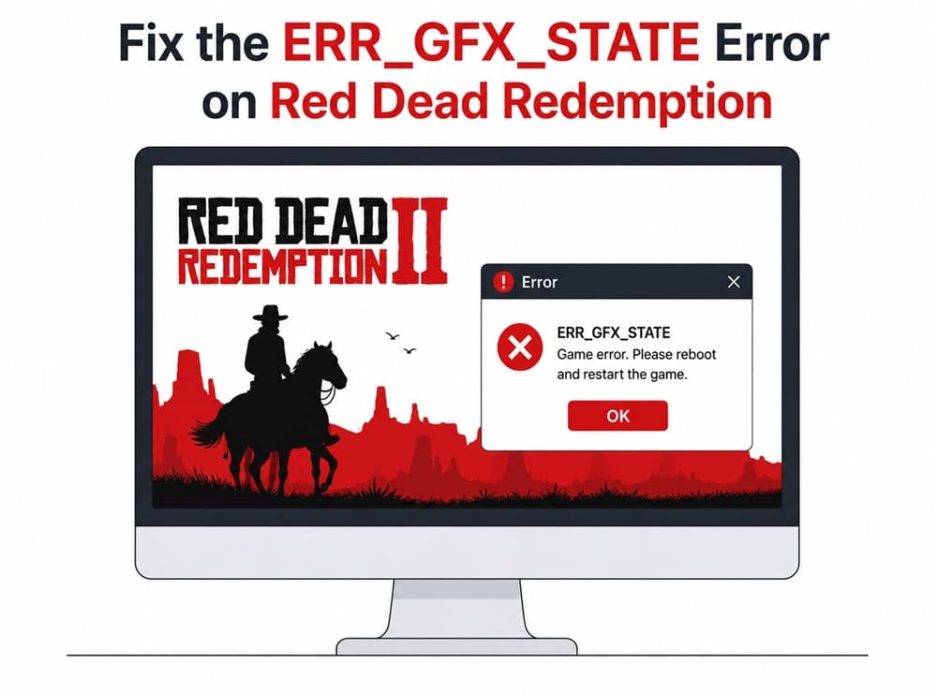
Is Red Redemption 2 crashing in the middle of gameplay? Understandably, game crashes can be frustrating, whether mid-game or when loading into traffic-heavy game areas, like Annesburg or the town of Valentine. However, the graphics crash errors, such as the ERR_GFX_STATE error, while annoying, are easily fixed with the solutions in this guide.
Before we fix the ERR_GFX_STATE error on Red Dead Redemption 2, let’s identify its possible causes to troubleshoot efficiently.
What Causes Red Dead Redemption 2 ERR_GFX_STATE Error
Pressure on system resources and game instability due to processor overclocking, an outdated graphics driver, corrupted or missing game files, and conflicts with Windows’ display management features due to fullscreen optimization, SGA file problems are the possible causes of Windows 10/Windows 11 ERR_GFX_STATE error on Red Redemption 2.
Now that you have an idea about the error and its causes, let’s help you fix it.
How to Fix the ERR_GFX_STATE Error on Red Dead Redemption 2
You can fix RDR 2 ERR_GFX_STATE during gameplay by disabling overclocking, verifying the integrity of game files, updating the graphics driver, changing the Vulkan to DX12 in the API settings file, disabling fullscreen optimization, deleting SGA files, specifying command line launch arguments, and reinstalling Red Dead Redemption 2.
However, these solutions will only work if your PC meets the minimum system requirements of Red Dead Redemption 2. If your computer does not meet the requirements below, first make the necessary changes in your device before and check if this fixes the problem. If the problem remains unsolved even after meeting the system requirements, proceed to troubleshooting.
Red Dead Redemption 2 System Requirements (Minimum)
OS: Windows 10 64 Bit
Processor: Intel® Core™ i5-2500K / AMD FX-6300
Memory: 8GB
Video Card: Nvidia GeForce GTX 770 2GB / AMD Radeon R9 280 3GB
Sound Card: DirectX compatible
HDD: 150GB
If your PC meets the above requirements but you encounter the RDR 2 ERR_GFX_STATE error, apply the following fixes sequentially until the problem is resolved.
Fix 1: Turn off overclocking
GPU and CPU overclocking software, such as MSI Afterburner, can strain system resources, and the game engine may not support overclocked processors. Hence, to fix the game instability that may have caused the ERR_GFX_STATE graphics crash error, disable overclocking settings for the GPU and CPU.
Fix 2: Verify the integrity of game files
Red Dead Redemption 2 ERR_GFX_STATE error may be a result of corrupted or missing game files. Hence, below is how to verify the game files.
On Rockstar Games Launcher
- Go to Rockstar Games Launcher.
- Click SETTINGS.
- Locate Red Dead Redemption 2 in My Installed Games.
- Click the VERIFY INTEGRITY option next to the Verify game file integrity.
On the Epic Games Launcher
- Open Epic Games Launcher.
- Locate Red Dead Redemption 2 in the Library.
- Click the three dots on the right of the game line.
- Next, click Manage.
- Click Verify next to the Verify Files option.
On Steam
- Open Steam.
- Click LIBRARY.
- Right-click Red Dead Redemption 2.
- Click Properties.
- Next, click the Installed Files tab.
- Lastly, click Verify integrity of game files.
Also know: How to Access Unblocked Games 76 Safely on Windows
Fix 3: Update graphics driver
A driver helps your graphics card and operating system (OS) communicate with each other for smooth game performance. An outdated driver may have triggered the Windows 11 ERR_GFX_STATE error on Red Dead Redemption 2. Hence, you can update your graphics driver by following the steps below.
- Right-click the Start button.
- Click Device Manager.
- In the Device Manager, double-click Display Adapters.
- Right-click your graphics card and then click Update Driver.
- Click Search automatically for drivers.
- Follow the on-screen prompts to complete the graphics card driver update.
- Lastly, restart your computer.
Fix 4: Change the Vulkan to DX12 in the API settings file
Changing the default graphics API to DirectX 12 from Vulkan has helped many users fix the Windows 10 ERR_GFX_STATE Error on Red Dead Redemption 2. Here is how to do it.
- Navigate to C:\Users\(your user name)\Documents\Rockstar Games\Red Dead Redemption 2\Settings.
- Right-click and open the xml file with an editor like Notepad.
- Change default API settings from Vulkan to
- Save the change you made in the previous step.
Fix 5: Try disabling fullscreen optimization
Fullscreen optimization can cause conflicts between Windows’ display management features and Red Dead Redemption 2, leading to the RDR 2 ERR_GFX_STATE error during gameplay. Hence, you can disable fullscreen optimization by following the steps below.
On Rockstar Games Launcher
- Go to the Rockstar Games Launcher.
- Click SETTINGS.
- In My Installed Games, click Red Dead Redemption 2.
- Click to open the View installation folder.
- Right-click RDR2.exe and then click Properties.
- Click Compatibility.
- Next, click Run this program as administrator and disable full screen optimization.
- Click Apply and OK.
On the Epic Games Launcher
- Go to the Epic Games Launcher.
- Click Library.
- Next, click the three dots alongside the Red Dead Redemption 2 game title and then click Manage.
- Click Installation and then select the folder icon.
- Right-click RDR2.exe and then click Properties.
- Click Compatibility.
- Next, click Run this program as administrator and disable full screen optimization.
- Lastly, click Apply and OK.
On Steam
- Go to the Steam Launcher.
- Click LIBRARY.
- Next, click Local Files and then click Browse.
- Right-click RDR2.exe and then click Properties.
- Click Compatibility.
- Next, click Run this program as administrator and disable full screen optimization.
- Lastly, click Apply and OK.
Also know: How to Fix Roblox Error Code 277
Fix 6: Remove SGA files
Files with the SGA extension are compressed files with maps or a large group of connected files. However, SGA files can cause Windows 10 ERR_GFX_STATE error on Red Dead Redemption 2 and other errors. Hence, below are the steps to delete these files to fix the issue.
- Navigate to C:\Users\(your user name)\Documents\Rockstar Games\Red Dead Redemption 2\Settings.
- Press and hold the Ctrl key and select all the SGA files.
- Right-click a selected file and then click
Fix 7: Specify command-line launch arguments
Command-line launch arguments are additional commands you can apply to launch your game and change the game’s functionality. To fix the Windows 10/Windows 11 ERR_GFX_STATE error on Red Dead Redemption 2, below is how to specify launch arguments.
On Rockstar Games Launcher
- Launch the Rockstar Games Launcher and then click SETTINGS.
- Click Red Dead Redemption 2 in My Installed Games.
- In the Launch arguments text box, add -ignorpipelinecache.
On Steam
- Go to your Steam client.
- Click LIBRARY.
- Right-click Red Dead Redemption 2.
- Click Properties.
- In the Launch Options, add -ignorpipelinecache.
On the Epic Games Launcher
- Go to the Epic Games Launcher.
- Click Settings on the bottom-left side.
- Scroll to Red Dead Redemption 2 and tick Additional Command Line Arguments.
- Add -ignorepipelinecache in the text box.
Fix 8: Reinstall Red Dead Redemption 2
If none of the above fixes solved your problem, uninstalling and reinstalling Red Dead Redemption 2 is the last resort. The following are the steps to do it.
Note: Ensure you have cloud save enabled and have backed up saves to avoid losing your game progress.
- Open Red Dead Redemption 2 within the Epic Games, Steam, or Rockstar launcher.
- Click Uninstall and complete the uninstallation.
- After completing the uninstallation, reinstall the game from the library section of your gaming client.
Hopefully, the fixes above help you get rid of the annoying ERR_GFX_STATE error on Red Dead Redemption 2. If the problem remains unsolved, you can contact Red Dead Redemption 2 support at Rockstar Games, Steam, or Epic Games for more personalized solutions. For any confusion or questions, you can also drop us a comment in the comments section.
Also know: How to Set Up USB Game Controllers in Windows
Frequently Asked Questions
Q1. How to fix RDR2 err_gfx_state?
To fix the Windows 10/Windows 11 ERR_GFX_STATE error on Red Dead Redemption 2, update the graphics driver, disable GPU overclocks, and verify the integrity of game files. For detailed solutions, refer to the guide above.
Q2. Can driver updates fix err_gfx_state?
Yes, driver updates can fix the Windows 10 ERR_GFX_STATE error on Red Dead Redemption 2 by improving the compatibility between the graphics card and game engine, preventing crashes, freezes, and related issues.
