

Downloading an image from Chrome is simple. All you need to do is right-click the image and click “Save As” to download it to a convenient location, unless you need to download multiple images. For bulk image downloading, you need the best image downloader extensions for Chrome to save hours of your precious time manually clicking and saving images.
In addition to hassle-free bulk image downloads, the Chrome extensions to download all images offer added advantages, such as smart filtering, allowing you to sort or filter images by height, pixel width, source URL, and format, format conversion to help you convert images into desired formats, such as JPG or PNG, and an option to choose the image resolution.
While these extensions may not add much value for regular users wanting to download a single image, they are extremely helpful for e-commerce sellers and dropshippers to download product detail images, marketing banners, and catalogs quickly, content creators, and social media managers to save inspiration photos, visual assets from platforms like Pinterest, and mood boards, web developers and designers to extract thumbnails, website assets, and convert image formats, and researchers and activists to perform competitive analysis, collecting online data, and filtering visual evidence by size and other parameters.
However, finding the right extension to download images on Chrome is challenging and time-consuming. Hence, we did the hard work of finding and reviewing them for you in this article.
To make sure our recommendations are reliable and up to date, we personally tested each Chrome image downloader extension on multiple sites, including e-commerce pages, social networks, and standard image galleries. We evaluated them for ease of use, image detection accuracy, download speed, and feature set by hands-on use. We also carefully reviewed user feedback and extension privacy policies to check for any data safety concerns. Based on these tests and research, we selected only the extensions that performed best and met strict criteria such as Chrome compatibility, privacy standards, user experience, and valuable image handling features.
However, please note that the images on a website may be protected by copyright (they almost always are). Hence, do not reuse them before checking their license and reuse terms. We do not recommend reusing images, photographs, or illustrations without researching the copyright status.
To check image licenses and usage rights, you can use resources such as Creative Commons (creativecommons.org), which provides guidelines for finding and understanding image licenses, and tools like TinEye (tineye.com) or Google Images’ “Usage Rights” filter to help identify the source and potential licensing information of an image. Always verify the permissions before using any image to avoid copyright issues.
Before going into the details of these extensions, here is a quick overview of our top recommendations if you are short on time.
Top Recommendations for Image Downloader Extensions for Chrome: TL;DR
- Download all images from a page quickly: Use Download All Images. It is a quick one-click image downloader Chrome extension.
- Image previewing and selective downloads: Use Imageye. It offers a visual grid for fast and precise image selection.
- Download images from single-page or JavaScript-heavy apps: Use Bulk Media Downloader. Its network-level capture helps find what DOM scanners may miss.
- Download product images from e-commerce websites: Use Fitkun. It offers HD detection and multi-tab support to make pulling images from e-commerce sites easier.
- Looking for image downloading with organization: Use Image Downloader. It offers image saving in subfolders.
Best Image Downloader Extensions for Chrome: A Quick Look
| Image Downloader Extension | Best For | Standout Features | Batch Download | Format Conversion | Filtering Options |
| Imageye | Content creators, social media managers, web developers, and researchers | WebP conversion, reverse search | Yes | WebP to JPG, JPEG, or PNG, and vice-versa | Size, image type, and layout URL |
| Download All Images | Content curators, researchers, and data managers | One-click all image downloader extension for Chrome | Yes | No | Size, image dimension, URL, same-origin policy, and more |
| Fitkun | E-commerce managers and dropshippers | Automatic grouping, folder export | Yes | WebP to JPG | Resolution, image format, width, height, image link, and source link filtering |
| Bulk Media Downloader | Everyone who wants to bulk download media files | Network-level capture for images, audio, and video | Yes | No | No |
| Image Downloader | Users who need granular, high-volume image scraping | Image saving in subfolders, image renaming | Yes | No | Width, height, and URL pattern filtering |
What Are the Best Image Downloader Extensions for Chrome (Full Details)
The best extensions to download images in Chrome include Imageye, Download All Images, Fitkun, Bulk Media Downloader, and Image Downloader. All these extensions have unique strengths.
For example, Imageye has a visual grid image display that allows you to find exactly what you are looking for before downloading images from Chrome. Download All Images is an all-image downloader Chrome extension to download every image from a webpage, including images embedded in iframes and links. Fitkun integrates smart scripts from websites, such as e-commerce sites, to extract images you need on demand, view them in a side panel, and reverse search images to find similar products. Bulk Media Downloader detects media files as they load, rather than performing visible page scanning to download images easily from JavaScript-heavy or single-page apps. Image Downloader offers complete filter control by allowing you to set maximum and minimum limits for both height and width separately.
Here are all these Chrome image downloader extensions detailed.
1. Imageye
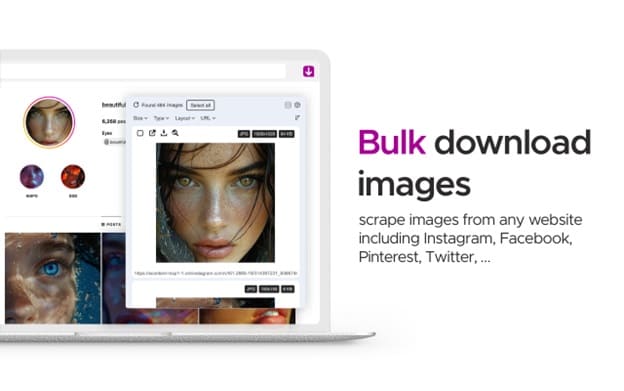
Imageye image downloader is one of the best image downloader extensions for Chrome, with a built-in option to convert WebP to JPG for bulk downloads. This easy-to-use extension lists all images present on a website and allows you to sort them by size, layout, URL, and type (such as PNG, WebP, JPG, etc.) to perform one-click image downloads. This especially helps to avoid clutter by downloading only the needed images by simply ticking all the images you want. Additionally, here are other notable features of the image downloader by Imageye.
Key features
- A built-in WebP to PNG/JPG converter for easy compatibility with presentation programs, email clients, and desktop image editors.
- Reverse image search to find matching results on Google, TinEye, or Bing to find higher-resolution versions or verify image sources.
- YouTube video thumbnail downloading.
Note: While Imageye is an excellent online image downloader, it can miss some background pictures.
Also know: Best AI Coding Tools to Use in 2026
2. Download All Images
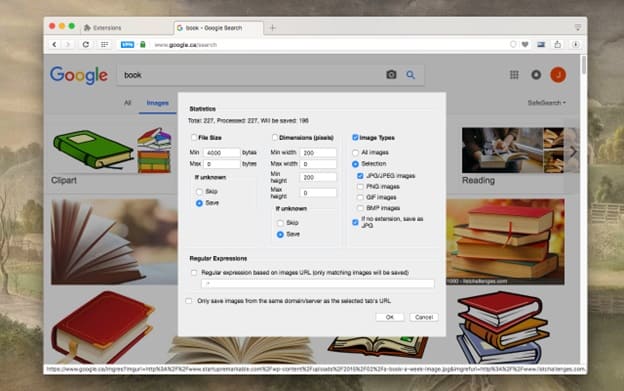
As the name reflects, Download All Images is a bulk image downloader extension for Chrome. Like Imageye, it scans a webpage for images, shows thumbnails, and allows you to filter images according to criteria such as their type and pixel dimensions before downloading. However, unlike Imageye and other extensions, it also detects the source image of a thumbnail.
Additionally, Download All Images scrolls through a webpage automatically to ensure no images get missed and has these unique features.
Key features
- You can specify the keywords for images you do not want to be included.
- It lets you download images from URLs in a single shot, making it the best image downloader by links.
However, Download All Images offers fewer filtering options than extensions like Image Downloader or Fitkun.
3. Fitkun
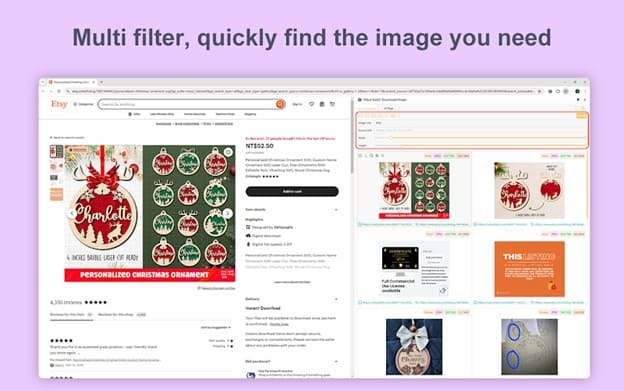
Fitkun Batch Download Image is another image downloader extension for Chrome, especially helpful for e-commerce managers and dropshippers. It integrates intelligent scripts from mainstream e-commerce and other websites to display and download images in sequence.
Moreover, the sidepanel mode allows real-time page image acquisition, multiple filters by image format, height, width, source link, etc. help find the needed image quickly, and the following features make Fitkun an attractive extension to download images on Chrome.
Key features
- The built-in image editing software allows easy image editing and saving.
- An integrated reverse image search to find high-resolution image options or similar products.
- Built-in image format converter to convert images quickly into specified formats.
- Smart HD image analysis to extract HD images from the page and download them with a single click effortlessly.
- An option to switch between light and dark themes.
If you are a beginner, please be informed that you may find the interface a bit confusing.
4. Bulk Media Downloader
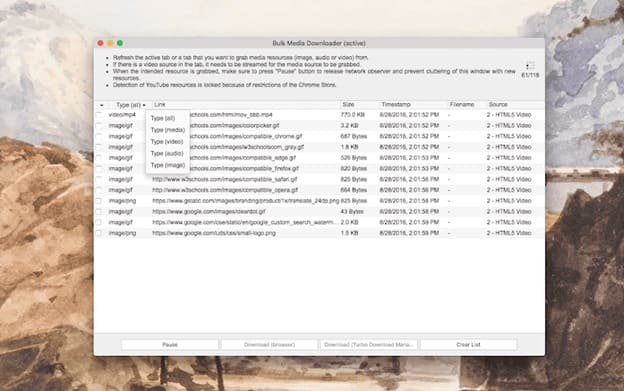
Bulk Media Downloader is a network-level Google Chrome extension to download images. It captures pictures, video streams, and audio files that may be unavailable to DOM-based downloaders, media served via API calls, dynamically injected content, and background images loaded through CSS.
In addition to being one of the best image downloader extensions for Chrome due to its network-level approach, Bulk Media Downloader does not affect your browser performance when you close the grabber window, monitors network resources only when the grabber window is open, and has the following features.
Key features
- Simultaneous bulk image downloading from multiple tabs.
- An easy right-click image download option.
- Advanced search for high-quality images.
While multi-tab filtering is excellent, Bulk Media Downloader does not grab YouTube links; it is not a YouTube downloader, and beginners may find it complex.
5. Image Downloader
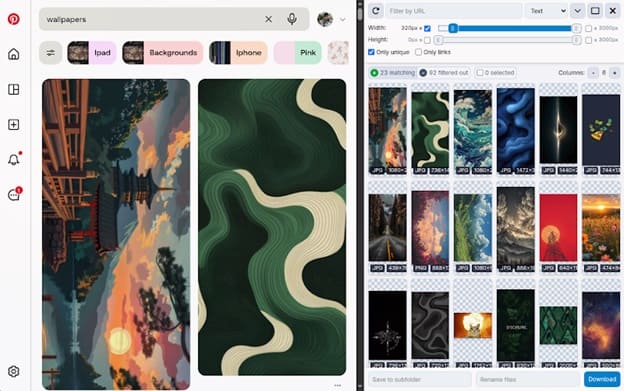
Image Downloader by Pact Interactive detects and displays all images on the webpage in a checkboxed and scrollable list. You can choose the images you want to download. Additionally, you can precisely control filters by setting minimum and maximum limits for width and height separately, and apply URL substring filters.
Image Downloader also saves you valuable time from manual image organization by supporting subfolders. Instead of saving all downloaded images in a common Downloads folder, it allows specifying a subfolder for easy organization of images. Its notable features also include the following.
Key features
- You can change the image name as desired.
- The image download continues in the background.
- One-click image downloading or viewing.
- Image pulling from multiple websites in a single session.
However, Image Downloader has previously been flagged for slowing down the browser tab when downloading large image batches. This problem is now solved. Moreover, while it works perfectly on standard HTML websites, an extension like Bulk Media Downloader is more suitable for JavaScript-heavy single-page applications.
That’s all for the best image download extensions for Chrome. However, choosing the right extension for your needs can still be confusing. Hence, here are the factors you must consider to make the selection easier.
Also know: Best Productivity Apps for Windows
How to Choose the Right Image Downloader Extension for Chrome (Top Factors to Consider)
Consider the following factors when choosing an image downloader for Google Chrome.
- Ensure the extension that you choose is compatible with the latest version of Google Chrome.
- Make sure the extension supports the required image formats and can save images from websites easily.
- The extension must respect your privacy and must not collect or share your personal information.
- The best extension to download images from Chrome is easy to use and supports all the features you need, such as batch image downloads.
Hope this helps you download all the images you want easily with the best image downloader extensions for Chrome. However, if you have any doubts or questions, feel free to leave us a comment.
Frequently Asked Questions
Q1. How do I download an image from Chrome?
To download an image on Google Chrome, right-click the image, click “Save As,” and then save the image to a desired location on your computer. To download multiple images simultaneously, use one of the best Google Chrome image downloader extensions.
Q2. Why can’t I download images from Chrome?
Device glitches, network issues, and unavailability of enough storage space may be the reasons you are unable to download images from Chrome. To fix these issues, check your internet connection, restart Google Chrome, clear the browser cache by pressing Ctrl + Shift + Delete, ensure the image format is compatible with your device, remove the files and applications you no longer use on your computer, and update Google Chrome by following the path Help > About Google Chrome in the Chrome settings.
Q3. What is the extension for the image downloader in Chrome?
There are many extensions to download images in Chrome. The best ones include Imageye, Download All Images, Fitkun, Bulk Media Downloader, and Image Downloader.
