

Exchange Admin Center (EAC) makes email management, messaging, and collaboration seamless within Microsoft 365 or on-premises Exchange environments.
With this web-based management console to manage Microsoft Exchange Online and on-premises Exchange servers, administrators can find specific user mailboxes to manage or edit, search for specific emails to check if they are delivered, deferred, or blocked, assign “Send As” or “Full Access” permissions, and move mailbox data from other systems.
However, accessing the Exchange Admin Center can be confusing for many users. Hence, this article compiles a detailed guide on how to access this management console through various methods.
To begin with, let’s help you understand what the Exchange Admin Center is.
What Is Exchange Admin Center
Simply put, Exchange Admin Center is a web-based management dashboard in Microsoft Exchange Server and Exchange Online. It provides administrators with a user interface to manage different spheres of the Exchange environment, such as mailboxes, permissions, recipients, organizational settings, and transport rules.
The EAC or Exchange Admin Center replaced the Exchange Control Panel (ECP) and Exchange Management Console (EMC), which were a part of the Exchange Server 2010 and 2007.
Moreover, the user-friendliness of this web-based administration console makes it more suitable for online, on-premises, or hybrid Exchange deployments.
Additionally, the new Exchange Admin Center online gives you access to a cloud-based system and allows you to access your files from any corner of the world with an internet connection.
Furthermore, with EAC in Exchange Server, you can experience all Exchange features, such as a personalized dashboard to monitor your priorities, insights, reports, cloud shell support, a mail management system, and a lot more.
How to Log In to Exchange Admin Center in Exchange Server
Before you can log into the Exchange Admin Center (EAC) to manage your Exchange Server, you must ensure that you have all the right authorizations. Specifically, your account must be a member of the Organization Management security group, which grants full administrative access to Exchange features.
If you need more limited access, you may be assigned to other built-in admin roles such as Recipient Management or Compliance Management, depending on the tasks you need to perform. If you cannot access the Active Directory Server or do not have the necessary permissions, you can ask the domain administrator to provide or verify your role membership.
Moreover, the user you plan to use to access the Exchange Admin Center must also be a part of the Organization Management security group.
With all this taken care of, you can follow the steps below to access the Exchange Admin Center in Exchange Server 2013 and later versions.
- Open a supported browser such as Microsoft Edge, Google Chrome, or Mozilla Firefox to access the Exchange Admin Center. These browsers are recommended by Microsoft for the best experience, as all features in EAC are optimized for them. While Internet Explorer 11 can be used, some features may not work optimally or may not be supported, especially as Microsoft is moving away from supporting Internet Explorer.
- In the browser that you have opened, navigate to the https://<exchangeservername>/ecp web address.
- Ensure you use the complete FQDN address of the server to access EAC.
- Replace the address with your infrastructure address.
- After entering your username and password, choose your Time Zone and Language.
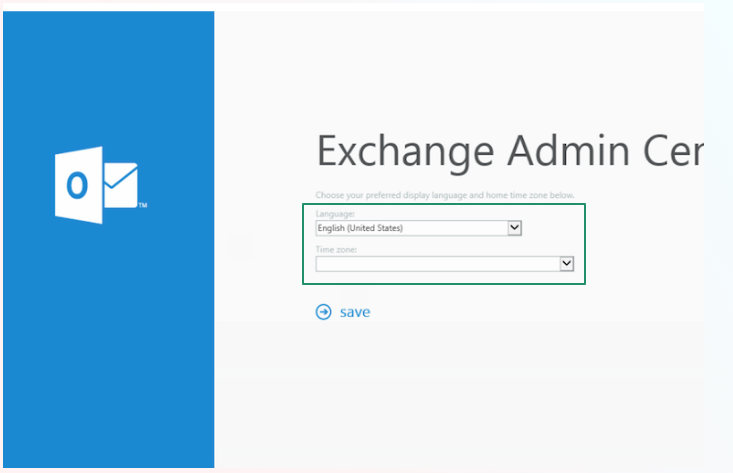
- Lastly, wait until the Exchange Admin Center loads, giving you full server access and access to the Exchange Server configurations.
Also know: How to Repair Apps That Aren’t Working Properly in Windows
How to Log In to Exchange Admin Center in Exchange Online
While accessing the Exchange Admin Center in Exchange Server was a bit technical, logging in to the Exchange Admin Center in Exchange Online is pretty much straightforward if you have Global Administrator or Exchange Administrator roles assigned. You can follow the steps below to access it.
- First, use your school or work account to sign in to your Microsoft 365 or Office 365 account.
- After signing in to your Microsoft 365 or Office 365 account, select Admin centers and then choose Exchange from the left pane.
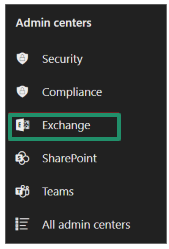
Note: You can also access the EAC online by navigating to the Exchange Admin Center URL https://admin.exchange.microsoft.com/ and signing in with your credentials. If this does not work, you can go to the default URL https://admin.cloud.microsoft/exchange to access EAC online.
That was all about accessing the Exchange Admin Center, or EAC, to benefit from its various features. If you have any questions or concerns about this guide, please feel free to write to us in the comments section below.
Also know: How to Find and Check Windows Crash Logs
Frequently Asked Questions
Q1. Who can access the Exchange Admin Center?
Those with specific Microsoft 365 administrative roles, primarily as the Global Administrator, Exchange Administrator, or another specialized role through Role-Based Access Control (RBAC), can access the Exchange Admin Center (EAC). For details, you can check Permissions in Exchange Online.
Q2. How to open an Exchange Admin Center?
You can open the Exchange Admin Center in the Exchange Server, through Microsoft 365 or Office 365, or directly from the URL https://admin.exchange.microsoft.com/.
Q3. What is the default address of Exchange Admin Center?
https://admin.cloud.microsoft/exchange is the default Exchange Online Admin Center address. However, you can also access it through the legacy URL https://admin.exchange.microsoft.com, which will then redirect you to the new domain.
