

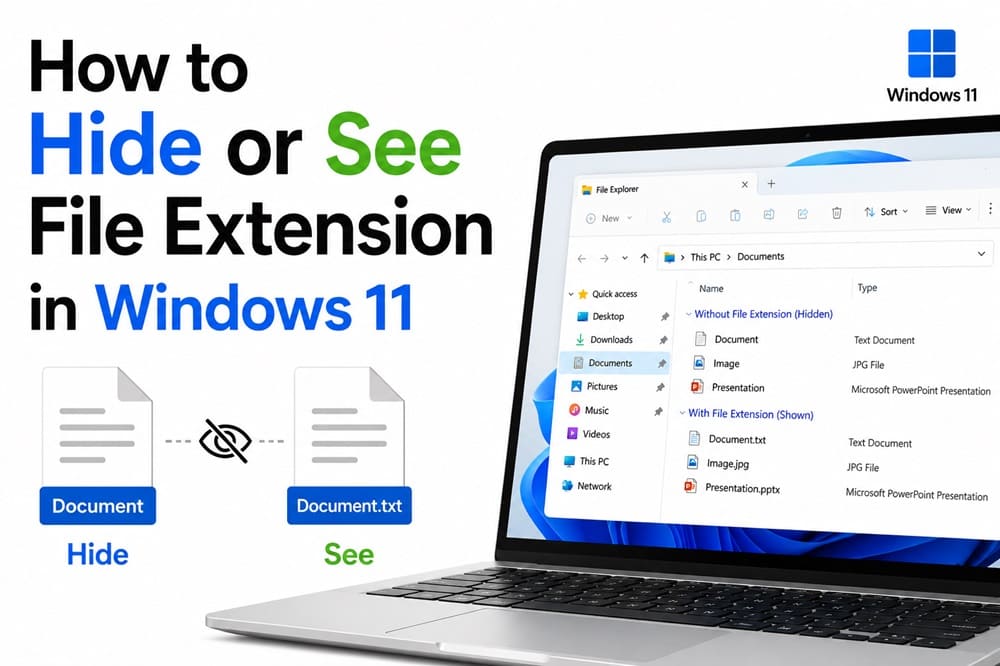
Confused about how to see file extensions in Windows to improve file security, identify file types, or troubleshoot file associations to prevent malicious or disguised files? This Windows file extension guide is here to help.
Whether you are a developer, an administrator, a power user, or an individual who wants to control their file extensions, you can easily show or hide file extensions with the methods in this article to optimize file management and protect your system from threats.
However, before going into the details of file extensions and hiding or viewing file extensions in Windows, here is a quick overview of enabling/disabling extensions if you need quick help.
Quick Steps to See or Hide File Extensions: TL;DR
- Display file name extensions: You can view Windows file extensions through File Explorer, Windows Registry, Windows Settings, or PowerShell. The quickest way to view the extensions is using the File Explorer. To do this, launch File Explorer, click View, click Options or Folder Options, click View in the File Explorer Options, uncheck the Hide extensions for known file types box, click Apply, and then click OK.
- Hide file extensions: To hide the file name extensions in Windows, open File Explorer, click the View tab, choose Options or Folder Options, select View from the File Explorer Options, check the Hide extensions for known file types box, click Apply, and then click OK.
- Showing file extensions helps you identify the file type and reduce the risk of opening dangerous executable files.
- Hiding the file extension protects crucial files from accidental deletion or modification by unauthorized users.
That was a quick look at how to hide or see Windows file extensions. Let’s now help you understand, in detail, file extensions and how to show or hide them in Windows 10/11.
What Is a File Extension in a Computer
A file extension in Windows is the three or four letters that appear after the period at a filename’s end. Windows uses file extensions with the appropriate applications to open the file. For example, the .doc file extension means it is a Word document file, and Windows will open it with Microsoft Word.
By default, Windows manages these file extension associations via a database that links these extensions to their respective applications. These associations decide which program opens a file when you double-click the file. Moreover, Windows controls how extensions appear in the File Explorer to ensure a simplified interface for users. There can be many file extensions. Here are some of the most common ones.
Common file extensions list
| Category | Extensions |
| Text file formats | .txt (Plain Text), .rtf (Rich Text Format), .docx (Word Open XML Document), .csv (Comma-Separated Values), .doc (Word Document) .pdf (Portable Document File) |
| Image file formats | .jpg (Joint Photographic Experts Group), .png (Portable Network Graphics), .webp (Web Picture Format), .gif (Graphics Interchange Format), .bmp (Bitmap) |
| Audio file formats | .mp3 (MP3 Audio File), .wma (Windows Media Audio), .snd (Sound), .wav (WAVE Audio File) |
| Video file formats | .mp4 (MPEG-4 Video File), .3gp (3GPP Multimedia File), .avi (Audio Video Interleave File), .mpg (MPEG Video File), .wmv (Windows Media Video File) |
| Program file formats | .c (C/C++ Source Code File), .cpp (C++ source Code File), .java (Java Source Code File), .py (Python script), .js (JavaScript) .bat (Batch file), .com (Command file), .exe (Executable file) |
Viewing and understanding file extensions helps protect your system, as hidden extensions can hide potentially dangerous files. For example, a “image.jpg.exe” file may display only as “image.jpg.” Hidden extensions make it easy for harmful files to impersonate legitimate files.
Moreover, malware generally uses double file extensions to mask executable files, or a social engineering attack can unfairly use hidden extensions. Hence, system administrators need to see file extensions for protection from threats, manage default programs for various file types, control extension visibility to others, and ensure a consistent file handling behavior.
Hence, let’s help you understand how to show hidden file extensions in Windows.
How to See File Extensions in Windows
You can display file name extensions in Windows through File Explorer options, Registry modifications, PowerShell commands, or Windows Settings. Here is how.
Method 1: Viewing file extensions using File Explorer options
- Right-click the Start button.
- Click File Explorer in the menu that appears.
- Next, click the View tab in the File Explorer menu.
- Click Options or Folder Options.
- Next, click View in the File Explorer options.
- Uncheck the Hide extensions for known file types
- Lastly, click Apply and OK to save the changes.
Note: Alternatively, in the View tab’s Show/Hide section, check the File name extensions box.
Method 2: Show file extensions with Registry changes
Before trying this method, back up your Registry to prevent damage to your system if anything goes wrong. To do this, open the Registry Editor, select the key you want to back up, click File, then choose Export. Save the backup file in a safe location so you can restore it if needed.
- Click the Start button.
- Type Registry in the search bar.
- Click Registry Editor in the search results.
- Next, click Yes if a User Account Control prompt appears.
- In the Registry Editor, navigate to the path HKEY_CURRENT_USER\Software\Microsoft\Windows\CurrentVersion\Explorer\Advanced
- Locate a HideFileExt DWORD entry.
- Double-click the HideFileExt entry and change its value to
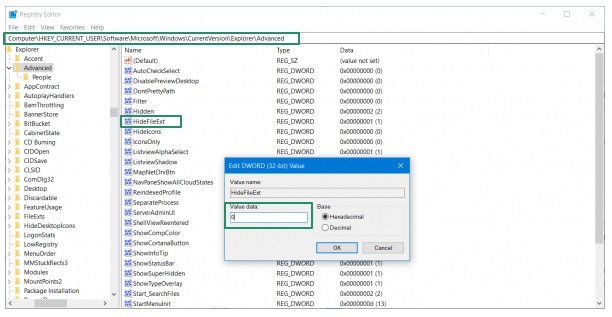
- Lastly, click OK to save the changes and then restart File Explorer.
Method 3: Use PowerShell commands to see file extensions
- Right-click the Start button.
- Click Windows PowerShell (Admin) in the menu that appears.
- Grant the necessary permission to open Windows PowerShell.
- In Windows PowerShell, copy and paste the following command.
reg add HKCU\Software\Microsoft\Windows\CurrentVersion\Explorer\Advanced /v HideFileExt /t REG_DWORD /d 0 /f
- Lastly, press Enter to show Windows file extensions.
Method 4: Enable viewing of file extensions via Settings
- Press Windows + I key to open Settings.
- Click System
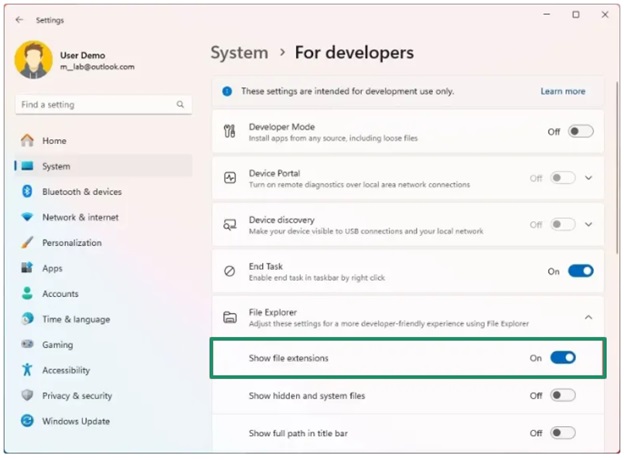
- Choose For Developers from the System settings.
- Click File Explorer in the For Developers settings.
- Toggle on Show file extensions to display file name extensions in File Explorer.
The above is how to see file extensions in Windows. However, it is also helpful to learn how to hide extensions for known file types in Windows for smooth file management and security.
Also know: How to Fix Windows Update Error 0x80070643
How to Hide File Extensions in Windows
The methods to hide Windows file extensions are the same as those for showing them, i.e, through File Explorer, Windows Registry, PowerShell, and Settings, except for a few changes in the selections that you need to make. Here are all these methods in detail.
Method 1: Use File Explorer
- Right-click the Start button and choose File Explorer.
- In the File Explorer, click the View
- Click Folder Options or
- Next, click
- Check the Hide extensions for known file types
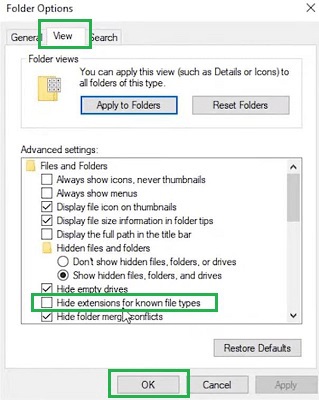
- Lastly, click Apply and
Method 2: Hide file extensions with the Registry
Back up your Registry before performing the steps below, as any wrong step can cause system problems.
- Click the Start button, type Registry Editor in the search bar, and click the first result.
- Navigate to the path HKEY_CURRENT_USER\Software\Microsoft\Windows\CurrentVersion\Explorer\Advanced
- Find and double-click the HideFileExt entry and change its value to
- Lastly, click OK and restart the Windows File Explorer.
Method 3: Use PowerShell
- Right-click the Start button and select Windows PowerShell (Admin).
- In Windows PowerShell, copy and paste the following command.
reg add HKCU\Software\Microsoft\Windows\CurrentVersion\Explorer\Advanced /v HideFileExt /t REG_DWORD /d 1 /f
- Lastly, press Enter to hide file extensions in Windows.
Method 4: Hide Windows extensions using Settings
- Press Windows + I key to launch Settings.
- Click System in the Settings panel.
- Next, click For Developers in the System settings.
- Lastly, click File Explorer and toggle off Show file extensions.
The above sections explain how to show file extensions in Windows or hide them. If you encounter problems with file extension management, such as extension visibility issues and mismatched file associations, you can delete the File Explorer cache and rebuild the icon database.
Additionally, a few effective tips can also help you manage file extensions effectively, especially if you are a system administrator.
How to Manage File Extensions: Effective Tips
Here are a few helpful tips to take control of your file extensions.
- Ensure a standardized extension policy with role-based extension profiles for various departments in the organization and security-centred visibility rules.
- Have a centralized monitoring system to track any modifications in the extension settings to prevent unauthorized changes.
- Design and implement security protocols that combine automatic scanning and filtering to protect from extension-based threats. Additionally, ensure a procedure to scan for suspicious patterns, such as double-extensions.
- Define permission levels clearly based on your organization’s needs and role requirements.
Hopefully, you find this guide helpful to see file extensions in Windows or hide them for effective and secure extension management. However, if you have any doubts or questions, feel free to leave us a comment.
Also know: How to Update Windows Security Signatures Manually Windows 11/10
Frequently Asked Questions
Q1. How do I view extensions?
You can see file extensions in Windows easily through File Explorer. Simply, open the File Explorer, click the View tab, and then check “File name extensions” in the Show/Hide section. You can learn more about this and other methods to show file extensions in the guide above.
Q2. How do I see all file extensions?
To show all file extensions in Windows, launch File Explorer, click the “View” tab, and then click “File name extensions” in the Show/Hide section.
Q3. How to show file type extensions in Windows 11/10?
To display file name extensions in Windows, open the Folder Options panel in the File Explorer and uncheck the “Hide extensions for known file types” checkbox.
