

The ‘Server IP address could not be found’ problem is a very common issue a Chrome browser user faces. This might also result in ‘404’ kinds of messages or inaccessible webpages. This occurs when the domain name you enter does not match an Internet Protocol address or IP address. Since a server may not use a static IP address, the information might change over time.
In this article, you will understand the reasons and methods to fix the issue of ‘Server IP address could not be found.’
What Is the Meaning of the ‘Server IP Address Could Not Be Found’?
There are several reasons that this ‘Server IP address could not be found’ error could occur. You can type your domain name into your browsers, and the DNS translates it into the IP addresses of the server. The DNS system wors like a digital phonebook and querying a network of the servers helps in finding the accurate IP.
The problem can be there with the website server and with the DNS server. The most common reason is that the error might be sometime the result of the issue in your browser and device.
The following are the primary reasons to fix the ‘Server IP address could not be found’ issue on your own without any professional intervention.
Reasons for Server IP Address Could Not Be Found Error
If the server’s IP address does not match and the first thought that comes to your mind is that the website is down, there might be other reasons as well, like the DNS server is too old, out-of-date IP addresses, and the cache is clear.
The primary reason for ‘Server IP address could not be found’ can be following:
Issues in DNS error
If your DNS Server Not Responding to your device, then the device trying to reach your browser will not find the right IP address. The issues for the server can’t be found with the problems of the DNS server because of the following issues:
- The DNS server is malfunctioned.
- The DNS settings are misconfigured.
- All the DNS records are corrupted.
- There is too much traffic on DNS servers.
Inaccurate IP Settings
When the Wi-Fi doesn’t have a valid IP configuration, the IP settings of the device do not let the device connect to the internet.
The reasons could be:
- That you have wrong DNS settings.
- You have allowed to manually assign the IP address outside your router’s allowed range.
- The router, which is usually a default gateway, is set incorrectly.
- The static IP is misconfigured.
Network Setup Errors
Another common reason that you face an issue of ‘server can’t be found’ might be a network setup error. If multiple devices compete for a single IP, then it struggles to connect with an external server or many external servers. Or a faulty local network configuration also prevents the system from accessing any external website.
Router Issues
You might find the ‘server cannot be found’ error in the case of the following:
- If your router needs a power cycle.
- If the router firmware is outdated or corrupted.
- The internal setting of the router is not configured correctly.
- There might be some physical issues like outdated equipment or defective cables.
Methods to Fix the Error ‘Server IP Address Could Not Be Found’
To fix the issues of ‘Server IP address could not be found’ try the following methods:
1. Check Internet Connections
The very first thing you must do to resolve the error of ‘server cannot be found’ is to make sure all the internet connections are proper and untouched. Make sure you have proper access to the internet as well. If your internet won’t work well, then your device will not be able to request the IP of the website.
2. Clear Browsing Data and Cache
After clearing all the browsing data and cache, you remove the outdated and corrupted information, and your browser will fetch fresh content straight from the server.
The following are the steps, by which you can clear the cache on your Chrome.
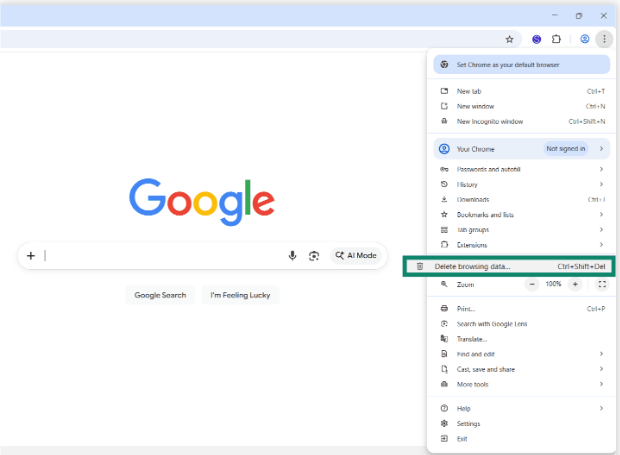
Step 1: Click on the vertical dots present on the top-right corner of the page.
Step 2: Click on the ‘Delete Browsing Data’ from the menu.
Step 3: Select ‘All Time’ from the time range present in the options.
Step 4: Click on the ‘Cached images and files’ check box. If you need it, then click on the ‘Cookies and other site data’ check box as well.
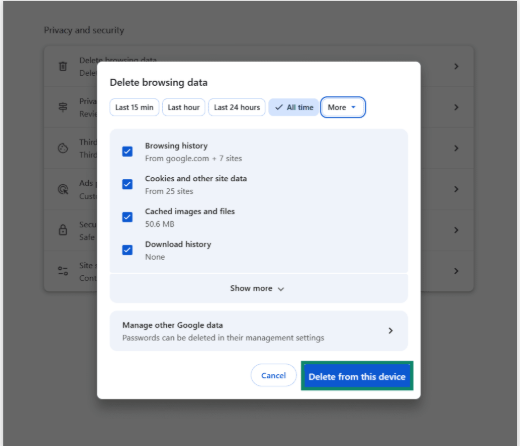
Step 5: Select the ‘Delete Data.’
Also know: Fixed: A Device Which Does Not Exist Was Specified Windows
3. Restart Router
Try to restart your router or modem and refresh the network connection, which will resolve all the small glitches. Sometimes the issue ‘Server IP address could not be found’ can be resolved by simply restarting the router once. And this step can easily clear temporary and outdated data and other glitches that interfere with the communication between your device and DNS server.
4. Check Proxy Settings
Usually, you can easily toggle proxy on or off, enable or disable automatic discovery, and specify the websites that do not need any kind of proxy access. Try a step to make sure the proxy settings are dependent on the type of operating system.
You can easily do it on Google Chrome by following these steps:
Step 1: Search for ‘chrome://settings/’ in the address bar of your search engine.
Step 2: Scroll down on the page and click on the ‘System.’
Step 3: Click on ‘Open your computer’s proxy settings’ and adjust as you need.
5. VPN Settings
If you use a VPN (Virtual Private Network), then it can often trigger the error if the server is down. The simple step of switching to a different server can resolve this issue easily. There is also a possibility of restrictions on the VPN for the website you want to access on this VPN. If that is the case, then you must switch to an obscure server that can mask your VPN traffic as regular traffic.
6. Network Adapter Settings
To resolve the issue of ‘Server IP address could not be found,’ you can follow the steps to update the adapter:
Step 1: Click on the ‘Start’ button and search for ‘Device Manager’ in the search bar.
Step 2: Expand the ‘Network Adapters’ menu and click on the name of your adapter.
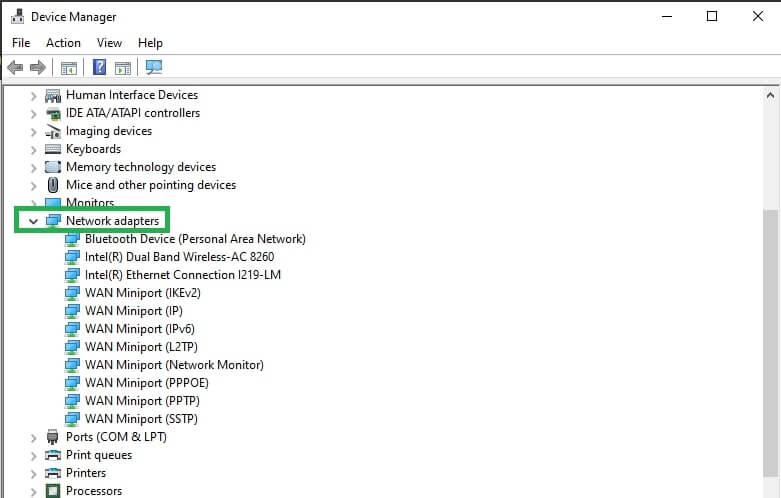
Step 3: Right-click on the adapter and click on the ‘Update Driver Software’ option.
Step 4: In the next dialog box, select ‘Search automatically for updated driver software.’ And accept the update and start to restart the system.
7. Reset IPv4 Settings
By resetting the IPv4 (Internet Protocol Version 4) settings or simply just refreshing the IP by the process called ‘Release and Renew,’ you can resolve this error.
For Windows:
Step 1: Press the Windows + S keys together and type ‘cmd.’
Step 2: Right-click on the ‘Command Prompt’ and click on ‘Run’ as administrator.
Step 3: Type ‘netsh int ip reset’ and hit ‘Enter’ to reset the IPv4 settings. And then type ‘netsh winsock reset’ and press ‘Enter.’
Step 4: And to release the present IP, type ‘ipconfig/release’ and hit ‘Enter,’ and then follow this by typing ‘ipconfig/renew’ and press ‘Enter’ again.
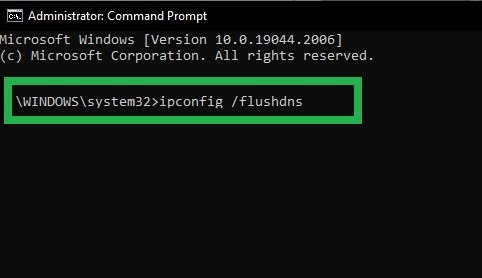
Step 5: And to apply changes, restart your system again.
For macOS:
Step 1: Click on the apple icon present on the top-left corner of your screen.
Step 2: Select the ‘Network’ option and then click on the ‘System Settings.’
Step 3: Click on the present internet connection and then click on the ‘Details’ option.
Step 4: Select TCP/IP and then renew the DHCP lease. After that, click on Apply and then select OK.
8. Restart Browser
If the browser you are currently using is facing any kind of trouble, close Google Chrome. Restart it and it will clear temporary glitches and refreshes network connections. After you restart the browser, try to access the website once again and check if the issue has been resolved.
also know: How to Fix Destiny 2 Servers Not Available in Windows PC
Frequently Asked Questions (FAQs)
Q1. Why am I not getting an IP address for my system?
Ans. You cannot find an IP address because of various reasons like misconfigured network settings, faulty hardware, inconsistent IP addresses, outdated router firmware, or any kind of device-specific bugs and errors.
Q2. What are the possible causes of the error ‘server IP address not found’ in your system?
Ans. The possible causes of the issue ‘server not IP address not found are:
- Defective network settings
- Inoperative network adapter
- Router or modem issues
- IP Configuration
- DNS Configuration
Q3. Does changing the DNS server fix the issue of the server IP address not being found?
Ans. Yes, switching the DNS server to Internet Service Provider (ISP) can easily fix the issues of server IP address not found on your server.
To fix the issue of the Server IP address could not be found can easily be resolved by using the methods mentioned in this article. And this can be used in Windows and macOS as well. And this is important to troubleshoot the problem and try different solutions to resolve this error.

