

Mobile hotspot is a savior when you are somewhere with a slow or unstable internet connection. It lets you share your WiFi, Ethernet, or cellular data over Bluetooth or WiFi, making your work or play go smoothly. However, the mobile hotspot not working on Windows 10 is a really frustrating situation, especially when you have no other way to have a fast and stable internet connection.
While frustrating, the issue is easily fixable. You can troubleshoot the mobile hotspot on Windows 10/11 with the tried and tested fixes in this article. However, before getting into troubleshooting, it is on point to answer why this problem has occurred in the first place. Understanding the causes of a problem makes it easier to solve it.
Why Is My Mobile Hotspot Not Working on Windows 10/11
Your mobile hotspot may not work on Windows 10 or 11, or you can’t set up a Windows 10 mobile hotspot due to an outdated network adapter driver, interference from Windows Defender Firewall or your antivirus, interference from startup applications, an inactive or disabled WiFi adapter, or the WiFi adapter not being recognized by Windows correctly.
Now that you have an idea about why Windows was unable to connect to a mobile hotspot, let’s help you fix it.
How to Fix Mobile Hotspot Not Working on Windows 11/10
You can fix the mobile hotspot not working on Windows 10/11 issue by changing the hotspot password, turning your mobile device off and on, installing the latest Windows updates, turning off Windows Firewall and antivirus temporarily, disabling Bluetooth, updating the network adapter driver, running the network adapter troubleshooter, running the wlan start command, resetting the wireless adapter, performing a clean boot, and resetting your network settings.
However, before implementing these solutions, try connecting the hotspot to some other device to check if the problem is only happening on your computer or phone or with other devices as well. If the issue is only occurring on your PC and not the mobile hotspot.
Once sure about the problem, you can apply the following fixes sequentially until it is solved.
Fix 1: Try these quick hacks
Before moving to more complex troubleshooting, try these quick fixes to see if they can solve your problem.
- Change your hotspot password
- Turn your mobile device on and off
- Update Windows. To install the latest Windows updates, follow the path Windows + S key > search for and open “check for updates” > click the “check for updates” button > click “download & install” > wait for the update to complete > restart your PC.
Fix 2: Enable the internet sharing
Disabled internet sharing can be the reason the mobile hotspot is unavailable. Hence, here is how to enable it.
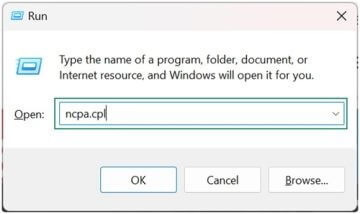
- Press Windows + R.
- In the Run box, type ncpa.cpl and click OK.
- Right-click the Hotspot Network adapter (named something similar to virtual adapter).
- Click Properties.
- Click Sharing in WiFi Properties.
- Next, click Allow other network users to connect through this computer’s internet connection.
- Click OK and exit the WiFi Properties window.
Also know: How to Fix Spotify No Internet Connection Issue
Fix 3: Restart your hotspot service
Restarting the hotspot service can help if the mobile hotspot is not working on Windows 10/11. You can follow the steps below to restart it.
- Press Windows + R.
- Type services.msc in the Run box and click OK.
- Find and double-click the Windows Mobile Hotspot service.
- Click Startup type and change it to Automatic.
- Next, click Start in the Service Status.
- Lastly, click Apply and OK.
Fix 4: Turn off Windows Firewall and antivirus temporarily
Windows Firewall or antivirus software can block the mobile hotspot. Hence, temporarily disabling the Firewall and antivirus can help troubleshoot the Windows 10 mobile hotspot. The exact steps to disable the antivirus software vary by antivirus, and you may need to check your antivirus manual to do so. Below are the steps to turn off the Firewall in Windows.
- Click the Start button.
- Type Control Panel in Windows search and click the first result.
- Click System and Security.
- Next, click Windows Defender Firewall.
- Click Turn Windows Defender Firewall on or off in the left pane of the screen.
- Next, click the check box to turn off Windows Defender Firewall for Domain network settings, Private network settings, and Public network settings.
- Lastly, click OK.
Fix 5: Disable Bluetooth on your computer
The Bluetooth connection can interfere with the mobile hotspot. Hence, you can follow these steps to disable Bluetooth on Windows to fix the Windows was unable to connect to a mobile hotspot issue.
- Press Windows + I to open Settings.
- Click Devices in the Settings panel.
- Next, click Bluetooth & other devices and toggle it off.
Also know: Best Productivity Apps for Windows
Fix 6: Update the network adapter driver
A driver is a software program that helps your network or WiFi adapter communicate with the operating system. An outdated driver can cause unstable hotspot behavior or become a reason Windows 10 is unable to connect to WiFi. Hence, here is how to update the driver.
- Right-click the Start button.
- Click Device Manager in the Start menu.
- In the Device Manager, double-click Network Adapters.
- Right-click your network adapter and then click Update Driver.
- Click Search automatically for drivers.
- Follow the on-screen prompts to complete the driver update.
- Lastly, restart your computer to allow the updated driver to take effect.
Fix 7: Run the network adapter troubleshooter
The built-in network troubleshooter in Windows detects common issues with WiFi, IP configuration, Ethernet, sharing, adapter status, and DNS automatically. Running this troubleshooter can help fix the mobile hotspot fatal error in the system. Below is how to run it.
- Press Windows + I to access Settings.
- Click System in the Settings panel. Windows 10 users click Update & Security.
- Next, click Troubleshoot.
- Windows 11 users click Other Troubleshooters. Windows 10 users click Additional Troubleshooters.
- Click Internet Connections and then click the Run button.
- Follow the on-screen instructions and then check if this solves the problem.
- If the problem remains unsolved, click Network Adapter in the list of troubleshooters and then click the Run button.
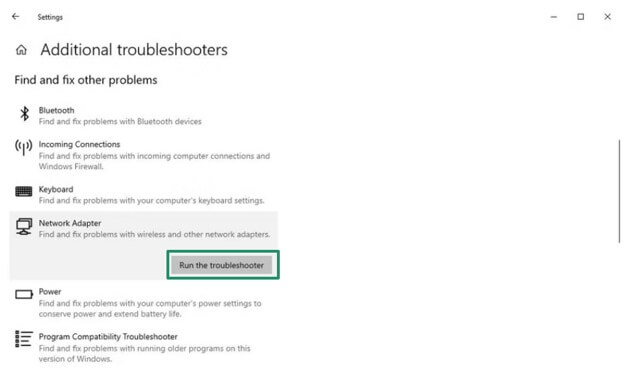
- Lastly, follow the on-screen instructions to complete the troubleshooting.
Fix 8: Use the wlan start command
The wlan start command allows you to share your internet connection with other wireless devices. Below is how to run this command to fix the mobile hotspot not working on Windows 11/10 issue.
- Click the Start button.
- Type cmd in Windows search and right-click the first search result.
- Click Run as administrator to open Command Prompt.
- In the Administrator Command Prompt, copy and paste the following commands one by one. Press Enter after each command, and remember to change your ssid name and password to your actual SSID name and password.
netsh wlan show drivers
netsh wlan set hostednetwork mode-allow ssid=your ssid name key=your password
netsh wlan start hostednetwork
Fix 9: Reset your PC’s wireless adapter
Resetting the system’s wireless adapter can fix random bugs that may be the reason Windows 10 is unable to connect to WiFi. You can follow the steps below to perform the wireless adapter reset.
- Right-click the Start button.
- Click Device Manager.
- In the Device Manager, double-click Network Adapters.
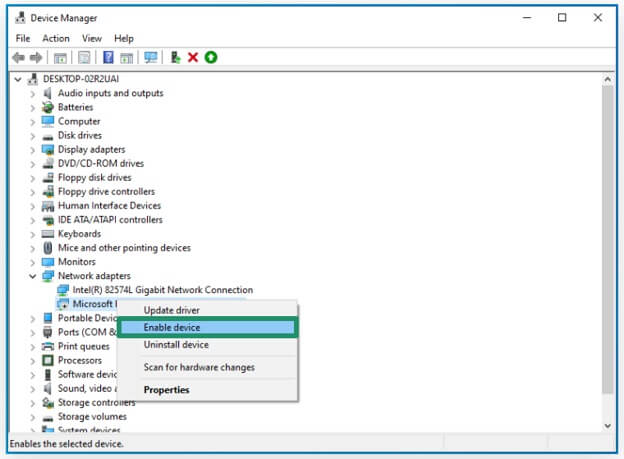
- Right-click the Wireless Network Adapter and then click Disable Device.
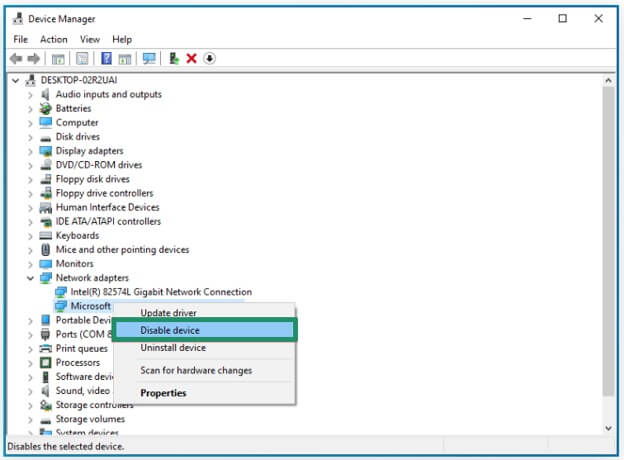
- After disabling the device, re-enable it by right-clicking the Wireless Network Adapter and then selecting the Enable Device option.
Fix 10: Clean boot your PC
A clean boot disables the startup applications interfering with Windows services, such as Internet sharing. The following are the steps to perform a clean boot to fix the mobile hotspot is unavailable issue.
- Press Windows + R.
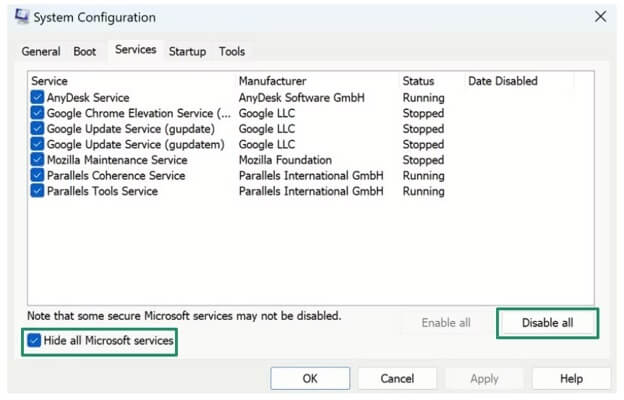
- In the Run box, type msconfig and then click OK.
- In the Services tab, click the Hide all Microsoft services box and then click Disable All.
- Next, in the Startup tab, click Open Task Manager.
- In the Task Manager, click the Startup tab.
- Select each program and then click Disable.
- Exit the Task Manager and go back to the System Configuration window.
- Click OK and restart your computer.
Also know: Apple Mobile Device USB Driver Download and Install in Windows
Fix 11: Reset network settings
If you have recently updated your Windows or installed any application that made changes to the network settings, or changed your network settings yourself, they may have caused the Windows hotspot not working on Windows 11/10 issue. Hence, you can follow these steps to reset your network settings.
- Click the Start button.
- Type cmd in the search bar, right-click the first search result, and then click Run as administrator.
- Next, copy and paste the following commands one by one and press Enter after each command.
netsh int ip reset
netsh winsock reset
That’s how you can reconnect with your mobile hotspot. However, if the mobile hotspot not working on Windows 10 problem remains unsolved, or you have any questions or concerns about the guide above, you can write us a comment. We will try to help you the best we can.
Frequently Asked Questions
Q1. Why won’t my PC allow mobile hotspot?
An outdated driver, a disabled internet connection sharing service, or an adapter that does not support hosting can be the reasons you can’t set up Windows 10 mobile hotspot.
Q2. How to fix a PC hotspot?
To fix your PC hotspot, you can update your network adapter driver. To update the driver for your network adapter, follow the path Device Manager > Network Adapters > Right-click your network adapter > Update Driver > Search automatically for drivers > follow the on-screen prompts > restart your computer. For details and more solutions, you can check the above guide.
Q3. How to enable hotspot in Windows 10 blocked by administrator?
You can enable a grayed-out Windows 10 mobile hotspot or a mobile hotspot blocked by an administrator using the Registry Editor or Command Prompt. However, ensure to back up your Registry and important files before enabling the hotspot, as Registry changes can damage your system if performed incorrectly.
