

Bluetooth allows you to connect your device to another device wirelessly. But the range of Bluetooth is quite low and limited, which affects connectivity and execution. But there are ways to extend the Bluetooth range in your system. There are Bluetooth extenders for PC to extend the Bluetooth range to enhance connectivity and performance. You sometimes need a Bluetooth extender for a PC to extend the Bluetooth range.
In this article you will understand multiple ways to boost Bluetooth signal in your system to increase connectivity.
Why the Range is Not Wide
You need to boost the Bluetooth signal because it has a limitation of 30 feet (10 meters) because it has very low-power radio waves. You need to increase Bluetooth range for Windows 10 & 11 because Bluetooth has a frequency of 2.4 GHz, and it has a low range and slow data exchange. There are a lot of different reasons, like Bluetooth missing from Device Manager, interference between Wi-Fi routers, Bluetooth drivers, and Windows updates.
How to Increase Bluetooth Range in Windows 10 & 11
You need to extend the Bluetooth range in Windows 10 & 11 because of this short range for connectivity. You need a Bluetooth extender for your PC to increase the range, and for that, here are some of the methods compiled for you to boost the Bluetooth signal:
Method 1: Remove Interferences
To improve Bluetooth connections with Windows 10 & 11, you need to take away all the interfering factors like Wi-Fi routers. Generally, Bluetooth uses the radio waves for the 2.4 GHz to connect to other devices; likewise, the Wi-Fi routers use the same radio frequency. There is a need to boost Bluetooth signal sometimes to get out of this error.
Because of this reason, if your Bluetooth device is placed somewhere near the Wi-Fi router, then it might create a disturbance in connectivity to the device. So, try to keep the router at a certain distance so that it does not affect the connectivity of the Bluetooth device.
If you cannot extend the Bluetooth range after using the above method, then here is something else you can try to do so.
Also know: Generic Bluetooth Radio Driver for Windows 10, 11 (Download & Update)
Method 2: Update and Use Bluetooth Driver
For a Bluetooth booster for PC, you need to keep your Bluetooth driver up to date.
Step 1: In the search box present on your taskbar, type ‘Device Manager.’
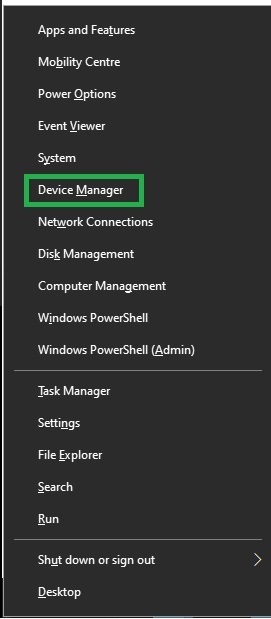
Step 2: Then for the Bluetooth booster for PC, go to the Bluetooth section and then right-click on the ‘Bluetooth Driver Name.’
Step 3: Select the ‘Update Driver’ option and click on the ‘Search Automatically for Update Driver’ software.
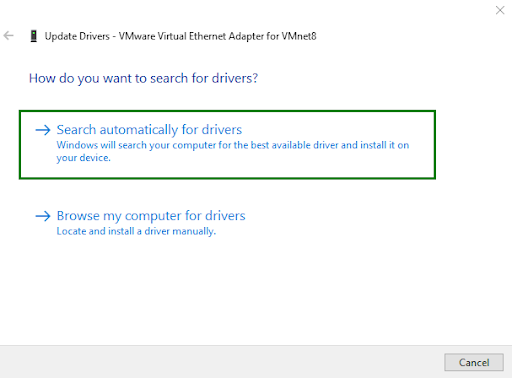
And now the Bluetooth range of your device has been updated successfully, and you can find the extend Bluetooth range in your system. If you cannot extend the Bluetooth range after using the above method, then here is something else you can try to do so.
If you face any kind of issue in Bluetooth connectivity, then to improve Bluetooth connection Windows 10 & 11, make sure to use a dedicated Bluetooth driver or any other external Bluetooth driver. For a Bluetooth booster for PC, if you face issues like this on your PC, then you might not even have any kind of internal Bluetooth driver. That is why it is important for you to use a Bluetooth driver to increase the Bluetooth range for Windows 10 & 11.
If you cannot extend the Bluetooth range after using the above method, then here is something else you can try to do so.
If you cannot extend the Bluetooth range after using the above method, then here is something else you can try to do so.
Method 4: Check for Updates
Another way to Bluetooth booster for PC is to keep your Windows up to date. And there are different ways to do so in both Windows 10 and Windows 11.
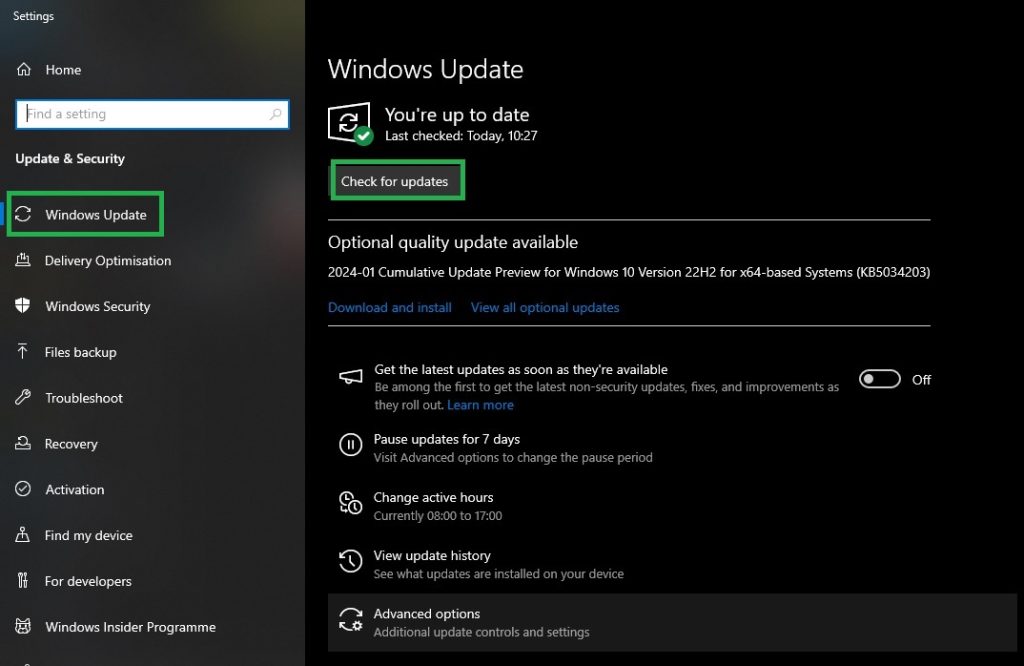
For Windows 10:
Step 1: Go to ‘Settings’ in your system.
Step 2: Search for ‘Update & Security.’
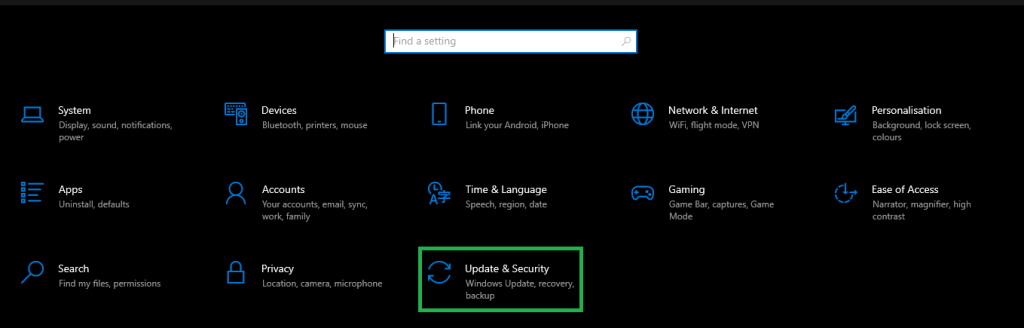
Step 3: On the right side of the screen, find the option for ‘Check Updates’ and install if you see any pending updates.
For Windows 11:
Step 1: Press the Windows button on your keyboard.
Step 2: Search for ‘Check for Updates’ and click on it; and the Windows will automatically scan for updates.
Step 3: Check if there are any updates available.
Step 4: If there are any updates available, then Windows will download updates automatically and restart your system to apply those updates.
Step 5: And if there are no updates available, then you will see ‘You are up to date.’
Here is how, after updating Windows there is no need to increase Bluetooth range for Windows 10 & 11 manually.
Method 5: Signal Amplification
Amplifying the signal helps to increase Bluetooth range in Windows 10 & 11 and by using the integrated amplifiers. The amplified signal enhances the point-to-point connection that delivers lower latency and helps simplify the mesh networks. Although it is necessary for the developers to balance the gain of energy consumption and real-world testing which validates battery life.
If you cannot extend the Bluetooth range after using the above method, then here is something else you can try to do so.
Also know: Fix Connections to Bluetooth Audio Devices and Wireless Displays in Windows 10
Method 6: Bluetooth Mesh
For Bluetooth extender for PC, you can enable it by communicating the transforming devices into the nodes that pass messages hop by hop until they reach their designated node. But to extend Bluetooth range, you can make multiple paths to approach the designation to deliver the messages.
To create a Bluetooth mesh, there are two key features considered: Low Power Node and a ‘friend’ mode. The friend mode helps to avoid constant active listening and to wake the node timely, and the low power mode helps in reducing power consumption.
Frequently Asked Questions (FAQs)
Q1. What are the ways to extend the Bluetooth range for the system?
Ans. To extend Bluetooth range, here are some of the methods you can use:
- Use a Bluetooth driver.
- Make sure to keep your Windows up to date
- Increase transmit power.
- Optimize antenna design
- Reduction of interference
- Using a mesh network
Q2. Are there any Bluetooth range extender to increase Bluetooth range Windows 10 & 11?
Ans. Yes, there are some of the Bluetooth extenders for PC to increase your range in the device, and for that you can use Bluetooth repeaters or mesh network. These extends the range of your Bluetooth, but they ads a lot of complexities in your devices.
Q3. What are the physical factors that affect the Bluetooth range?
Ans. The following are the physical factors you need to take care of that might affect the Bluetooth range. Keep away the Wi-Fi router, and other devices that have a frequency of 2.4 GHz.
Here we see some methods to improve Bluetooth connection Windows 10 & 11 and to extend Bluetooth range in your device. And after you extend the Bluetooth range, you can simply enhance the wireless connectivity of your system. Using these methods, you can simply extend the Bluetooth range and keep your Bluetooth device maintained.
