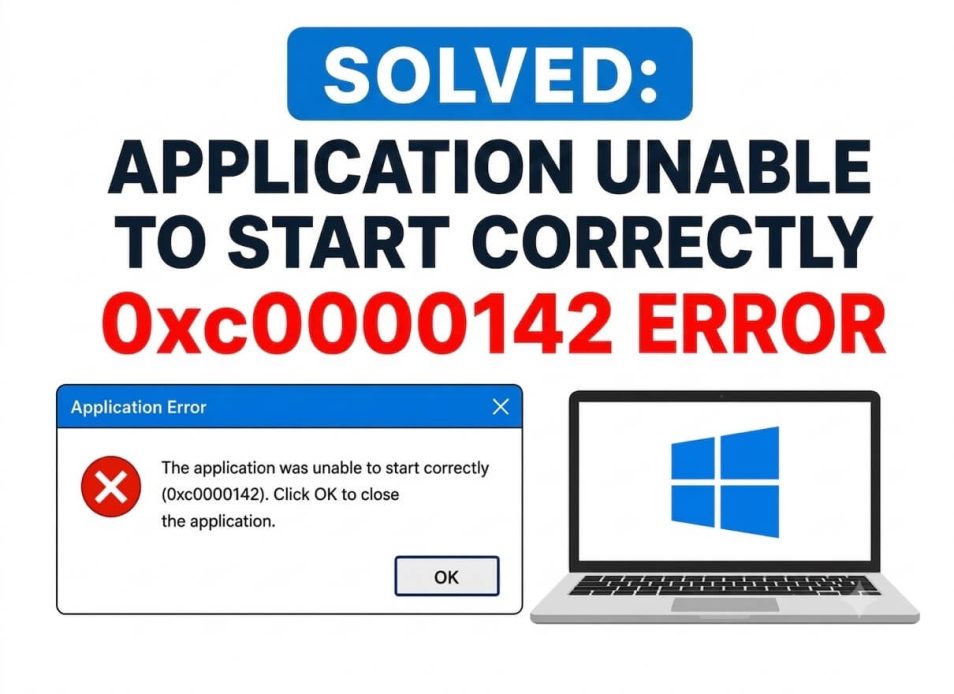
The “application unable to start correctly” 0xc0000142 error code is a problem for many Microsoft Office users, PC gamers when trying to launch games from Steam and other launchers, and software such as Adobe. Understandably, this error can be frustrating, especially when you are trying to access an important app or are excited to play your favorite game. However, it is also easy to solve with the tried-and-tested fixes in this article.
This article guides you through the most effective solutions, ranging from a quick PC restart to reinstalling the application. However, before beginning troubleshooting, it is helpful to understand what may have caused the error in the first place.
Application Unable to Start Correctly 0xc0000142 Causes
App permission issues, corrupt system files, and DLL loading failure are the top reasons for apps like Outlook 0xc0000142 error, in addition to the following causes.
- Conflict between Windows updates and existing applications
- Application compatibility issues
- Windows Registry problems
- Incompatible or outdated drivers
Now that you are familiar with the causes of the application error code 0xc0000142 in Windows, let’s help you fix it.
How to Fix the Application Unable to Start Correctly 0xc0000142 Error
You can fix the error 0xc0000142 by restarting your PC, starting the app as an admin, changing your system’s locale, re-registering DLL files, running SFC and DISM scans, clean booting your PC, updating drivers, editing the Registry, reinstalling the Microsoft Visual C++ Redistributable packages, reinstalling the Microsoft .NET Framework, updating Windows, or reinstalling the application. Almost all of these fixes are safe and will not affect your personal files. However, for steps involving system changes like editing the Registry or reinstalling software, it is a good idea to back up your important data first. Below are these fixes explained sequentially. Start with the first fix and stop when the problem disappears.
Fix 1: Restart your computer
Restarting the PC fixes temporary bugs, resets processes, and reloads crucial system components. It can also fix the memory issues, app conflicts, and problematic updates responsible for the “application unable to start correctly” 0xc0000142 error code. Hence, follow the steps below to reboot your computer.
- Right-click the Start button.
- Hover over Shut down or sign out.
- Click Restart in the menu that appears.
Fix 2: Start the application as an administrator
Some applications need administrative permissions to access system files and function correctly. The absence of these permissions can trigger the application error 0xc0000142. Below is how to run the application as an administrator to fix this issue.
- Right-click the app or game.
- Click Properties in the on-screen menu.
- Navigate to the Compatibility
- Click the Run This Program as an Administrator
- Click the Run This Program in Compatibility Mode For checkbox.
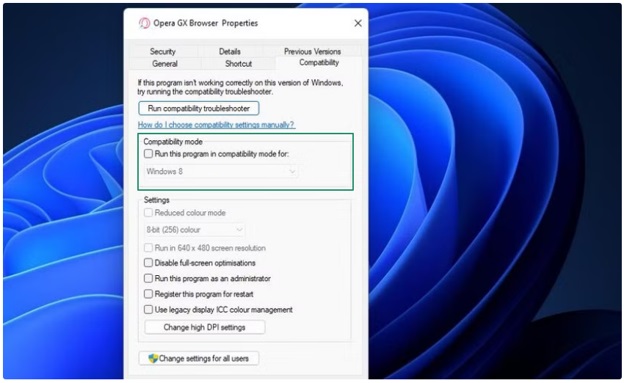
- Choose Windows 7 or Windows 8 from the menu that appears.
- Lastly, click Apply and Ok.
Also know: Solve WHEA Uncorrectable Error in Windows
Fix 3: Change your system’s locale
Changing the current system locale can solve compatibility issues. A mismatch between the system’s locale and the application’s needs can cause errors like the one you are trying to fix. Hence, you can follow the steps below to adjust the system locale so that the program has the correct format and language settings.
- Click the Start button.
- Type Control Panel in the search bar that appears.
- Click the first search result to open the Control Panel.
- In the Control Panel, click the View By dropdown and select Small Icons from the options that appear.
- Click Region in the available options.
- Next, click the Administrative tab and then click Change System Locale.
- Choose your region.
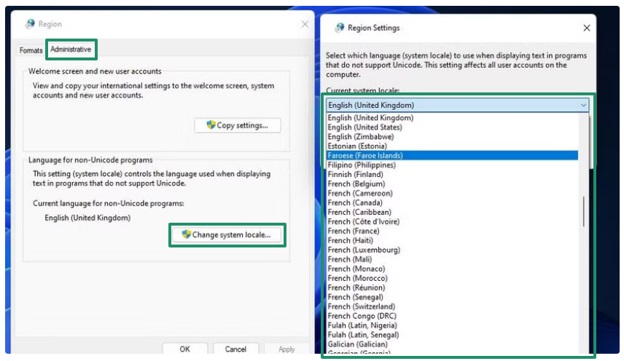
- Lastly, click Apply and OK to save the changes.
Fix 4: Re-register DLL files
Windows failing to launch the necessary DLL files is another reason you get an Outlook 0xc0000142 error code. Re-registering the DLL files makes Windows recognize and associate these files with their functions, fixing the error. If you are not an experienced user, please be cautious with this step. While re-registering DLLs is generally safe, making mistakes while working with system files can cause other issues. If you are unsure, consider skipping this fix or seeking help from a knowledgeable friend or IT professional. The following are the steps to re-register these files to solve problems related to missing, corrupted, or outdated libraries.
- Press Windows + R to open the Run utility.
- Type cmd in the Run box and press
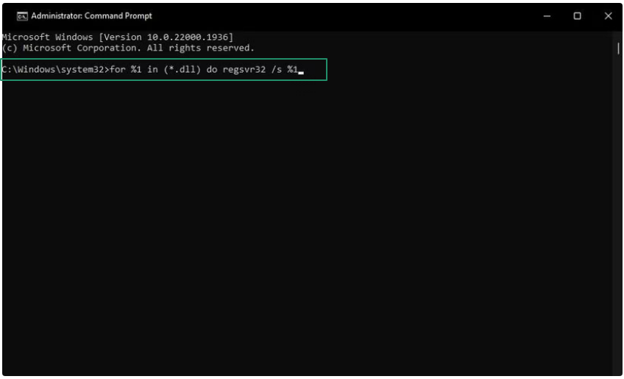
- Copy and paste the command below and press Enter.
for %1 in (*.dll) do regsvr32 /s %1
Fix 5: Run an SFC (System File Checker) and DISM (Deployment Imaging Servicing Management) scan
The “application unable to start correctly” 0xc0000142 may be a result of corrupted DLL (Dynamic Link Library) files. Below is how to run the SFC and DISM tools to fix these issues.
- Click the Start button.
- Type cmd in the search bar.
- Right-click the first search result.
- Click Run as administrator.
- In the Administrator Command Prompt, copy and paste the following command.
sfc /scannow
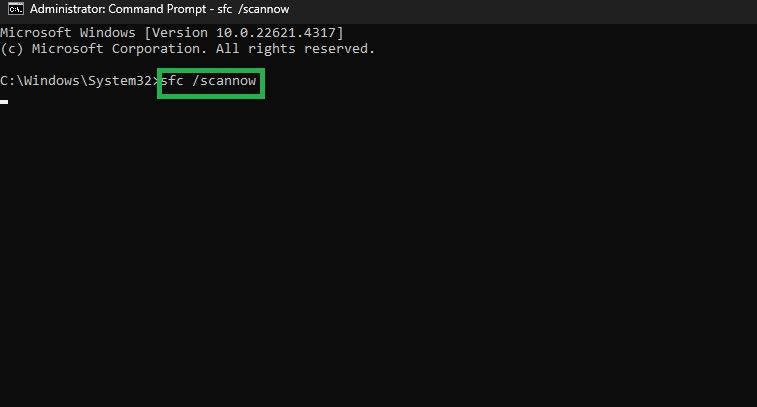
- Press
- Copy and paste the following command into the Administrator Command Prompt.
DISM.exe /Online /Cleanup-image /Restorehealth
- Press
- Lastly, restart your computer after completing the above process.
Also know: How to Fix Windows Update Error 0x80070643
Fix 6: Clean boot the PC
A clean boot separates conflicting background software or processes from the application startup by allowing only necessary services and programs to run. You can follow the steps below to clean boot your computer to fix the 0xc0000142 error code.
- Click the Start button.
- Type MSConfig in the search bar.
- Click System Configuration in the search results.
- In the System Configuration window, click Selective Startup.
- Click the Services
- Next, click the Hide all Microsoft services
- Click Apply and
- Lastly, restart your PC.
Fix 7: Update drivers
A driver is software that helps a hardware device and the operating system on your computer communicate. You may run into the 0xc0000142 application error if the graphics driver on your PC is outdated or corrupted. Hence, the following are the steps to update it.
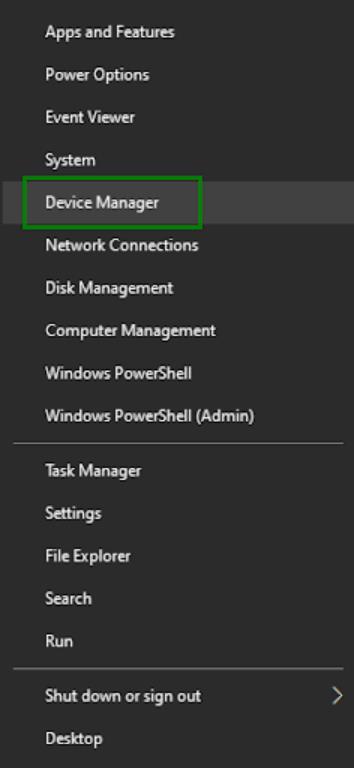
- Right-click the Start button.
- Click Device Manager.
- In the Device Manager, double-click Display Adapters.
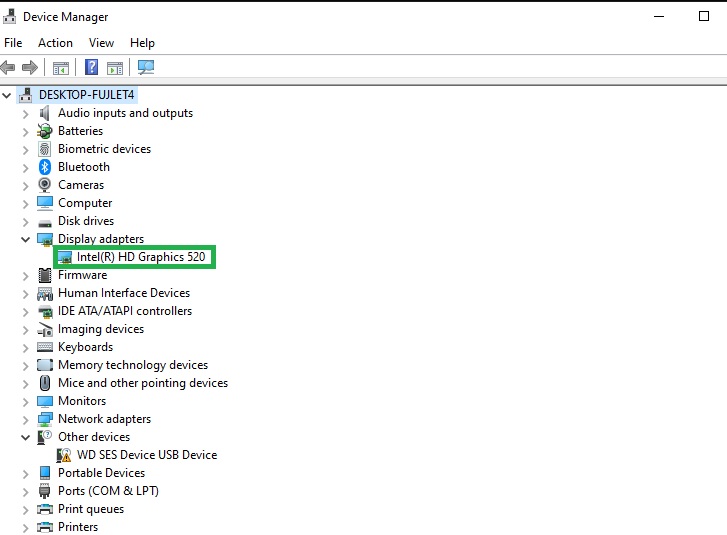
- Right-click your graphics card and then click Update Driver.
- Next, click Search automatically for drivers.
- Follow the instructions to download and install the latest graphics driver.
- Lastly, restart your computer to complete the driver update process.
Fix 8: Edit the Registry
Registry modifications can fix the system library or app issues that prevent an application from starting correctly. Hence, the following steps explain how to modify the Registry file. However, before making any changes to the Registry, create a backup, as a single wrong step can cause system issues.
- Click the Start button.
- Type cmd in the search bar.
- Right-click Command Prompt in the search results and then click Run as administrator.
- In the Administrator Command Prompt, copy and paste the following command.
reg add “HKEY_LOCAL_MACHINE\SOFTWARE\Microsoft\Windows NT\CurrentVersion\Windows” /v “LoadAppInit_DLLs” /t REG_DWORD /d 0 /f
- Lastly, press Enter and check if the issue is fixed. If not resolved, move to the next fix.
Fix 9: Try reinstalling Microsoft Visual C++ Redistributable packages
Microsoft Visual C++ Redistribution package reinstallation restores damaged or missing files necessary for the smooth functioning of applications. Without the essential program components in these packages, or if these elements are broken, applications might not start. Thus, you can follow the steps below to reinstall these packages.
- Click the Start button.
- Type Control Panel in the search bar.
- Click the first search result to open the Control Panel.
- In the Control Panel, click Uninstall a program in Programs & Features.
- Next, click Microsoft Visual C++ and then click
- Lastly, download and install the latest Microsoft Visual C++
Fix 10: Reinstall the Microsoft .NET Framework
Reinstalling the Microsoft .NET Framework fixes the problems that prevent apps from launching. If this framework, required by many applications to function correctly, is corrupted or outdated, you may get the “application unable to start correctly” 0xc0000142 error code. Thus, below are the steps to refresh the Microsoft .NET Framework to fix this issue.
- Press Win + R.
- In the Run window, type Control and press
- In the Control Panel, click Programs & Features.
- Click Turn Windows features on or off in the left sidebar.
- Find and uncheck .NET Framework and click
- Check the .NET Framework again to reinstall it or download its latest version from the official Microsoft website.
Fix 11: Update Windows
Outdated versions of Windows lack the stability necessary for the smooth functioning of various apps. Moreover, they may be incompatible with many apps. Windows updates bring the required patches and fixes for issues like software conflicts and corrupt files, improving system performance. Thus, here is how to update Windows.
- Click the Start button.
- Type check for updates in the search bar.
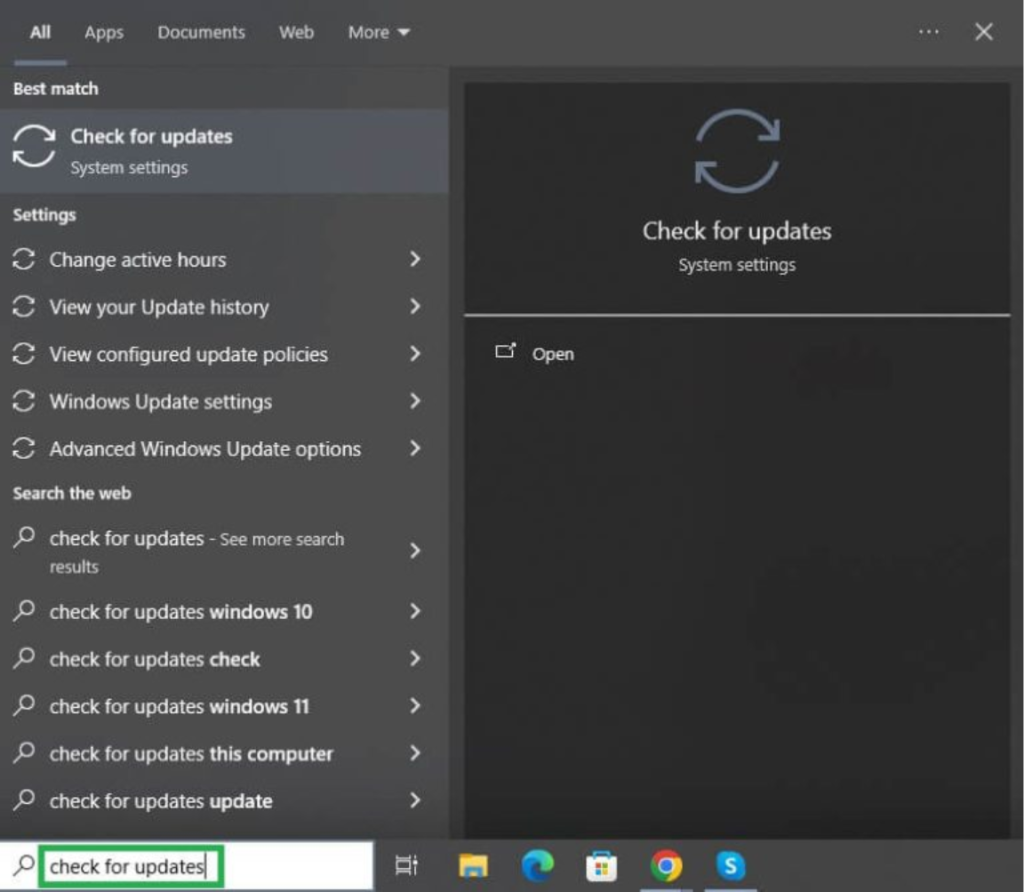
- Click the first search result to open it.
- Next, click the Check for updates button to find the latest available updates.
- Click Download & Install to get the latest updates downloaded and installed.
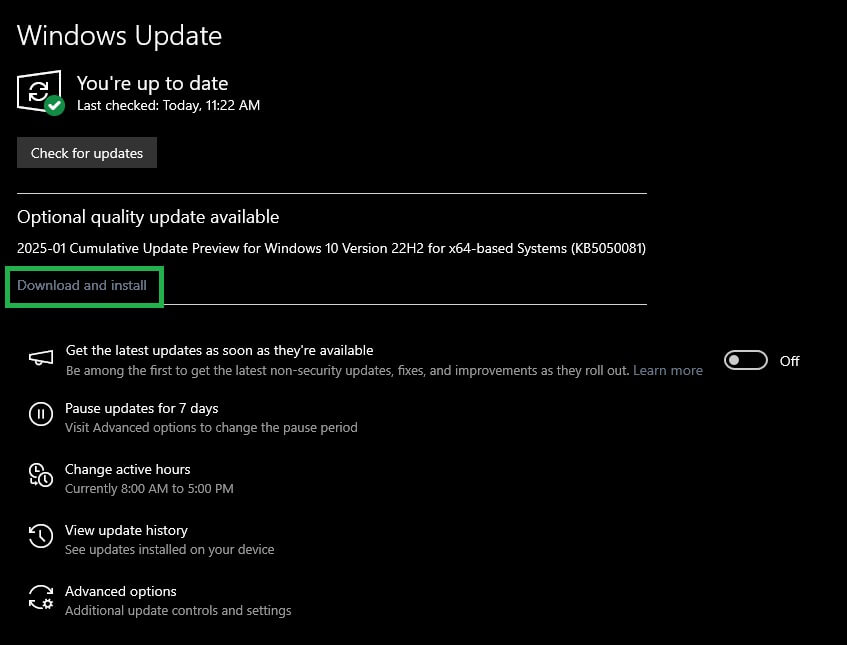
- Lastly, restart your PC to complete the update.
Also know: How to Fix the ERR_GFX_STATE Error on Red Dead Redemption
Fix 12: Reinstall the app
If none of the above solutions fix the 0xc0000142 error, reinstalling the game or application is the last thing you can do. Reinstalling the app or game fixes file problems, resets the software to its original settings, and makes the app function smoothly.
Hopefully, this helps you fix the 0xc0000142 error code. However, if the problem remains unsolved and the application is unable to start correctly, you can seek professional help.
Frequently Asked Questions
Q1. What does it mean when the app was unable to start correctly 0xc0000142?
The app was unable to start correctly 0xc0000142 error means your operating system failed to initialize the app you are trying to access. This could happen due to reasons such as missing system components, conflicts with other programs, corrupted files, and problems with user account control settings.
Q2. How to solve application error 0xc0000142?
To fix the application was unable to start correctly 0xc0000142 error, reinstall the app as an administrator and ensure your .NET Framework and Microsoft Visual C++ Redistributable are up-to-date and repaired. For more detailed and effective solutions, check the guide above.