

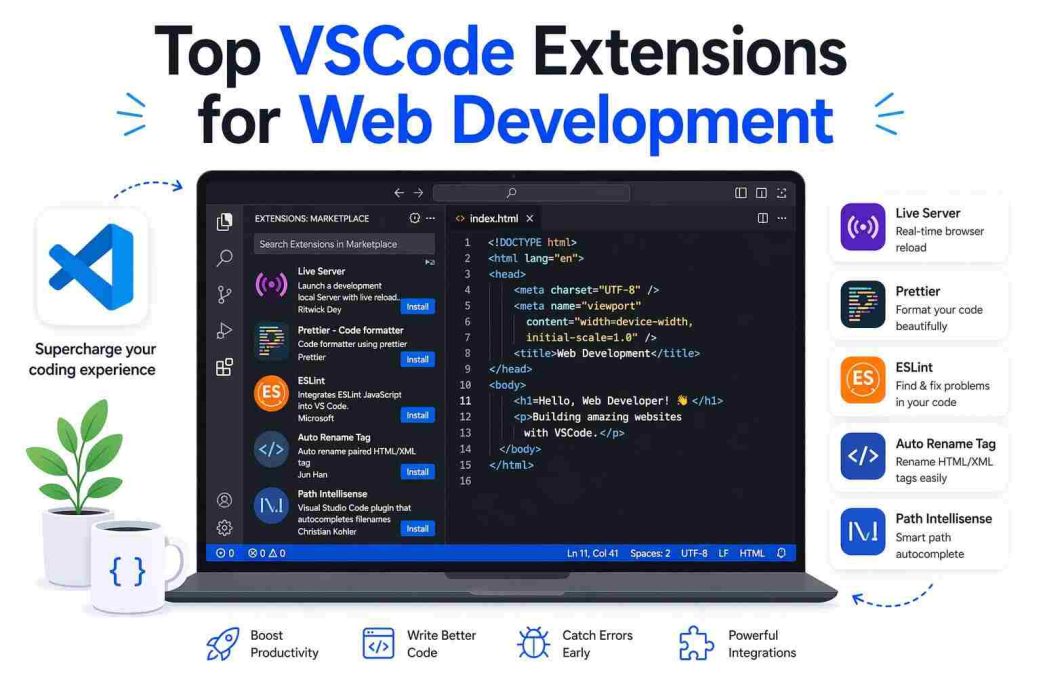
VSCode (Visual Studio Code) is a free and open-source Integrated Development Environment (IDE) by Microsoft with intelligent code completion, suggestions, error highlighting, debugging, terminal, Git, and multi-language support. However, developers no longer rely on VSCode alone; they customize it with the best VSCode extensions and AI coding tools to automate common tasks, such as formatting, linting, or debugging (to focus on what matters the most, i.e., writing code), and improve the coding speed and accuracy.
The best extensions for VSCode are software components that widen the functionality and features of your VSCode IDE. These extensions, built using HTML, CSS, JavaScript, and other web technologies, are easily installable and manageable from within your IDE.
However, if choosing the right extension feels confusing, you can read this article to know the must-have VSCode extensions that are most useful for developers to address various development challenges. Whether you are working on microservices, AI agents, or web applications, these extensions help you code faster, better, and enhance your overall experience.
We selected these extensions considering multiple factors, such as how easy they are to use, whether they can be customized, their review and ratings, when they were updated last, permissions they request, and, of course, our hands-on experience with them. Let’s get started with a quick glimpse before a full review to help you choose one if you are short on time.
Best VS Code Extensions: A Quick Look
| Extension | Category | Best For | Key Function | Primary Advantage |
| Prettier | Code Formatter | Microservice and mono-repo environments | Automatic code formatting with style enforcement | Clean and readable code, easy team collaboration, seamless working with HTML, JavaScript, React, and CSS |
| Live Server | Front End Development | Server-side web pages | Real-time browser updates and custom configuration options | Automatic refresh for HTML/CSS changes, fast experiments, and easy mocking up websites |
| Remote – SSH | Remote Development | Remote environments and remote servers | Working with remote servers over SSH | Secure code editing on remote servers, easy working with cloud environments, seamless connection setup via SSH |
| Docker | Container Tools | Docker containers | Building, managing, and deploying Docker containers | Fast Docker access, Azure CLI integration, one-click debugging |
| Copilot | AI Coding Assistant | Developers using natural language | AI-powered code suggestions and completion | Real-time context-aware code suggestions, faster coding, no need to search for syntax or examples |
What Are the Best VSCode Extensions (Full Review)
The best Visual Studio Code extensions include Prettier, Live Server, Remote – SSH, Docker, and Copilot. Each of these extensions has unique strengths that make it the most useful for modern developers.
For example, Prettier automatically formats your code to help you save approximately two to three hours per week. Live Server refreshes your browser instantly for frontend tasks to save around one to two hours per week. Remote – SSH makes it easy for you to connect to and edit code on remote machines directly inside VSCode. Docker lets you manage containers, volumes, and images from VSCode itself. Copilot is the AI pair programmer that saves you nearly three to five hours a week with its code suggestions and completions. Let’s now look at these extensions in detail so you can choose the one you need.
1. Prettier
With over 40 million installations, Prettier is one of the best VSCode extensions to improve code readability. This opinionated extension for code formatting and style enforcer eliminates code style debates by formatting your code automatically on save. Moreover, it supports multiple languages, such as JavaScript, HTML, TypeScript, JSON, and CSS, and has the following notable features.
Key features
- Integrates seamlessly with CI workflows and save actions.
- It ensures output consistency by converting code into an AST and printing it back.
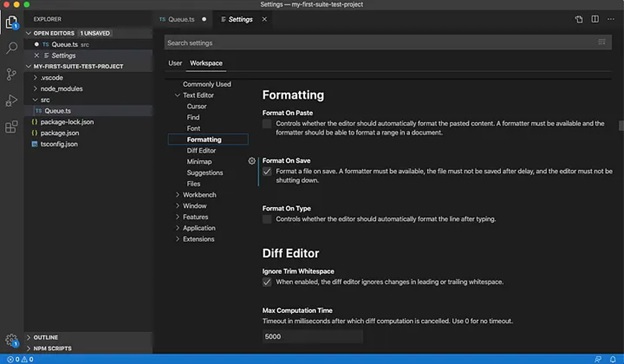
- You can activate “Format on Save” in the VSCode settings to create a .prettierrc configuration file in the project root, ensuring your entire team follows the same rules for formatting.
Also know: Best GitHub Alternatives
2. Live Server
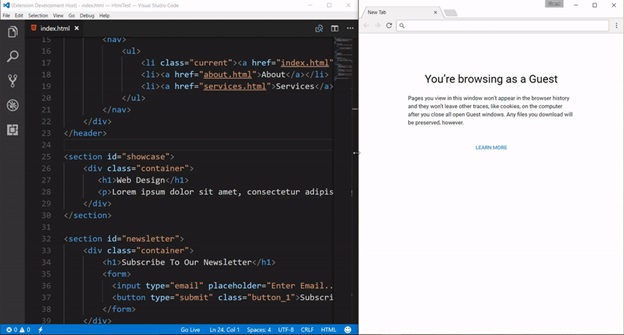
No context switching and an instant feedback loop are among the top reasons Live Server is among the most useful VSCode extensions to solve problems fast. With one click, it connects to a local server and reloads the browser automatically when you save a file, resulting in faster UI testing iterations, documentation page writing, and CSS layout reviewing. Moreover, the following features are also notable about Live Server.
Key features
- Any change made to the HTML, JavaScript, or CSS files is reflected instantly in the browser, accelerating the development workflow.
- There are custom configuration options, such as changing the port number or root folder settings.
- It allows you to preview changes easily across various screen sizes for responsive design testing.
3. Remote – SSH
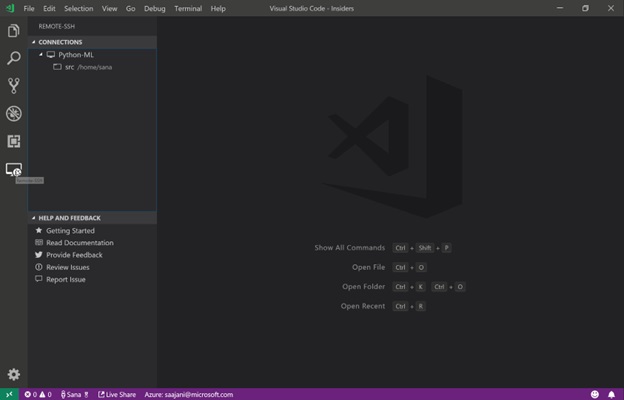
Remote – SSH VSCode extension is the best for those who work remotely or access remote servers. This extension allows you to connect to and develop on a remote machine using a local terminal. It runs different commands and extensions directly on your remote machine without a source code for easy remote development and debugging. Additionally, here are other features of Remote – SSH.
Key features
- It allows quick switching between environments.
- Easy machine access from multiple locations.
4. Docker
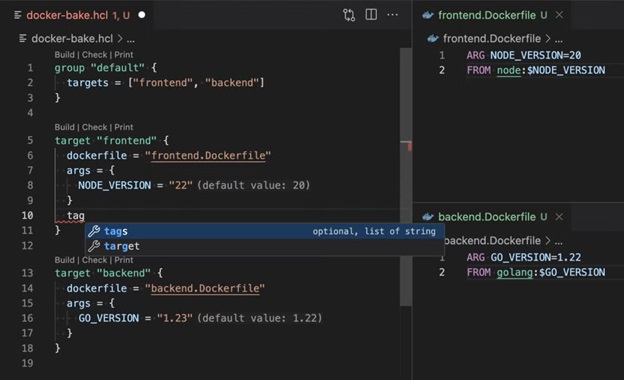
Docker finds a place among the top 10 VSCode extensions for those who use Docker containers. This extension makes building, managing, and deploying containerized apps from Visual Studio Code easier with the following features.
Key features
- You can use Docker to debug Python, Node.js, and .NET inside a container with one click.
- It lets you easily view, manage, and interact with containers, registries, and images.
- Docker allows you to start, stop, and inspect containers or get a shell inside with one click.
- You can generate an optimized Docker file and .dockerignore files automatically using the “Add Docker files to Workspace” command.
- It allows in-container debugging by setting breakpoints in the code and launching a debugging session in the running container itself.
5. Copilot
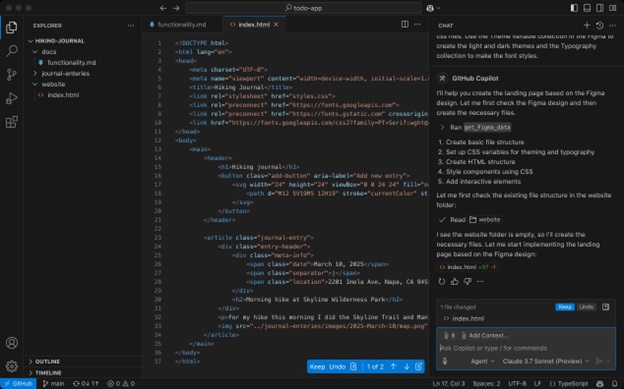
GitHub Copilot is an AI pair programming copilot that offers intelligent suggestions for code blocks or entire code lines. Integrated with OpenAI, it opens a vast open-source code repository for practical and contextually aware suggestions to improve coding speed and serve as a valuable learning tool to help you learn various coding patterns.
Moreover, it collaborates actively with developers working across complex workflows and offers the following features.
Key features
- It creates API documentation, function summaries, and docstrings with semantic understanding.
- You can use natural language prompts in plain English to debug, refactor, and generate entire modules.
- It is extensible with plugins and allows model finetuning for enterprises to ensure better privacy and accuracy.
That’s all for the best VSCode extensions you can use for more efficient coding with no cognitive load, better focus, and cleaner code. With so many extensions available in the VSCode Marketplace, it is also helpful to know the features you must consider to choose the most useful extension for your requirements.
Also know: Best Free PC Cleaner and Optimizer for Windows
How to Choose the Best VS Code Extensions (Key Features to Look For)
All the best, and the must-have Visual Studio (VS) Code extensions are the ones with the following key characteristics.
- It is well-maintained and lightweight, which does not impact the editor’s speed heavily.
- The extension is from a trusted publisher. Unknown extensions or those that ask for unnecessary permissions can be risky.
- It should fit into your workflow hassle-free.
- The best VSCode extensions allow for customization, such as customizing keyboard shortcuts to match your preferences, making you more productive.
- It lets you perform tasks, such as formatting, version control, and debugging, from within the editor, ensuring increased focus and saving you time switching between tools.
- The extension should help you find mistakes early by highlighting issues in the code right away and suggesting solutions.
- You should be able to collaborate with others by sharing code and leaving comments in real-time easily to work better as a team.
Once you select the right extension, getting started with it is simple.
How to Set Up the Best Extensions for VSCode
You can follow the quick setup guide below to get started with the best extensions for VSCode.
- Launch VSCode.
- Press Ctrl+Shift+X / Cmd+Shift+X or click the extensions icon.
- Search for and open your desired extension. You can also click the extension in this article to open it directly.
- Click the “Install” button to get the extension installed.
- Lastly, if prompted, reload Visual Studio Code.
Once you have set up the extension and started using it, a few effective tips can help you ensure productivity. To remain productive with the extensions, ensure you only have the extensions you actually need and use. Also, create separate profiles (for example, a profile for writing, one profile for web development, and another profile for Java) so that each profile loads only the required extensions. Moreover, keep the extensions updated, and remove unused extensions regularly for a fast VSCode.
Hopefully, you have a happy time coding with these extensions for VSCode. However, if you have any questions or concerns, do not hesitate to leave us a comment.
Frequently Asked Questions
Q1. Why do I need VSCode extensions?
While VSCode is an excellent, lightweight, and powerful IDE on its own, extensions help boost speed and efficiency, improve code quality, enhance readability, improve version control, and allow workspace customization by automating repetitive tasks, intelligent debugging, and supporting various programming languages.
Q2. Do extensions slow down VSCode?
VSCode extensions function in the background and can slow down VSCode if you have multiple extensions installed or if they have a functionality overlap. Moreover, poorly designed extensions can block the extension host or run unnecessary background tasks, causing slowdowns. Hence, periodically review your extensions and remove the ones you do not use. If there are any issues, you can identify and disable the problematic extension using the “Start Extension Bisect” feature.
Q3. Is it safe to use extensions on VSCode?
Well-maintained extensions from reputable publishers, like the ones mentioned in this article, are safe to use. Always review extension documentation and permissions, and do not install random extensions to ensure the safety of your workspace and editor APIs.
Q4. How often should I update VSCode extensions or remove them?
Review your extensions at least every 3 months to ensure you have the necessary performance improvements and security fixes, and to remove unused extensions to keep the editor fast.
